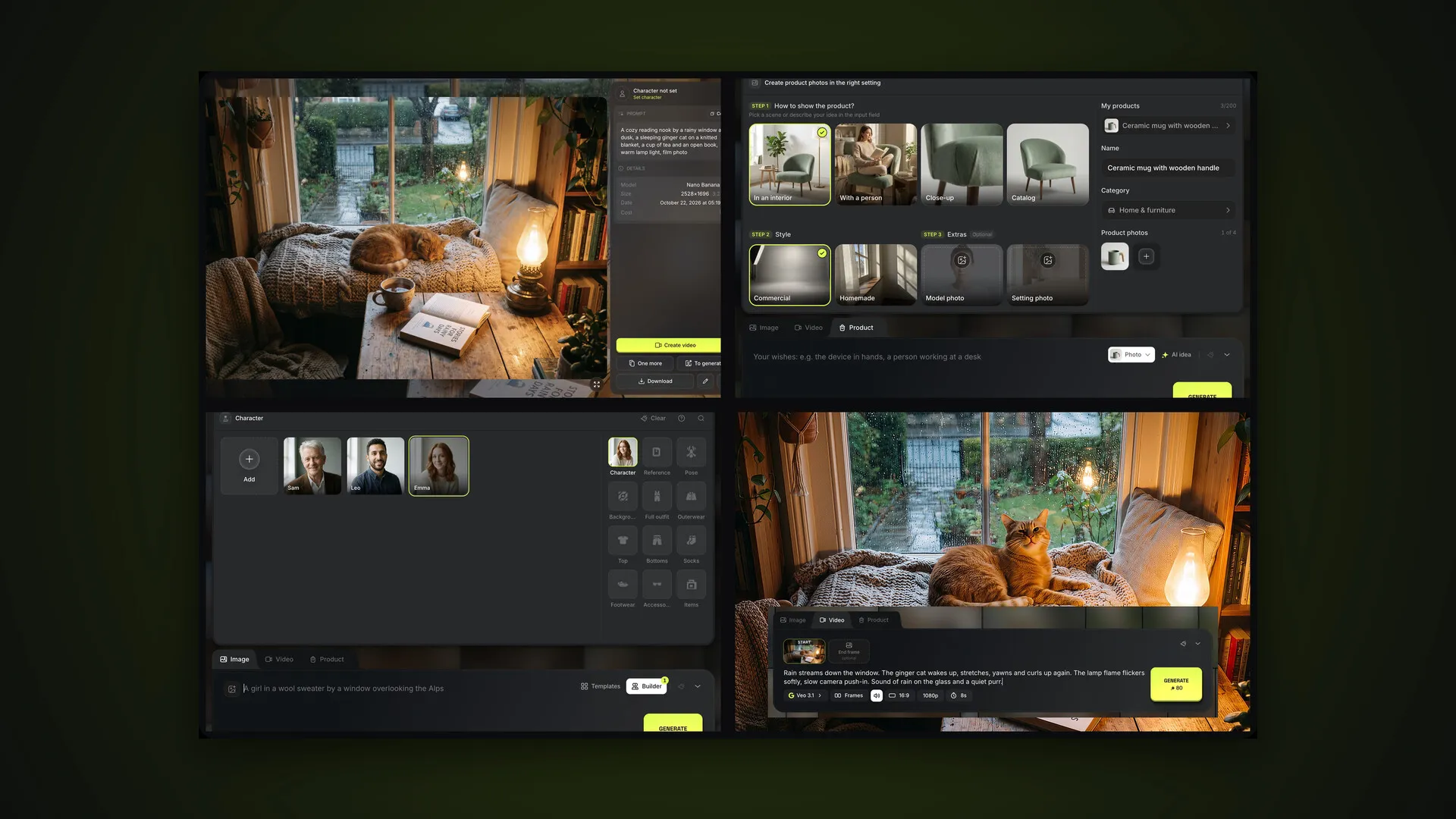




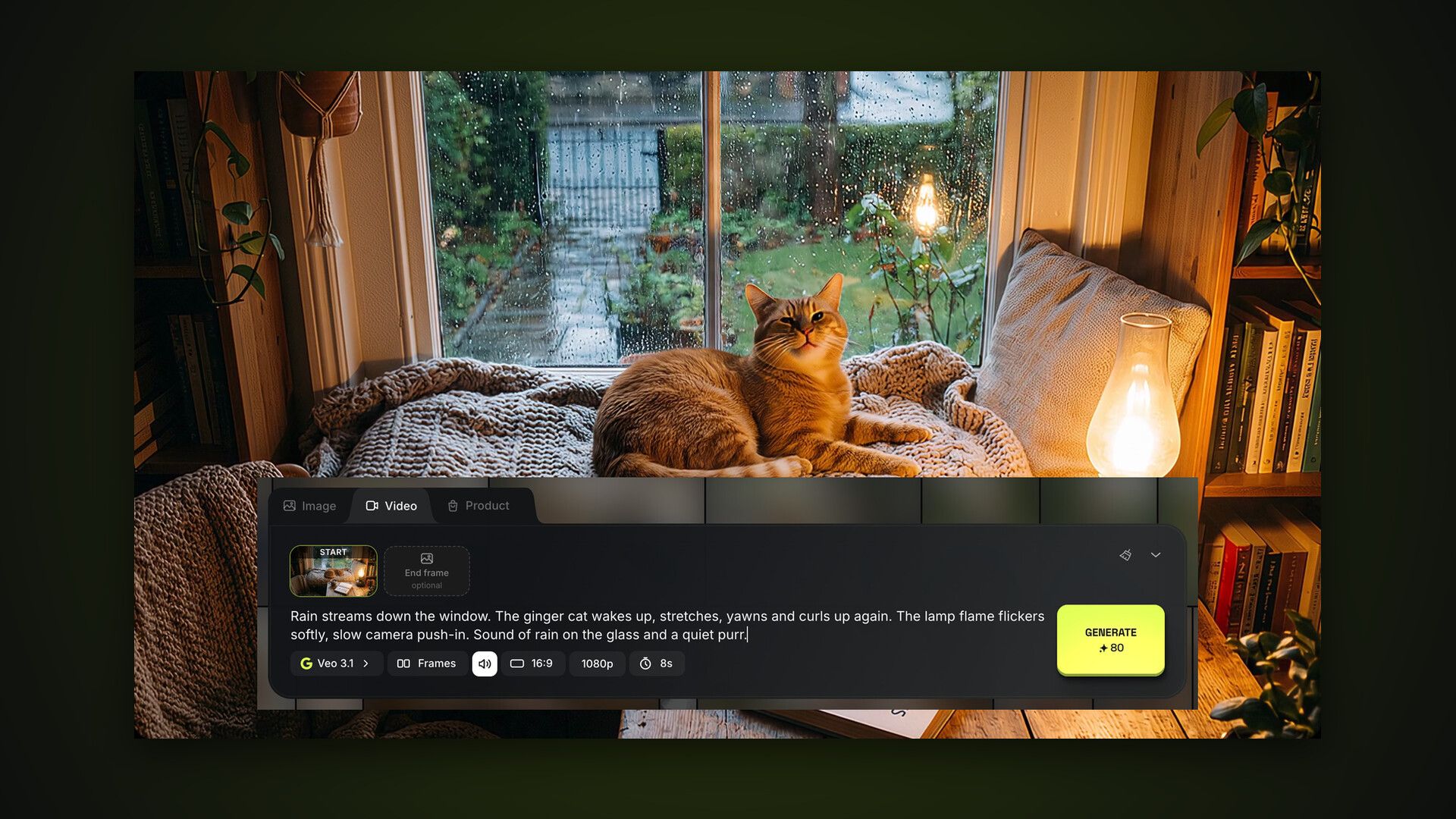
The Video tab lives in the same generator as images: same composer, same feed, but its own models and settings. This is part 2 of the AI2Face user guide. Prompts, attachments and the feed are covered in detail in part 1, image generation. Here we focus on what’s different for video.
How to open the AI2Face video generator
There are three ways in:
- the Video tab above the prompt field in the generator;
- Generate → Video in the top menu, which opens the right tab directly;
- Create video in the viewer of any image, which opens the tab with that image as the start frame.
Prompts and attachments are shared between tabs: a request you started on Image stays there when you switch to Video.
Which video model to choose
The button with the model name opens the list. Each model shows its maximum quality, duration and whether it supports sound.
| Model | Quality | Duration | When to use it |
|---|---|---|---|
| Veo 3.1 | up to 4K | 4–8 s | the final clip: the best motion and sound |
| Veo 3.1 Fast | up to 4K | 4–8 s | quick iterations before the final version |
| Veo 3.1 Lite | up to 1080p | 4–8 s | drafts and short social clips |
| Gemini Omni 1.1 Flash | 360p–4K | 3–10 s | clips from several photos and video references, characters; cheap 360p drafts |
We compared video models on identical scenes in our overview of AI video generators.
Video mode: References or Frames
The Mode button with the layers icon in the settings row sets what the clip is based on. If the selected model doesn’t support a mode, AI2Face switches to the first model that does.
References are photos and short clips the video should resemble: a person’s look, a product, a place, a style. With no attachments, the model works from text alone. Add attachments via “+” and refer to each in the prompt with a tag: @1 for a photo, @Name for a character. The counter above the field shows the model’s limit: up to 3 photos for Veo 3.1, up to 6 photos and one clip for Gemini Omni.
Frames animates a specific photo. Two slots appear above the prompt field: Start frame and an optional End frame. With only a start frame, the model continues the scene; with both, it creates a transition from the first to the second.
Video references can be MP4, MOV or WebM. From a long clip the model only uses the beginning — AI2Face tells you how many seconds when you upload it.
Sound, aspect ratio, quality and duration
To the right of the mode are four clip settings:
- sound — the speaker button: white when on, crossed out when off;
- aspect ratio — 16:9 landscape for YouTube and presentations, or 9:16 portrait for Reels, Shorts and TikTok;
- resolution — 720p, 1080p or 4K, within the limits of the model and your plan; Gemini Omni 1.1 Flash also offers 360p, a draft at a third of the 720p price;
- duration — 4, 6 or 8 seconds on Veo 3.1, any length from 3 to 10 seconds on Gemini Omni 1.1 Flash.
The cost on the Generate button updates with every change, so compare before you start.
How to write a video prompt
A video prompt describes not a picture but what happens over time. A handy order:
- Action — who does what, and in what sequence.
- Camera — static shot, slow push-in, orbit, handheld.
- Sound — ambience, music, dialogue in quotes.
Here’s the prompt for the clip below, with the photo from part 1 as the start frame:
Rain streams down the window. The ginger cat wakes up, stretches, yawns
and curls up again. The lamp flame flickers softly, slow camera push-in.
Sound of rain on the glass and a quiet purr.
Veo 3.1 performed every action in order and added the sound of rain. The source image was 3:2, so the 16:9 clip had dark bars on the sides, which we cropped out. To avoid them, create the start frame in the clip’s aspect ratio from the outset: 16:9 or 9:16.
For more on camera moves and sound, see our guides on how to animate a photo and free AI video generators.
Characters and products in video
In References mode, video works with the same characters as images: “+” → Characters, then an @Name tag in the prompt. You can see it in action in our guide to multiple characters in one shot, which includes a two-character clip made with Gemini Omni.
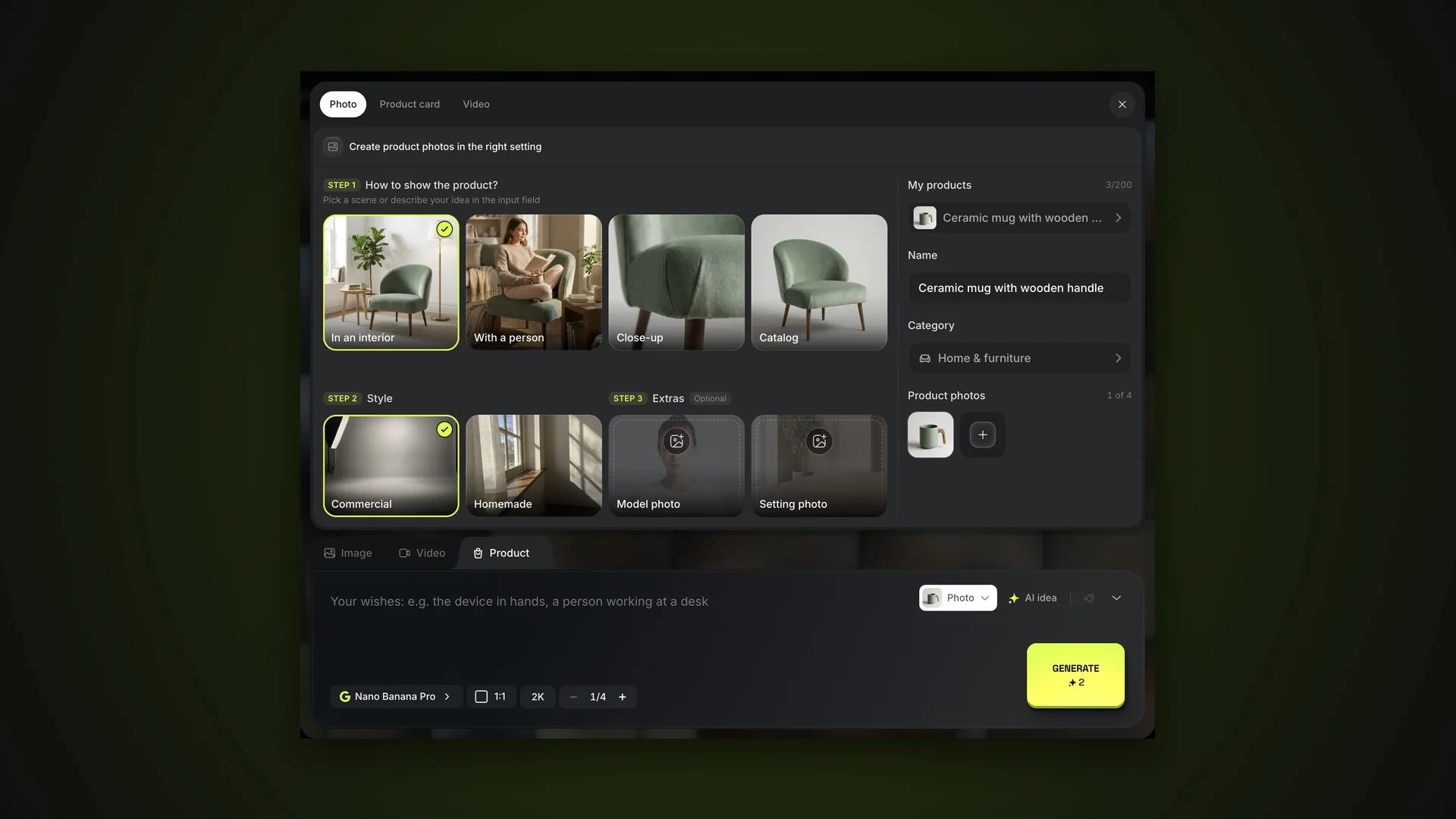
For videos from product photos there’s a dedicated mode on the Product tab, with looping, card mode and a final frame. It’s covered in the part on product photos and cards.
Your finished video in the feed
While the clip renders, an animated tile sits in the feed and the composer is free for your next request. Finished videos are marked with ▶ and their duration. In the viewer the clip plays with sound, and the buttons are the same as for images: download, repeat, edit, delete. The feed filter Type → Videos shows only clips.
Bottom line
For your first AI2Face clip, take an existing image, click Create video and describe what should move. Veo 3.1 is the main model; use Veo 3.1 Fast or Lite for quick tests, and Gemini Omni for clips with several people and video references. Create the start frame in the video’s aspect ratio and describe the sound in your prompt — that way the clip has no bars and isn’t silent. Next in the guide: product photos and cards.
FAQ
How long can AI2Face videos be?
3 to 10 seconds, chosen before you start. The options depend on the model: Veo 3.1 offers 4, 6 or 8 seconds, Gemini Omni 1.1 Flash any length from 3 to 10.
Can I animate my own photo?
Yes. Switch the source to Frames and set your photo as the start frame. For an image already in your feed, the quickest way is Create video in the viewer.
Do the videos have sound?
Yes, with all four models. Turn on sound with the speaker button in the settings row: the model voices the scene from your prompt — rain, footsteps, dialogue.
Can I put my own character in a video?
Yes, in References mode: attach the character via “+” → Characters and name them in the prompt with an @Name tag.
How much does a video cost?
It depends on the model, resolution and duration, and the cost is shown on the Generate button before you start. If the generation fails, your credits are refunded.