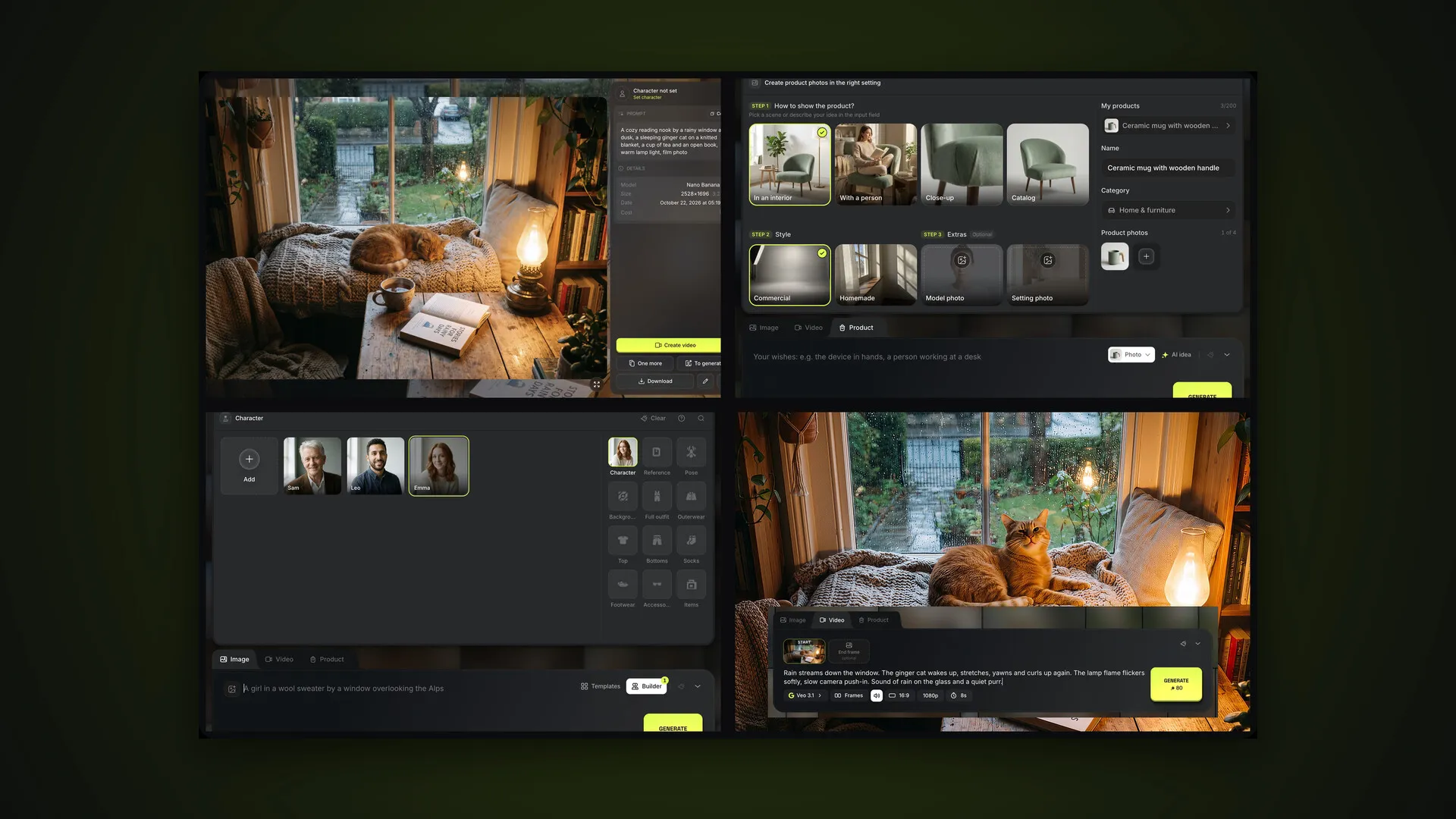






The Product tab is a dedicated generator mode for sellers and marketers. Instead of a free-form prompt you get a step-by-step panel: product, mode, scene, style. This is part 3 of the AI2Face user guide. Below we follow the full path using a ceramic mug as an example: from a source photo to a marketplace card.
How to add a product to AI2Face
Open the Product tab in the generator, or Generate → Products in the top menu. If you don’t have any products yet, the panel asks you to upload photos. You can add up to 4 shots from different angles — drag them into the panel or pick the files. AI detects the name and category automatically.
There’s a second route too: create a product from an image you’ve already generated. Open the “⋯” menu on a feed tile and choose Create product — the image becomes the first photo of a new product. That’s exactly what we did with the mug.
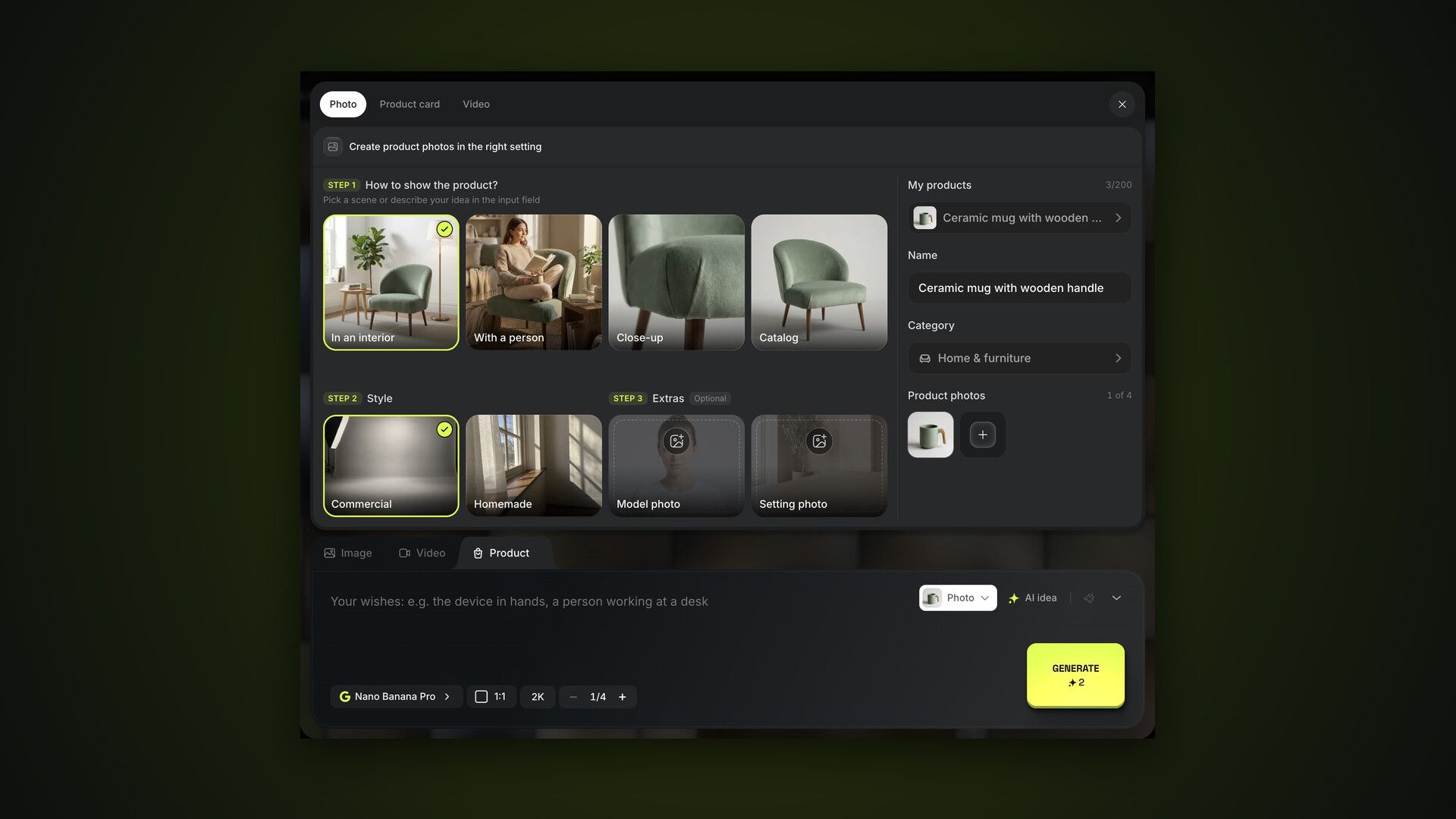
The product card sits on the right of the panel:
- My products — switch between products in your library, with your plan’s limit counter;
- Name and Category — you can correct them by hand;
- Product photos — up to 4 angles; the “+” tile adds another.
The category matters because it defines the ready-made scenes. For clothing that’s On a model and Flat lay; for food, Serving and With ingredients; for beauty, Composition and In use.
Photo mode: your product in the right setting
At the top of the panel are three modes: Photo, Product card and Video. Photo mode has three steps:
- How to show the product? — a scene from the category’s set. For a mug in Home & furniture, that’s In an interior, With a person, Close-up and Catalog. You can also skip the scene and describe your own idea in the prompt field.
- Style — Commercial, with studio lighting and an advertising look, or Homemade, as if a customer shot it on a phone at home.
- Extras — optional Model photo (the person who’ll appear with the product) and Setting photo (the place where the product will be).
Add your wishes in the prompt field — what surrounds the product and what the mood is. We asked for the mug with coffee on a kitchen table in the morning, using Nano Banana Pro:
On a wooden kitchen table by the window in the morning,
steaming coffee inside, a plate with a croissant nearby
How to make an AI2Face product card: marketplace infographics
Product card mode turns a photo into a card with infographics. The steps:
- Base photo — which product photo to build the card from; you can also take an image from the feed.
- Style — Commercial: a clean marketplace design in 2–3 colors; or Creative: a bold background, motion and graphics.
- Design reference — an optional sample card. Copy repeats its layout, colors and fonts; Get inspired takes the mood and palette and builds its own layout.
In the prompt field, write what the card should say, one point per line. Stuck? Click AI idea and AI2Face will write the benefits from your product photos.
For marketplaces, use the vertical 3:4 format: that’s how Ozon and Yandex Market display product photos, and it suits most other stores too. More on platform requirements in our overview of AI tools for marketplaces.
Check the text on the card before publishing: models sometimes repeat or drop words. If there’s a mistake, just run it again — that’s faster than fixing it by hand. More infographic techniques are in our guides to AI product cards and marketplace infographics, and ready-made wording in product card prompts.
Video mode: a short clip of your product
Video mode turns a product photo or a finished card into a short clip on a video model — Veo 3.1 by default:
- First frame — the image the video starts from.
- Motion — two options. Card mode tells the model not to move the camera or change text and infographics — for animating a finished card. Looping video ends on the same frame it starts with, for a seamless loop.
- Final frame — an optional image the clip should end with.
Describe the motion in the prompt field: a smooth push-in, a 360° rotation, dynamic angle changes. Everything else works just like on the Video tab.
Where to find all your product shots
Everything you make on the Product tab goes into the shared feed. The feed’s Product filter shows shots of a single product, and the product library itself lives in Assets → Products, where you can rename products, sort them into folders or delete them. More in the part on assets and folders.
Bottom line
An AI2Face product card takes five clicks: upload a photo, check the category, pick a mode and a style, click AI idea and Generate. For your storefront, start with Photo mode in the Commercial style; for marketplaces, a 3:4 card; and bring a finished card to life in Video mode with Card mode on. Always check the lettering before publishing. Next in the guide: characters.
FAQ
How many product photos should I upload?
One is enough, but 2–4 from different angles work better: the model reproduces the shape, material and details more accurately. A product can have up to 4 photos.
Can the card text be in another language?
Yes. Write the product benefits in the prompt field in any language, one per line. Check the lettering before publishing: models sometimes misspell non-Latin scripts, and a rerun usually fixes it.
What does AI idea do?
It writes text from your product photos: wishes for the shot in Photo mode, or benefits for the infographic in Card mode. The number of suggestions per hour depends on your plan.
How many products can I store?
The library limit depends on your plan and is shown in the panel as “3/200”. A deleted product disappears from the library, but shots made with it stay in your feed.
Can I reuse the design of another card?
Yes, with a Design reference: Copy repeats the layout, colors and fonts of the sample, while Get inspired borrows only the mood and palette.