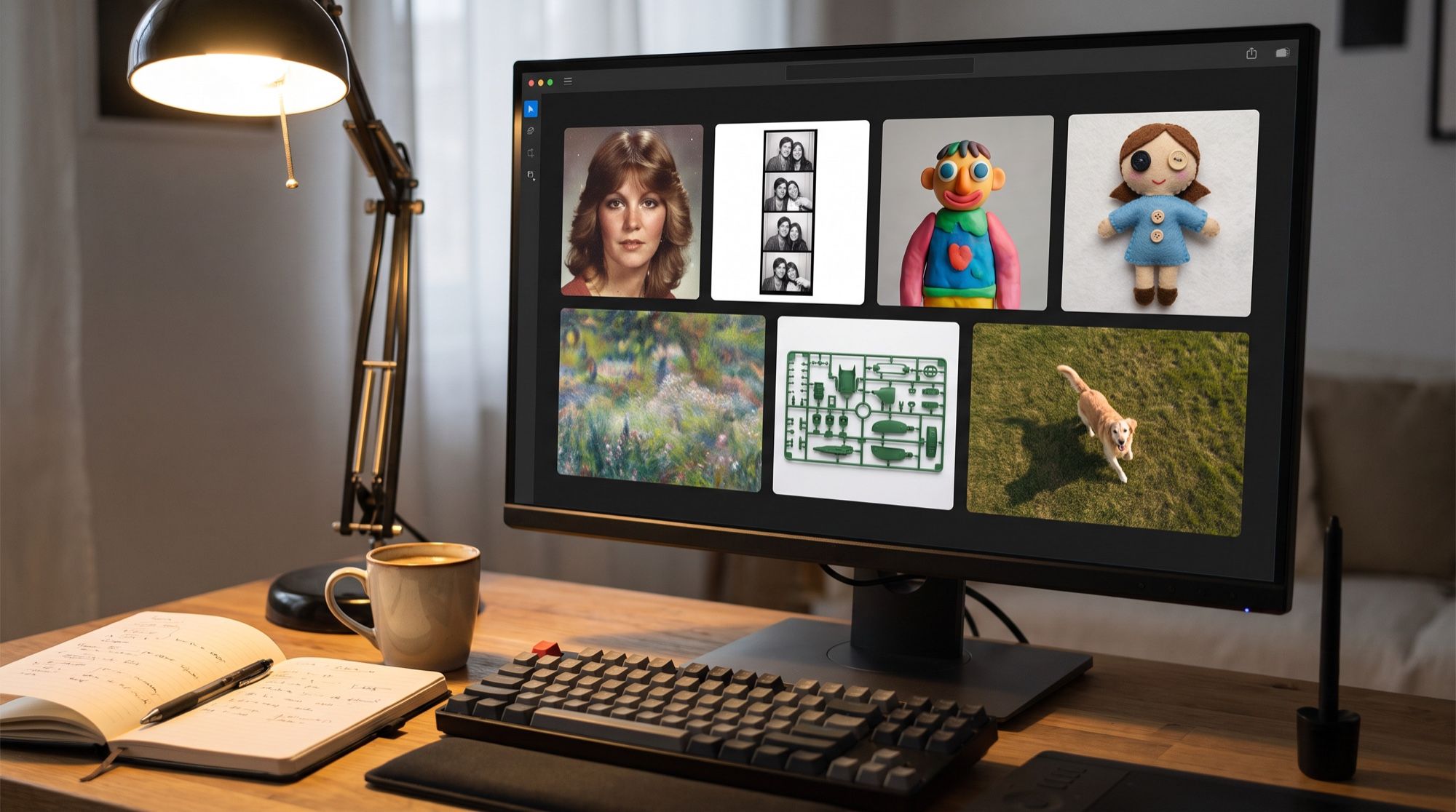
A ready-made prompt saves time: instead of hunting for the right words for “’70s slide film” or “stop-motion claymation”, you click a card and tested text is already in the prompt box. The AI2Face generator has 72 of these templates, built right into the prompt box and designed to work with your photo. We walk through how to use them, list every template and run the same photo through eight of them in Nano Banana Pro.
AI photo prompts as templates: what they are in AI2Face
A template is a ready-made photo prompt with an example image. Each one defines a whole style or task — era, lighting, material, composition and sometimes the aspect ratio. All you add is an image.
The Templates panel opens from a button in the top-right corner of the prompt box, next to Builder. Templates are grouped into five tabs, and the search in the panel’s corner matches names: “stickers”, “70”, “logo”.
How they differ from prompt libraries on other sites:
- No copy-paste. One click puts the text in the prompt box, ready to generate.
- The aspect ratio is set for you. If a template defines one — 9:16 for Photo booth, 2:3 for Tarot card, 16:9 for Thumbnail — the generator switches to it when the current model supports it.
- Language follows the interface. The English prompt is inserted in every interface language except Russian.
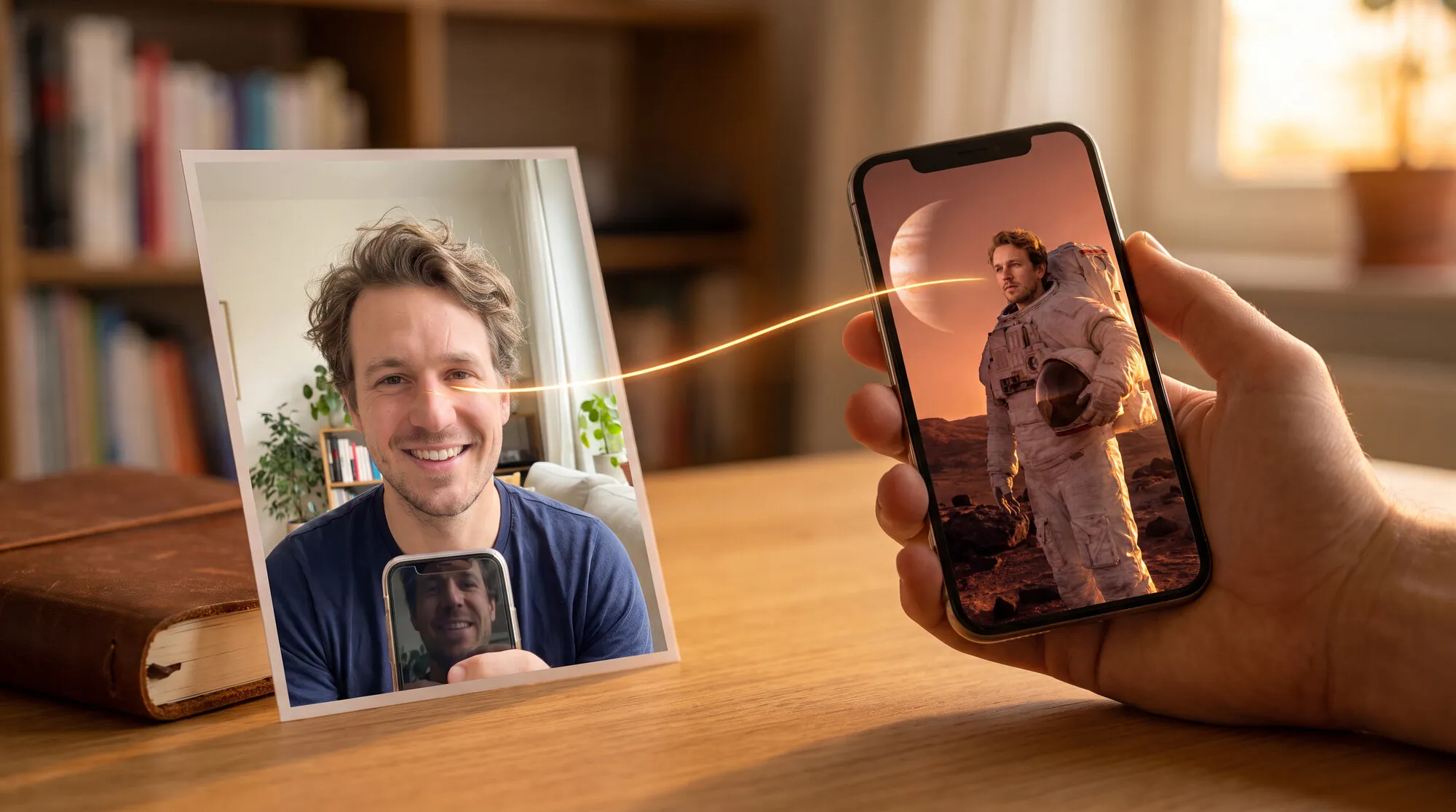
- They work with characters. The source can be an uploaded photo or a character from Builder.
How to use the templates, step by step
- Open the AI2Face generator and the Image tab.
- Click Templates in the top-right corner of the prompt box.
- Pick a category or search for a template by name.
- Click a card: the prompt appears in the box and the card is highlighted.
- Attach a photo with the “+” button left of the box — or pick a character in Builder.
- Check the model, aspect ratio and image count in the bottom bar and click Generate. The price shows on the button before you run it.
The card stays highlighted as long as the text in the box matches the template. Once you edit the prompt, the highlight goes away — that’s expected, and the generation runs on your version. On a phone, the panel closes by itself after you pick a template so the prompt box is visible.
Which templates are available
All 72 templates, tab by tab, in the order the generator shows them. The aspect ratio is listed where the template sets it.
Portrait — 16 templates
Portrait templates change the era, lighting or presentation while keeping the person recognizable.
| Template | What it does |
|---|---|
| Character turnaround | 16:9 sheet: full body front, back and profile, plus two face close-ups |
| Character sheet | 3:2 reference board: head angles, poses, expressions and lighting variants |
| ’70s portrait | casual shot on 1970–1975 slide film, with the era’s clothes and hair |
| ’80s flashback | a photo from around 1985: mid-’80s fashion, direct flash, date stamp |
| 2000s digicam | early-2000s point-and-shoot: flash, blown highlights, noise and JPEG artifacts |
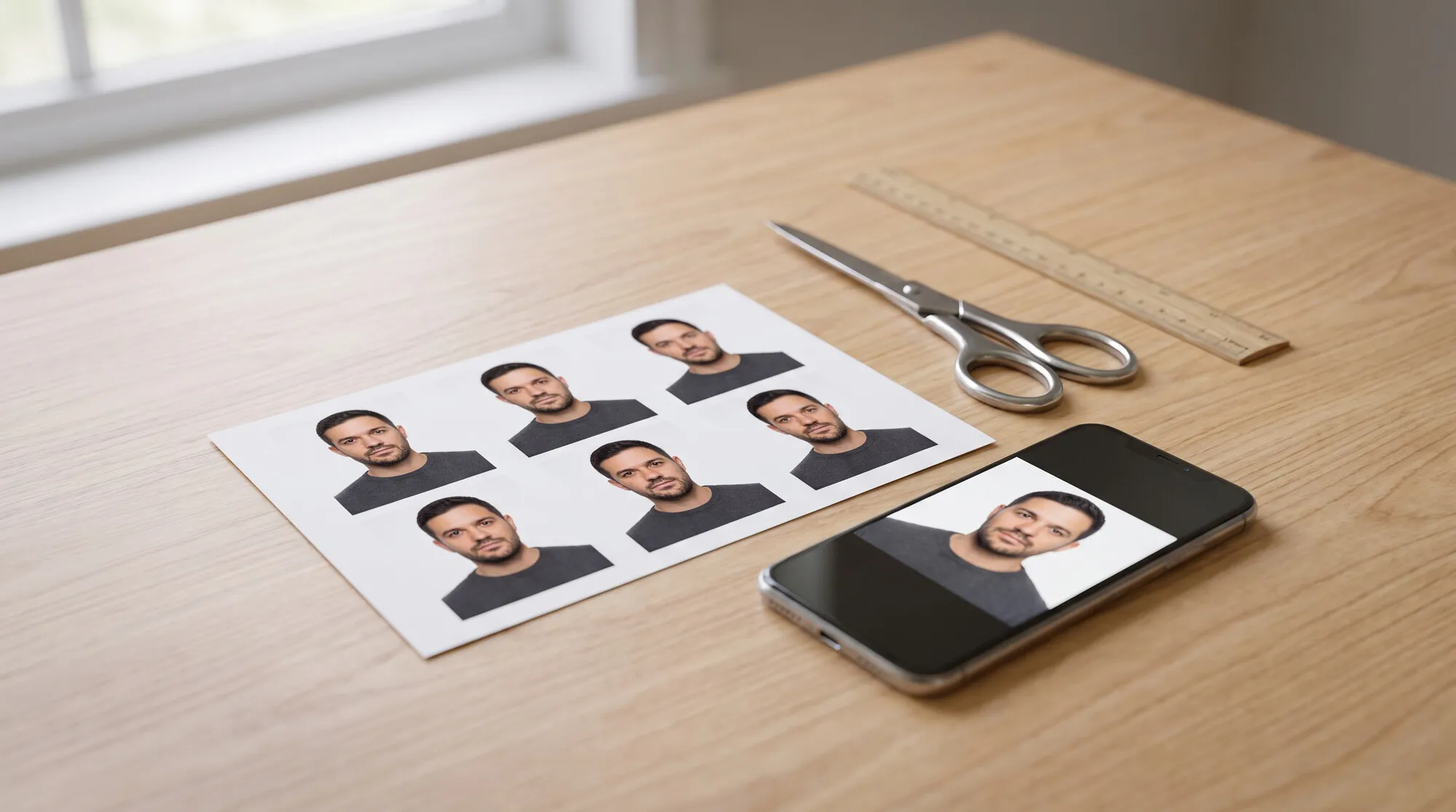
| Photo booth | 9:16: three black-and-white booth strips, four goofy frames each |
| Drone view | the same scene from above, as if shot by a drone |
| Caricature | a caricature of the person and what they do |
| Underwater | extreme close-up underwater portrait right after a dive |
| Fix the lighting | lighting only: fixes backlight, harsh shadows and underexposure |
| Studio portrait | shoulders-up fashion portrait on a solid backdrop |
| Enhance photo | sharper, cleaner photo without changing the scene |
| Mini me | tiny 3D copies of the person playing around them in the same scene |
| Travel postcard | travel collage: instant photo at a destination, a postcard and souvenirs |
| Night flash | stylish night shot with direct flash |
| Headshot | portrait for a CV or profile, with reimagined light and outfit |
Art styles — 18 templates
| Template | What it does |
|---|---|
| Sketch | a finished artwork based on your sketch |
| Anime | current anime style with exaggerated proportions |
| Impressionism | an Impressionist painting |
| Acrylic painting | flat acrylic painting: each object one solid color, no shading |
| Handwritten | white hand-drawn notes, arrows and hearts over the photo |
| Disco style | the subject made of mirror tiles, like a disco ball |
| Scribble | a deliberately clumsy “drawn with a mouse” sketch |
| Blueprint | white technical drawing on blueprint blue |
| Comic | color newspaper comic starring the subject |
| Anime comic | black-and-white manga drawn in ink |
| Fantasy newspaper | the person on the front page of a vintage newspaper |
| Film strip | 9:16: three film stills of one scene |
| Tarot card | 2:3: a card in the classic Rider-Waite style |
| Bring a drawing to life | a child’s drawing turned into a photorealistic scene |
| Hyperreal | 9:16: macro nature shot with a 35 mm film look |
| 8-bit | 9:16: a pixel-art 2D game frame with your characters |
| Landscape | cinematic ultra-realistic landscape inspired by the photo |
| Statue | neoclassical statue in white marble |
Figures & stickers — 10 templates
| Template | What it does |
|---|---|
| Stickers | 1:1: nine meme stickers on a transparent background in a 3×3 grid |
| Pin collection | 4:5: eight enamel pins — a portrait plus objects from the photo |
| Collector’s tin | a collector’s tin filled with things that reflect the person |
| Felt miniature | needle-felted wool scene |
| Claymation | the person and setting in plasticine, stop-motion style |
| Model kit | single-color plastic model-kit sprue with parts |
| 3D avatar | glossy designer-toy head |
| Chibi stickers | 3:4: cute chibi stickers with captions |
| Bobblehead | a bobblehead figure |
| Soccer figurine | 9:16: a boxed collectible footballer figure |
Guides & infographics — 10 templates
| Template | What it does |
|---|---|
| Cross-section | educational cross-section diagram with callouts |
| Infographic | animal poster: habitat, diet and key traits |
| Makeup guide | 9:16: makeup breakdown from a portrait |
| Research visual | editorial-style research infographic |
| Illustrated recipes | illustrated 3-page mini-zine with a recipe |
| Color analysis | which clothing colors suit the person |
| Botanical poster | the subject as a 19th-century scientific atlas plate |
| Desk setup | desk breakdown: what’s on it and why |
| Hairstyles | which hairstyles suit the face |
| Palm reading | a guide to the lines of the palm |
For more on analyzing your look, see “Find a hairstyle with AI”.
Design — 18 templates
| Template | What it does |
|---|---|
| Interior design | a room in mid-century modern style |
| App design | 16:9: four app screens on one sheet |
| Icons and logos | 16–20 logo variations based on the main subject |
| Poster | poster with clear hierarchy and text from your images |
| Interior | how the same room could look, layout unchanged |
| Logo | a few logo options that keep your text |
| Illustration | illustration with a story and mood from your images |
| Icon set | a consistent set of UI icons |
| Product photo | product shot that keeps shape, color and labels |
| Merch | your artwork or brand on a T-shirt, mug or tote |
| Data infographic | infographic from the data in the image, no invented numbers |
| Flyer | flyer with a clear message and next step |
| Book cover | 2:3: a cover that conveys genre and tone |
| App mockup | an app screen built from your content |
| Packaging | design that fits the shape of the package |
| Advertisement | ad layout: product, message, details, call to action |
| Thumbnail | 16:9: video thumbnail that reads even at small sizes |
| Website mockup | web page with navigation and a primary action |
The Design templates are careful with facts: their prompts explicitly forbid inventing prices, reviews, ingredients or logos. For logos, see the guide “Make a logo with AI”.
One photo, eight templates: the results
We generated an everyday shot of a woman at a café table and ran it through eight templates. The prompts are exactly what the generator inserts, with no edits. Model: Nano Banana Pro, 2K.
What the results show:
- The setting survives. The brick wall, potted plants, table and cup are in every version — even in Drone view, where the same terrace is shot from above.
- The era changes everything but the face. ’70s portrait added a patterned sweater, sunglasses and a wicker bag; 2000s digicam brought a denim jacket, a choker and a flip phone on the table.
- The materials look real. The clay shows sculpting marks, the felt has fuzz, and Model kit comes out in one color with parts on the frame.
- A short prompt gives the model leeway. Impressionism is a single sentence, and the model also turned the hair red. If keeping the look matters, add at the end: “keep the hair color and facial features”.
Photo booth: 9:16 is set automatically
The Photo booth template sets a 9:16 aspect ratio, and the generator switches to it on its own. One photo became twelve frames with different faces, harsh flash and film grain.
New templates in October 2026
Ten templates were added in October, mostly retro and handmade looks:
- ’70s portrait and 2000s digicam — two retro styles alongside ’80s flashback;
- Photo booth — black-and-white strips with several frames;
- Drone view — the same scene from above;
- Impressionism and Acrylic painting — two painting styles;
- Collector’s tin, Felt miniature, Claymation, Model kit — toy-like styles.
All ten appear in the examples above except Acrylic painting and Collector’s tin.
Which photo to upload
A template keeps a person recognizable only as well as the model can see the face. A few rules that make a visible difference:
- the face is large and in focus, front-on or slightly turned;
- even daylight without harsh shadows;
- no heavy filters, masks or beauty retouching;
- glasses, hands and hair don’t cover the face.
For templates with several people — Photo booth, Mini me, Stickers — attach a photo where everyone is visible. Cross-section, Blueprint and Product photo need the object in close-up on a clean background.
How to adapt a template
A template is just text in the prompt box, so you can change it however you like:
- Add a detail: “…in a red sweater”, “…by the sea”.
- Lock in the look: “keep the hair color, hairstyle and facial features” — useful for short templates like Impressionism.
- Remove what you don’t need: delete the line about the date stamp if you don’t want one.
- Change the format: pick another aspect ratio in the bottom bar — the template doesn’t lock it.
To write prompts from scratch, start with the formula in “Prompts for images”. For shoot ideas, see “Prompts for an AI photo shoot”.
Which model to use with templates
A template isn’t tied to a model: the prompt goes to whichever one is selected. Our picks by task:
| Task | Model | Why |
|---|---|---|
| Portraits, retro, photo booth | Nano Banana Pro | holds a face from a photo best, up to 4K |
| Quick style tests | Nano Banana 2.1 | faster and cheaper, handy for trying several templates |
| Design, posters, text in images | GPT Image | renders lettering cleanly |
| Product shots, interiors | Seedream | detailed materials and textures |
The number of images per run is set in the bottom bar — up to 20. With a new template, it helps to make 2–4 variants and keep the best.
Prompt collections by theme
Need a prompt for a specific scene? These collections have ready-to-copy prompts with results:
- AI photoshoot prompt
- Women’s photoshoot prompts
- AI photoshoot prompts for men
- Couple photo prompts
- Family photoshoot prompt
- AI kids photoshoot prompt
- AI profile picture prompts
- AI Christmas photos
- Autumn photoshoot prompt
- Funny AI prompts
- Trending AI photo prompts
- Nano Banana Pro prompts
Bottom line
The Templates panel is for anyone who wants a stylized photo without fiddling with wording: 72 tested prompts, one-click insert, and the aspect ratio and language handled for you. Templates work best on portraits with Nano Banana Pro: in our test, the face and setting held up in seven styles out of eight, and the eighth is fixed with one sentence. For a specific job — a brand, a product, a complex scene — use a template as a starting point and add the details. Start with the Portrait tab and the Photo booth template: it differs most from the original.
FAQ
Where can I find ready-made AI photo prompts?
In the AI2Face generator they’re built into the prompt box: the Templates button opens 72 ready-made prompts with examples. One click drops the text in — no copying from prompt lists.
Are the prompt templates free?
Yes. The templates themselves cost nothing — credits are spent only on the generation, just like with your own prompt. The price shows on the Generate button before you run it.
Do I need to upload my own photo?
Yes, every template works from an image. If nothing is attached, the generator highlights the “+” button with the hint “This template needs a photo: attach one”. You can also pick a character in Builder instead of a photo.
Can I edit a template’s text?
Yes. The prompt goes into the regular prompt box, so you can add to it or cut it down. The card stops being highlighted, but the generation runs on your version.
What language is the prompt inserted in?
In English for every interface language except Russian, which gets a Russian version. Models understand both, and the language barely affects the result.
Which AI model generates the photo from a template?
Whichever model is selected in the generator. For portraits we use Nano Banana Pro — every example in this article was made with it. Other models that accept a photo reference work too.
Sources
2
- https://blog.google/innovation-and-ai/products/nano-banana-pro/
- https://ai.google.dev/gemini-api/docs/image-generation