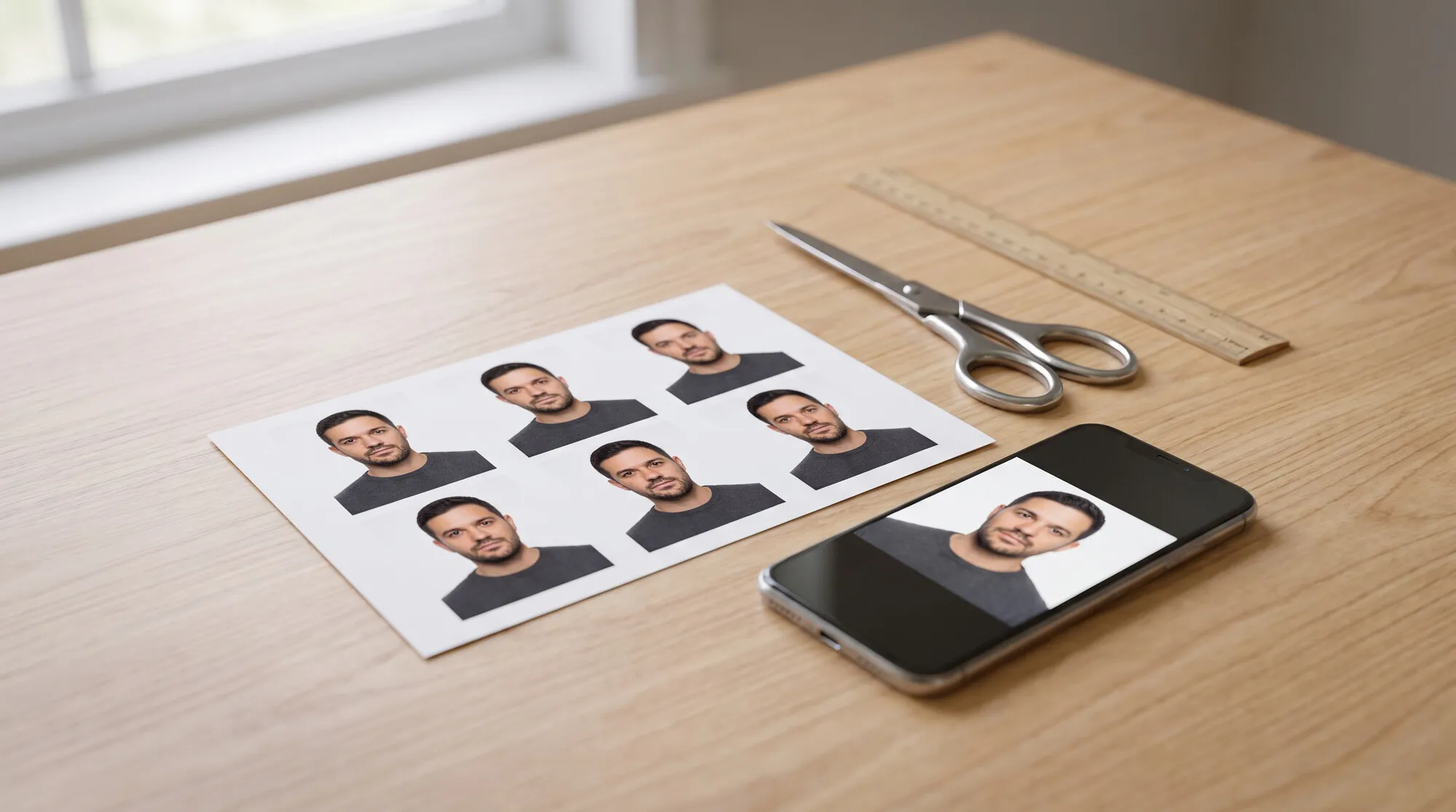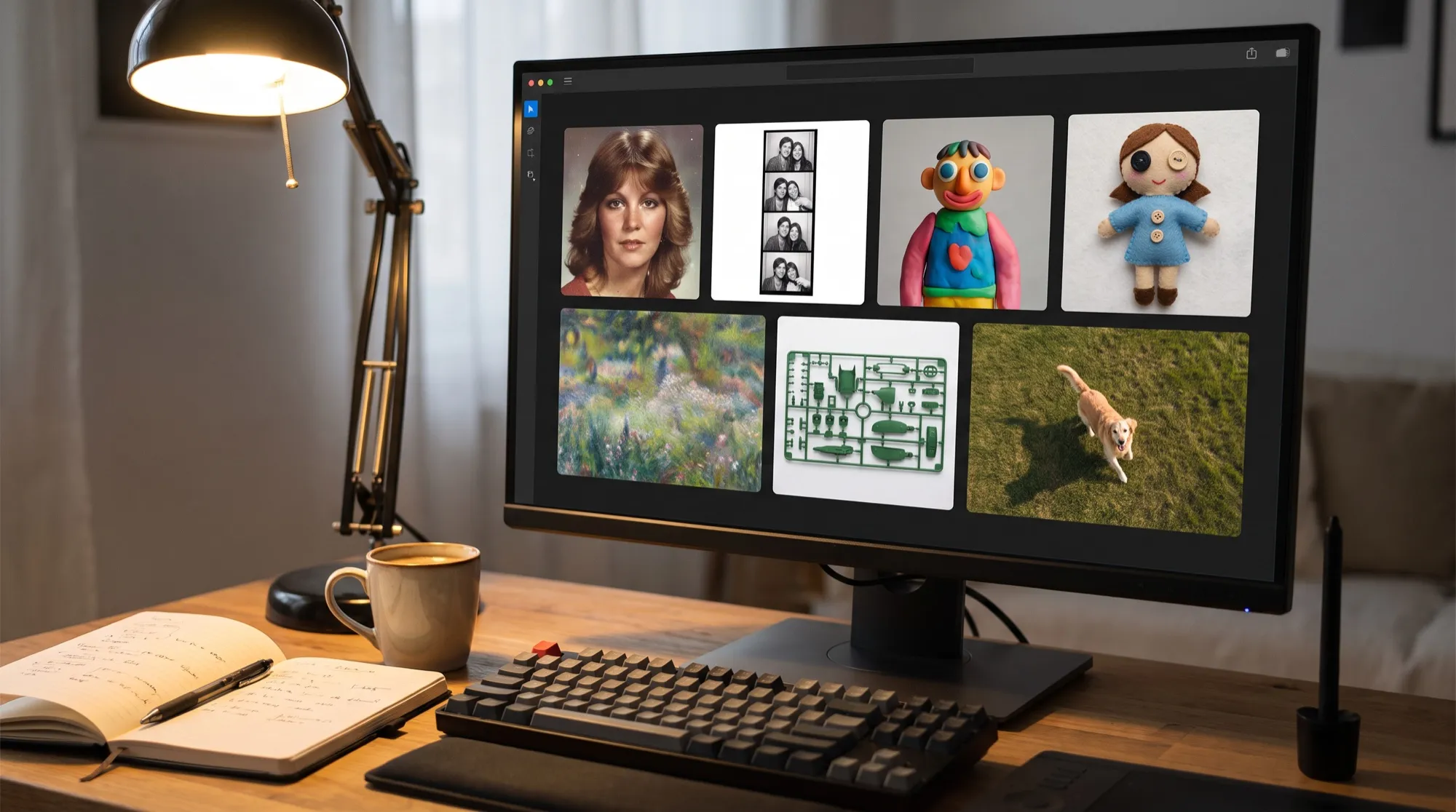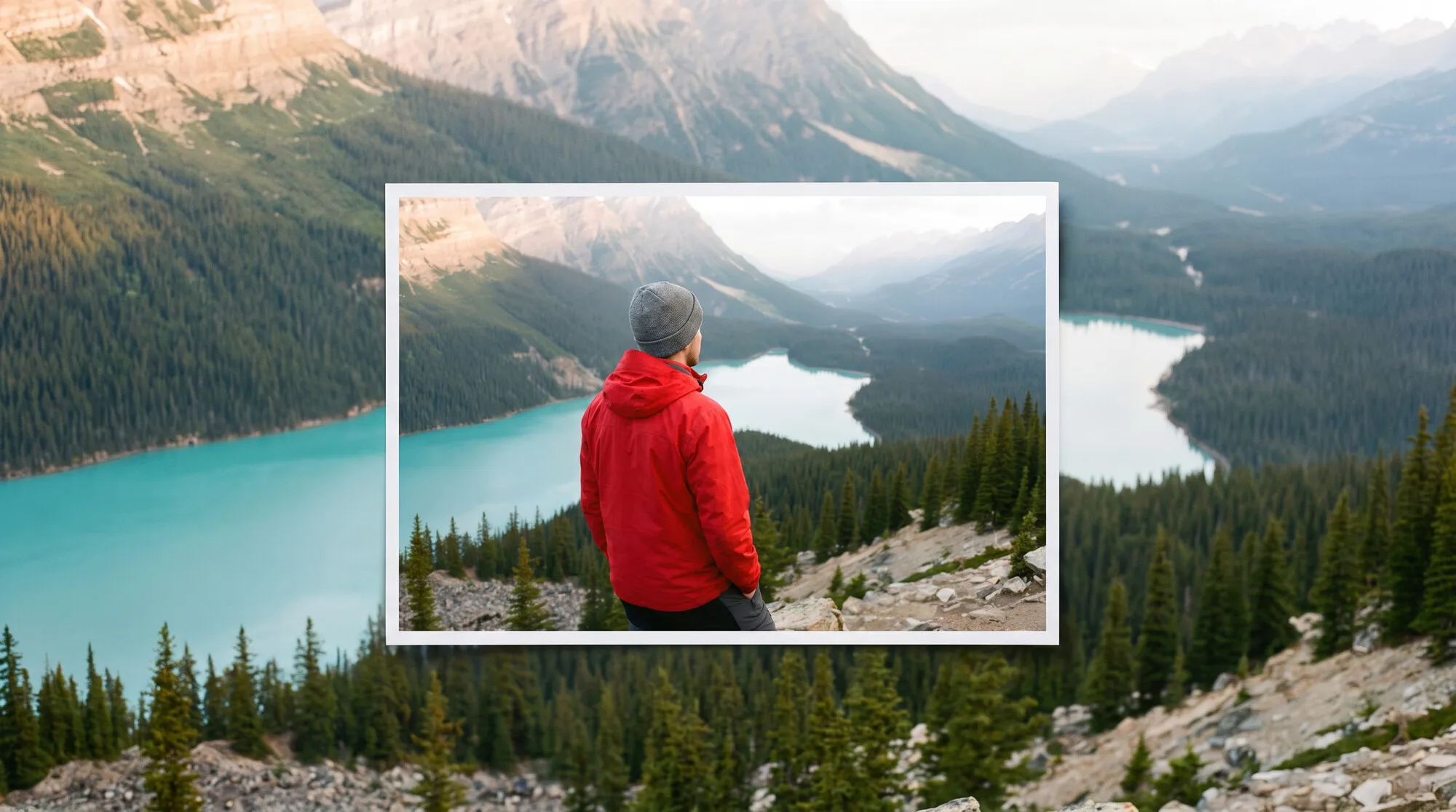




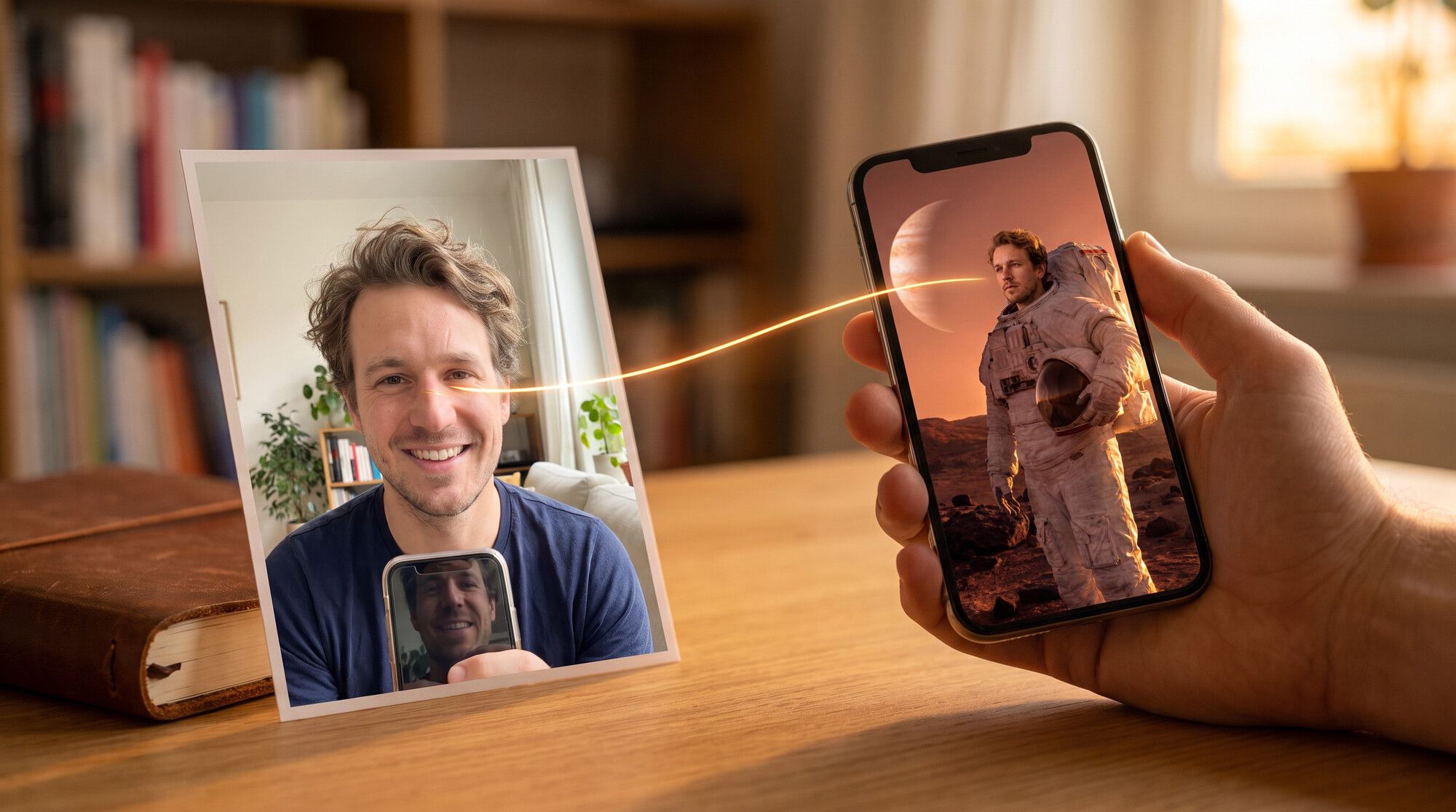
AI can swap a face in a photo without masks or a photo editor: you need two shots — the scene and your selfie — and one sentence. Modern editing models don’t paste the face on top; they redraw it inside the scene, with its lighting, skin tone and even painting technique. We tested this with one selfie in three different scenes in the AI2Face generator and compared three models. Every person in these images was generated for the test — the section on consent explains why that matters.
How to swap a face in a photo with AI: two photos and a prompt
The workflow is the same for any scene:
- Scene — the photo where the face should be replaced: a travel shot, a costume photoshoot, a painting, a business headshot.
- Face — your photo with the face clearly visible.
- Command — what to replace, what to keep and how to match the lighting.
Upload both images to the generator as source images, the scene first. In the prompt, describe the person from the selfie by their features — “wavy light brown hair, blue-grey eyes, a scar on the left eyebrow”. That way the model won’t mix up whose face goes where.
What face photo works best
Our source is an ordinary selfie at home by the window:
- the face is front-on, eyes open, no glasses;
- soft daylight without harsh shadows;
- a distinctive feature is visible — a small scar on the left eyebrow, which makes it easy to check whether the model transferred this exact face.
If the person in the scene is in profile and you only have a front-on photo, the model has to invent the hidden side. For scenes like that, upload 2–3 face photos from different angles.
1. Put your face into a photo: an astronaut on another planet
Face swap. The first image is the scene: an astronaut on a red planet. The
second image is a selfie of a man with wavy light brown hair, blue-grey eyes,
light stubble and a small scar on his left eyebrow. Replace the astronaut's
face and hair with the face and hair of the man from the selfie, so it is
clearly the same person, with no mustache. Keep the spacesuit, helmet in his
hand, pose, planet, sky and composition of the first image unchanged. Match
the dramatic warm rim lighting, color grading and skin tone to the scene so
the face looks naturally photographed there.
This is the most common use case: “trying yourself on” in a shot you could never take in real life. Nano Banana Pro carried over the face, the wavy hair and the eyebrow scar, and took the lighting from the scene: warm sunset rim light and a shadow on the cheek. It dropped the selfie smile — the man gazes into the distance like the original astronaut. The spacesuit, the helmet in his hand and the planet stayed the same.
2. Replace a face in a painting
Face swap. The first image is a classical oil painting of a knight in armor
and a red cloak. The second image is a selfie of a man with wavy light brown
hair, blue-grey eyes, light stubble and a small scar on his left eyebrow.
Replace the knight's face and head with the face and hair of the man from the
selfie, so it is clearly the same person, with a neutral dignified
expression. Paint the new face in the same 17th century oil painting
technique with visible brushstrokes, warm candle light and canvas texture.
Keep the armor, cloak, candle, background and composition unchanged.
A painting tests whether the model actually redraws the face rather than pasting in a photo. Nano Banana Pro painted the face in brushstrokes with the same warm candle light as on the armor and kept the scar — now as a painted detail. If the face had stayed photographic, the image would look like a collage. The line about painting technique in the prompt is a must.
3. Swap a face in a business headshot
Face swap. The first image is a corporate headshot of a man in a navy suit
with crossed arms in an office. The second image is a selfie of a man with
wavy light brown hair, blue-grey eyes, light stubble and a small scar on his
left eyebrow. Replace the face and hair of the man in the suit with the face
and hair of the man from the selfie, so it is clearly the same person, with
a confident light smile and no glasses. Keep the suit, tie, pose, office
background and soft studio lighting of the first image unchanged and match
the skin tone and light.
A practical case: a business headshot without a studio visit. The model removed the glasses, replaced the slicked-back black hair with wavy light brown hair and kept the tie, the crossed arms and the blurred office. The skin tone matches the studio lighting. But if you need a series of headshots of the same person, it’s easier to create a character than to swap the face every time — more on that below.
Which AI is best at face swap: three models compared
We gave the astronaut prompt to three models: Nano Banana Pro, Nano Banana 2.1 and GPT Image 2.5.
| Nano Banana Pro | Nano Banana 2.1 | GPT Image 2.5 | |
|---|---|---|---|
| Likeness to the selfie | high | high | high |
| Eyebrow scar | kept | kept | almost gone |
| Expression | matches the scene | matches the scene | smile from the selfie |
| Lighting and skin tone matched to the scene | yes | yes | yes |
| Spacesuit and background | unchanged | unchanged | unchanged |
| Best for | precise face transfer | precise transfer, faster | a lively “selfie look” |
All three models transferred the face recognizably and matched the sunset lighting. The difference is in the details: Nano Banana Pro and Nano Banana 2.1 kept the scar and took on the expression of the person in the scene, while GPT Image 2.5 carried over the selfie smile, tousled the hair and nearly lost the scar. For a precise swap, use Nano Banana Pro or Nano Banana 2.1; for fun greeting cards and memes, GPT Image 2.5 works too.
Whose face can you use?
A face swap creates an image of a specific person. The general rule: use your own face or the face of someone who has agreed to it. Many countries restrict publishing a person’s likeness without consent. In Russia, for example, Article 152.1 of the Civil Code says:
- a person’s image may be published and used only with their consent;
- a photo already posted online doesn’t give anyone the right to use it without consent;
- the person can demand that an image distributed in violation of this be removed.
Laws on likeness and personality rights differ by country, so check the rules where you live. In practice: your own face — as much as you like. A friend’s face — with their consent. Don’t use the faces of celebrities or strangers for publishing, advertising, let alone deceiving anyone. That’s why every person in this article is generated.
A character instead of a face swap
If you need the same face in many shots — a photoshoot, a series of posts, product cards with a model — swapping the face in every image gets tedious: you have to check the likeness each time. AI2Face has the Builder mode for this: you upload your photos once, create a character, and it goes into any scene. See how it works in our AI character generator guide, and find scene ideas in the AI photoshoot guide.
Limitations
- Group photos. Change one face per edit and say who to change: “the man in the blue jacket on the right”.
- Difficult angles. A profile, a low angle, a face in shadow — the model has to fill in the gaps. Upload several face photos.
- Small features. Models sometimes lose scars, moles and eyebrow shape — in our test, GPT Image 2.5 lost the scar. Name the features in the prompt.
- Video. This article is about photos. To make your photo talk or move, see our guide on how to animate a photo; to swap a face in an existing clip, see our AI face swap video guide.
Where to try it: AI2Face
Nano Banana Pro, Nano Banana 2.1 and GPT Image 2.5 are all in one AI2Face generator: upload the scene and the selfie and compare what each model produces. The cost is shown before you generate, and credits from packs don’t expire.
Bottom line
AI face swap needs two shots and one command: the scene first, the selfie second, and a prompt with the face’s features, what to keep and how to match the lighting. In our test, Nano Banana Pro put one face into outer space, an oil painting and a business headshot, keeping the eyebrow scar and matching the lighting and painting technique. For precise transfer, use Nano Banana Pro or Nano Banana 2.1; GPT Image 2.5 suits cards where emotion matters more. If you need the face in many shots, create a character in the Builder. And only use your own face or the face of someone who has agreed.
FAQ
How do I swap a face in a photo with AI?
Upload two images to the generator — the scene and a photo with the face you want — pick an editing model such as Nano Banana Pro and write: “replace the face of the person in the first photo with the face from the second, keep the outfit, pose and background, match the lighting to the scene”. You get the result in 20–40 seconds.
Can I swap faces in a photo for free?
Yes, a few times. AI2Face gives you starter credits when you sign up, and the cost of each generation is shown before you start.
Is face swapping legal?
Using your own face is fine. Someone else's face should only be used and published with that person's consent — laws on likeness and personality rights differ by country, and in Russia, for example, this is required by Article 152.1 of the Civil Code. A photo being publicly available online doesn't count as consent.
What kind of face photo works best?
A sharp one: the face front-on or in three-quarter view, no glasses, no shadow over half the face, at least 1,000 pixels. If the angle in the scene is very different, upload 2–3 face photos from different sides.
Can I swap faces in a group photo?
Yes, but it's more reliable to change one face per edit and say who to change — “the man in the blue jacket on the right”. If you ask to replace everyone at once, the model mixes up whose face goes where.
Sources
4
- https://blog.google/innovation-and-ai/products/nano-banana-pro/
- https://ai.google.dev/gemini-api/docs/image-generation
- https://developers.openai.com/api/docs/guides/image-generation
- https://www.consultant.ru/document/cons_doc_LAW_5142/14c6c3902cffa17ab26d330b2fd4fae28e5cd059/