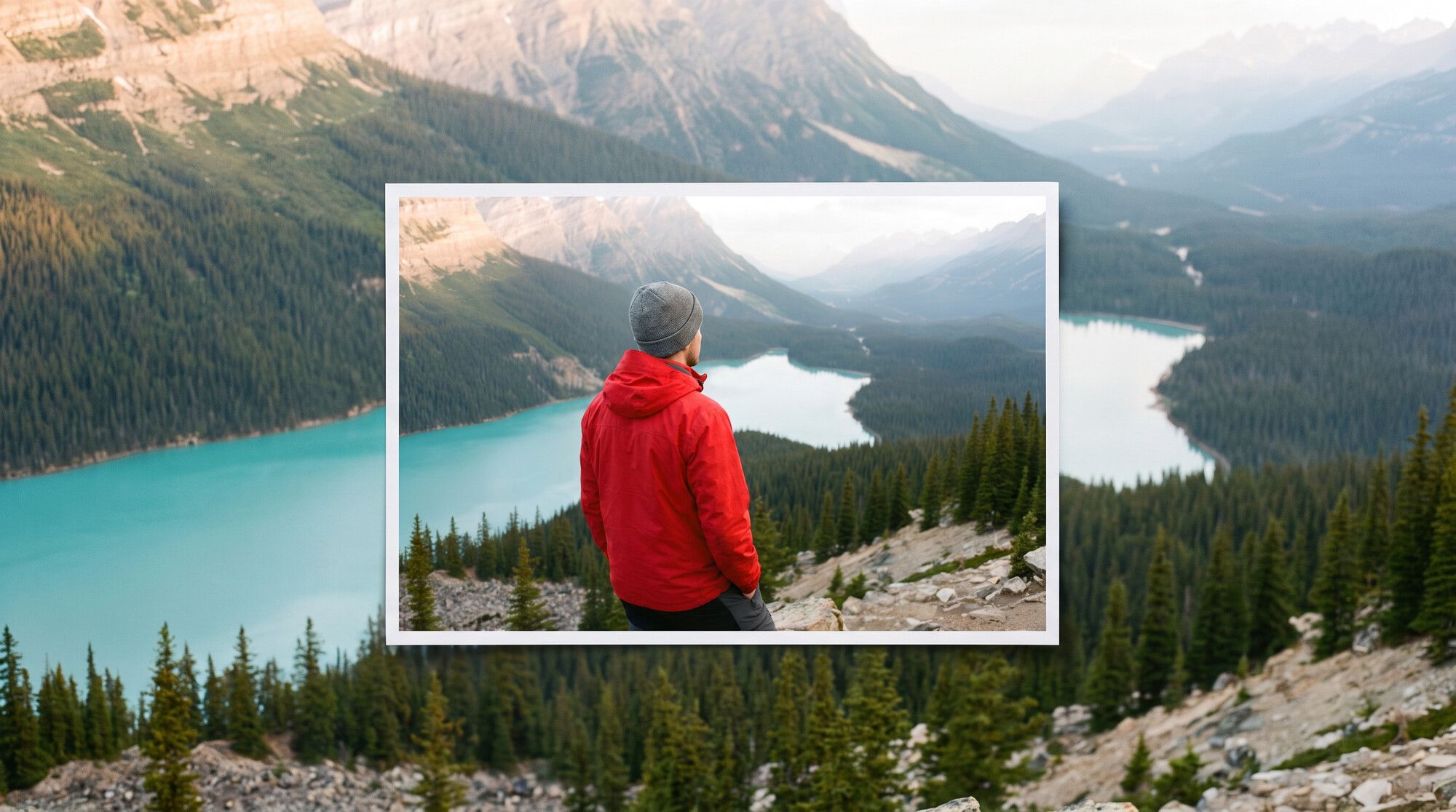
AI can extend a photo into places the camera never saw: the landscape on either side, the legs below the frame or a blank wall for a headline. It’s a common need: a vertical photo doesn’t fit a 16:9 cover, a waist-up portrait has to be full body, or a banner has no room for text. We tested three of these use cases in the AI2Face generator and compared how three models handle the same task. The people in the photos were generated for this test.
How an AI image extender works: outpainting explained
Extending an image beyond its edges is called outpainting. The model looks at the source, understands the scene — mountains, a street, the light — and adds what would logically be outside the frame. The opposite task, inpainting, changes an area inside the frame: it removes a stray passer-by or swaps the background. We covered it in our test on how to remove objects from a photo with AI.
Outpainting used to require a separate tool: a bigger canvas, a selection of the empty area, a brush. Today photo editing models — Nano Banana Pro, Nano Banana 2.1, GPT Image 2.5 — do it from a text command. You need two things: choose a new aspect ratio and describe what to add.
The prompt formula for outpainting
A good outpainting prompt answers three questions:
- Which way to extend: “widen to 16:9”, “extend down to full body”, “to the right”.
- What should be there: “more mountains and the rest of the lake”, “legs, the bottom of the dress and sandals on cobblestones”, “plain facades and sky for a headline”.
- What not to touch: “keep the original part unchanged, don’t change the person”.
The aspect ratio isn’t set in the text but in the generator settings — pick the one you need. The text tells the model what to fill the new area with.
1. Extend a photo horizontally: from vertical to 16:9
Outpaint this photo to a wide 16:9 landscape frame: keep the original image
unchanged in the center and naturally extend the scene to the left and right —
more mountain ridges, the rest of the turquoise lake, pine forests, rocks of the
viewpoint, the same misty morning light and colors. Do not change the man, his
red jacket and grey beanie.
This is the most common use case: a phone photo needed for a video thumbnail, a banner or a website header. Instead of adding edges, Nano Banana Pro “pulled the camera back”: the hiker got smaller, and the frame now shows the whole lake, a rocky slope on the left and the hiker’s legs on the rocks. The landscape has no seams, and the light and mist match the source. If you need to keep the person’s scale, see the model comparison below.
2. Extend a photo to a full-body shot
Outpaint this photo into a tall 9:16 full-length shot: keep the original part
unchanged and extend the frame downward and slightly upward. Show the woman in
full height: the rest of the long emerald silk slip dress down to her ankles,
her legs and simple black strappy sandals standing on the cobblestone street,
and the full top of her head. Continue the same street, buildings, people and
daylight naturally. Do not change her face, hair or dress color.
Turning a waist-up photo into a full-body shot is harder than a landscape: the model has to invent the legs, pose and shoes so that the proportions work. Nano Banana Pro added the hem of the dress with the same silk folds, legs in a natural pose and the black sandals we described in the prompt. The face and bob stayed the same, and the street continued with cobblestones and passers-by. If you don’t describe the shoes, the model will choose them itself.
3. Space for text on a banner
Expand the canvas of this exact photo horizontally to 16:9. The original photo
must stay pixel-identical and be placed on the left side of the new frame: the
same woman with the black bob, the same emerald silk slip dress, the same people
and buildings. Generate only the new area on the right: a seamless continuation
of the same sunny old stone street, calm stone facades and sky, uncluttered,
leaving clean empty space for a headline. Same light, perspective and colors.
No text, no letters, no signs.
A banner is the same outpainting, but with the instruction “leave empty space”. The first attempt went wrong: given a soft prompt — “keep the woman on the left third of the frame” — the model drew a different woman in a different dress. Two phrases fixed it: “the original photo must stay pixel-identical” and “generate only the new area on the right”. On the second attempt the source stayed in place, and a calm street without signs appeared on the right — a headline will sit nicely over the facades and sky. To turn a shot like this into a finished banner, see our guide to AI banner makers.
Which AI image extender is best: three models compared
We gave the “widen to 16:9” prompt from the first section to three models: Nano Banana Pro, Nano Banana 2.1 and GPT Image 2.5.
| Nano Banana Pro | Nano Banana 2.1 | GPT Image 2.5 | |
|---|---|---|---|
| Seams and artifacts | none visible | none visible | none visible |
| Person’s scale | reduced — “pulled the camera back” | kept | kept |
| Original part of the frame | redrawn entirely | close to the source, subject shifted | close to the source, subject shifted |
| New landscape | the whole lake, a slope, the hiker’s legs | forest and lake on the sides | ridges, the lake, the valley |
| Best for | covers where a sense of space matters | extending without changing scale | extending with a detailed landscape |
All three models extended the landscape without seams and kept the red jacket and beanie. The difference is how they read “extend”: Nano Banana Pro moved the camera back and showed more of the scene, while Nano Banana 2.1 and GPT Image 2.5 kept the hiker large and built out the edges. None kept the source pixel for pixel: generative models redraw the whole frame.
Limitations: where outpainting breaks
- Scale. The model may shrink the subject if it thinks the shot looks better that way. Write “don’t change the person’s size” or use Nano Banana 2.1.
- Invented details. Everything beyond the frame is made up by the AI: legs, shoes, the other half of a building. For documentary photos, that’s no longer the truth — use outpainting for creative work and advertising.
- Extra hands and objects. The bigger the new area, the higher the chance of a “third hand” or a branch growing out of someone’s head. Extend the frame 1.5–2x, not 4x.
- Text and signs. In new areas, the model sometimes draws fake lettering. Add “no text, no letters, no signs”.
If the photo needs better quality rather than more space — less noise and blur — see our guide to AI photo enhancement. To bring an extended shot to life, see animate a photo with AI.
Where to try it: AI2Face
Nano Banana Pro, Nano Banana 2.1 and GPT Image 2.5 are all in one AI2Face generator: upload a photo, choose the aspect ratio and compare how different models extend it. The cost is shown before you generate, and credits from packs don’t expire.
Bottom line
An AI image extender needs just a couple of sentences: choose a new aspect ratio, describe what should appear beyond the edges and ask the model to leave the original part alone. For covers and landscapes where you want a sense of space, use Nano Banana Pro — it pulls the camera back and shows more of the scene. If you need to keep the person’s scale, use Nano Banana 2.1 or GPT Image 2.5. For banners with space for text, be strict: “keep the original photo exactly the same, generate only the area on the right” — in our test, a softer wording produced a different person.
FAQ
How do I extend a photo with AI?
Upload the photo, choose a new aspect ratio — for example, 16:9 instead of 4:5 — and write what to add: “extend the frame to the left and right, continue the mountains and the lake, don't change the person”. The model fills in the missing edges in 20–40 seconds.
Can I extend a photo with AI for free?
Yes, a few times. AI2Face gives you starter credits when you sign up, and the cost of each generation is shown before you start.
What's the difference between outpainting and inpainting?
Outpainting adds what lies beyond the edges of the frame. Inpainting changes an area inside the frame — for example, removes an unwanted object. Modern models do both from a text command.
Can AI extend a photo of a person to full body?
Yes. In our test, Nano Banana Pro added legs, the bottom of the dress and sandals to a waist-up photo without changing the face or hairstyle. The model invents the legs, shoes and pose on its own — describe them in the prompt if accuracy matters.
Does AI change the original part of the photo?
Sometimes. Models redraw the whole frame, so small details of the source can shift and the scale can shrink. Write “keep the original part unchanged” and compare the result with the original.
Sources
3
- https://ai.google.dev/gemini-api/docs/image-generation
- https://blog.google/innovation-and-ai/products/nano-banana-pro/
- https://developers.openai.com/api/docs/guides/image-generation