




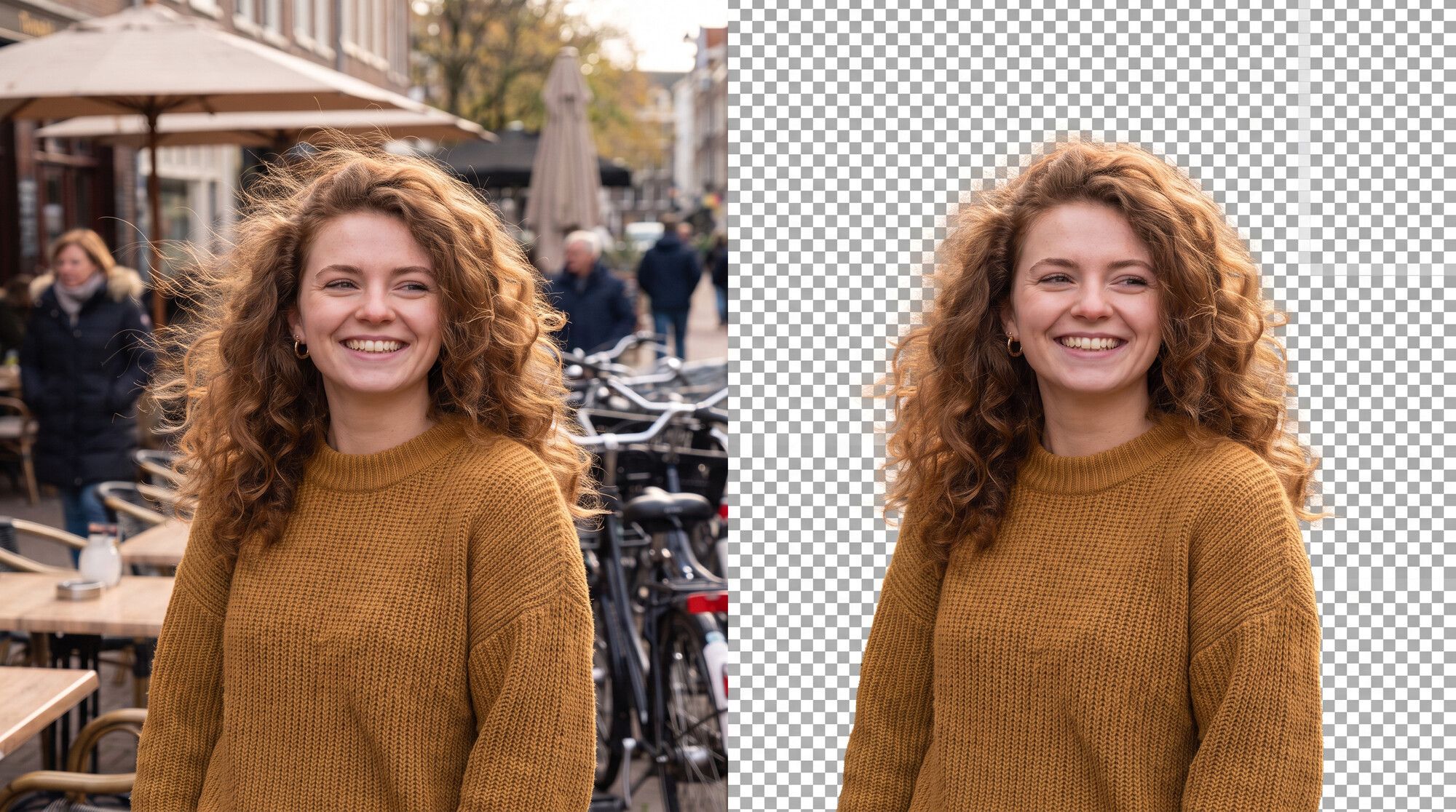
AI can remove a background with one sentence — “replace the background with white” — no brush selection, no masks. But generative models don’t work like a classic background eraser: they redraw the image, and the result depends on the model. We took two typical cases — a portrait with voluminous curls against a busy background and a product on a cluttered table — and ran them through three models in the AI2Face generator. The woman in the photos was generated for this test.
Remove background from photo with AI: three possible results
When people say “remove the background”, they mean one of three different results:
| What you need | What it’s for | Model in our test |
|---|---|---|
| White background | avatar, ID photo, product listing | Nano Banana 2.1 |
| Transparent background (PNG) | collage, design, slides | GPT Image 2.5 with the “Transparent” setting |
| New background | social media, ads, “moving” from a café to a park | Nano Banana Pro |
The prompt for all three follows the same structure: what to remove, what to put in its place and what to leave alone. The third part is essential: “keep the face, every strand of hair, the sweater, the earrings, the pose and the light exactly as they are”. Without it, the model may “improve” the face or change the framing.
How to remove a background and make it white
Remove the background completely and replace it with a pure plain white
seamless studio background. Keep the woman exactly the same: her face, every
curl and flyaway strand of her hair, the mustard sweater, the earrings, her pose
and the light on her. Keep the same framing. No objects, no people, no shadows
behind her.
Curls against a busy background are the hardest case: thin strands mix with parasols, passers-by and bicycles. Nano Banana 2.1 removed the entire café on the first try and kept the flyaway strands at the edges. The face, the earrings and the knit of the sweater didn’t change.
How to make a transparent background with AI
Cut out the woman from this photo and place her on a fully transparent
background. Keep her exactly the same: face, curly hair with flyaway strands,
mustard sweater, earrings, pose. Remove everything else: the cafe, people,
bicycles, parasols.
A transparent background isn’t a color, it’s empty space: a PNG file with an alpha channel. Most generative models can’t do this and paint the background with pixels. GPT Image 2.5 can: the OpenAI API has a transparent background parameter for it, and the AI2Face generator has a “Background: Transparent” switch. In our test, the strands at the edges came out semi-transparent, as they should — you can drop the PNG onto any color without a white fringe. One downside: the model zoomed in a little and cropped the bottom of the sweater.
How to change the background of a photo with AI
Replace the busy cafe background with a quiet autumn park: golden trees, a path
with fallen leaves, soft blurred bokeh, warm late afternoon light that matches
the light on her. Keep the woman exactly the same: face, curly hair with every
strand, sweater, earrings, pose and framing.
This is where a generative model beats any eraser: besides a new picture behind the subject, it also matches the light. Nano Banana Pro created a park with warm side light that lined up with the highlights in the hair and blurred the background like a portrait lens. There’s no visible seam around the curls.
Product backgrounds: white and transparent
Product photo for an online marketplace: remove the table, crumbs, napkin, keys
and plant. Place exactly this sage-green ceramic mug centered on a pure white
background with a soft natural contact shadow under it. Keep the mug exactly the
same: shape, irregular rim, handle, glaze color and reflections. The mug fills
about 70 percent of the frame.
A product listing needs a white background with a light shadow: without the shadow, the item seems to float in the air. Nano Banana 2.1 kept the mug’s irregular rim, the glaze reflections and the handle, and made the shadow soft and short. GPT Image 2.5 cut the mug out into a transparent PNG, which is easy to drop into a listing template. To turn a photo like this into a full listing with infographics, see our guide to AI product images for ecommerce.
Which AI removes backgrounds best: three models compared
We gave the same “replace the background with white” command to three models: Nano Banana Pro, Nano Banana 2.1 and GPT Image 2.5.
| Nano Banana Pro | Nano Banana 2.1 | GPT Image 2.5 | |
|---|---|---|---|
| Background fully removed | no — parasols and passers-by in a haze, two attempts | yes | yes |
| Hair strands | white halo | preserved | preserved |
| Framing matches the source | yes | yes | no — tighter crop |
| Transparent PNG | no | no | yes |
| Product on white | returned the source, two attempts | yes | yes |
| Best for | swapping in a new scene | white backgrounds with no surprises | transparent PNG |
The result surprised us: the strongest model in Google’s lineup did the worst job at simple background removal. Nano Banana Pro twice left part of the café in a white haze and both times returned the mug almost unchanged. Yet it did the best job at replacing the background with a park. For white backgrounds, use Nano Banana 2.1; for transparent PNGs, GPT Image 2.5.
How to remove a background in AI2Face: step by step
- Open the AI2Face generator and upload your photo as the source.
- Pick a model: Nano Banana 2.1 for a white or colored background, GPT Image 2.5 for a transparent one (set “Background: Transparent” in the settings), Nano Banana Pro for a new scene.
- Write the command using the formula “what to remove → what to put instead → what to leave alone”.
- Start the generation: the cost is shown before you start, and the result arrives in 20–40 seconds.
- If you don’t like the strands or edges, run the same command again or switch models — it’s faster than rewriting the prompt.
Limitations: where AI gets it wrong
- The image is redrawn. A generative model doesn’t cut out pixels — it draws the picture from scratch. Small details such as text on a T-shirt or a fabric pattern may change slightly. For ID photos and products with labels, compare the result with the source.
- Framing. In our test, GPT Image 2.5 zoomed in. If the format matters, add “keep the framing and the size of the subject”.
- Glass and transparent objects. The model may make a wine glass or a bottle opaque. Ask for it explicitly: “the glass stays transparent, the new background shows through it”.
- Hundreds of photos in a row. Each edit is a separate generation. For bulk catalog processing, classic background-eraser services are faster; for tricky shots and background swaps, use generative models.
If you need to remove specific objects or people rather than the background, see our test on how to remove objects from a photo with AI. For other one-sentence edits, see our AI photo editor guide.
Where to remove backgrounds with AI
Nano Banana 2.1, Nano Banana Pro and GPT Image 2.5 are all in one AI2Face generator: upload a photo and compare the results of several models. You can pay with crypto, and credits from packs don’t expire. AI2Face strips AI metadata from downloaded files, so social networks don’t label them as AI-generated.
Bottom line
AI can remove a background with one sentence, but the model decides the outcome. For a white background — for portraits and products alike — use Nano Banana 2.1: in our test, it cleanly removed the busy café around the curls on the first try. For a transparent PNG, you need GPT Image 2.5 with the “Transparent” setting — the other models don’t output transparent backgrounds. Save Nano Banana Pro for swapping in a new scene: it’s the best at that, but it got simple removal wrong twice. In every command, say what to leave alone, and check the hair edges zoomed in.
FAQ
How do I remove the background from a photo with AI?
Upload the photo to the generator, pick an editing model such as Nano Banana 2.1 and write: “remove the background and replace it with pure white, keep the person exactly as is”. For a transparent PNG, choose GPT Image 2.5 and set the background to “Transparent”.
How do I make a transparent background with AI?
You need a model that outputs a PNG with an alpha channel. In AI2Face, that's GPT Image 2.5: set the background to “Transparent” in the settings and ask it to cut out the subject. Other models paint the background with pixels — white or any other color, but not transparent.
Can AI handle hair?
Yes, if you pick the right model. On curls with flyaway strands, Nano Banana 2.1 and GPT Image 2.5 kept the strands with no halo, while Nano Banana Pro left a white haze with part of the background around the head.
Can I remove a background for free?
Yes, a few times. AI2Face gives you starter credits when you sign up, and the cost of each edit is shown before you start.
How is an AI model different from a background eraser?
An eraser only cuts out the subject with a mask and doesn't change any pixels. A generative model redraws the whole image: it can replace the background with a new scene at the same time, but it sometimes changes the framing or small details.
Sources
3
- https://developers.openai.com/api/docs/guides/image-generation
- https://ai.google.dev/gemini-api/docs/image-generation
- https://blog.google/innovation-and-ai/products/nano-banana-pro/