







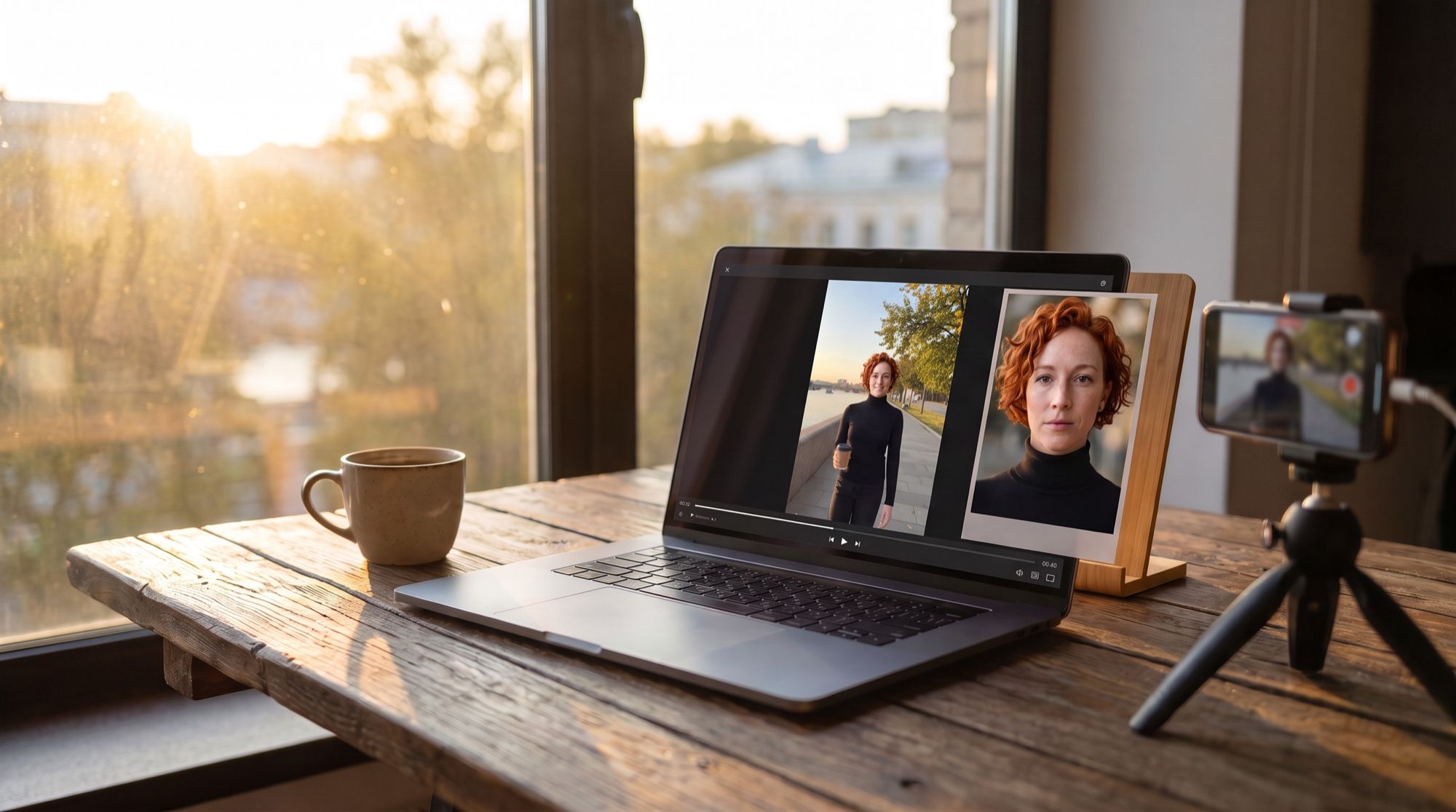
Face swapping in video used to mean frame-by-frame replacement: software found the face in every frame and pasted a new one over it. The video models of 2026 offer a second route — generate the same clip again, but with a different person. We tested that route ourselves: a clip of a young woman on an embankment, a “user” selfie and two generations. Every frame and clip here was made in the AI2Face generator, and the people in them are fictional.
How AI face swap video works
There are two fundamentally different approaches, and your choice decides what you get.
| Frame-by-frame swap | Generative swap | |
|---|---|---|
| How it works | finds the face in each frame and overlays a new one | a video model regenerates the clip with the new person |
| Motion | exactly as in the source | follows the description and the first frame |
| What changes | only the face; the hair stays the original person’s | face, hair and, if you want, clothes and background |
| Sound | kept from the source | generated anew |
| Weak spot | a “mask” look on turns and in different light | small differences in the motion |
The generative swap wins when the whole person has to look natural: different hair, lit by the scene’s own light, no mask edges around the face. A frame-by-frame swap is what you need when every second of the source matters, such as a long clip with speech.
How to face swap a video: step by step
Step 1. Grab a frame from the clip
Take the first frame of the clip where the person is clearly visible: the face uncovered, not blurred by motion, turned toward the camera. A paused screenshot from any player works. If the face is hidden at the start, trim the clip so it starts on a good frame.
Step 2. Swap the person in the frame
Upload the frame and your photo to Nano Banana Pro and describe who replaces whom and what stays untouched. The key is a long list of what to keep: pose, clothes, hands, props, background, camera angle and light.
Face swap. In the first image (a video frame of a blonde woman on a city
embankment), replace the woman with the woman from the second image: her exact
face, short curly copper-red hair, freckles, green eyes. Keep everything else from
the first image identical: pose, black turtleneck, black trousers, paper coffee
cup, hands, the embankment, the river, trees, camera angle, framing and warm
late-afternoon light. Photorealistic, no text.
In our test Nano Banana Pro swapped the person on the first try: the face and curls came from the selfie, while the pose, the coffee cup and even the folds of the turtleneck came from the frame. For photos, see our guide on how to swap a face in a photo with AI.
Step 3. Animate the frame with a video model
Set the new frame as the first frame in Gemini Omni and describe the same action as in the source: where the person walks, what their hands do, how the camera moves. End the prompt by repeating the facial features — that’s how the model keeps them through turns.
Vertical smartphone video: the woman walks toward the camera along the sunny
embankment, laughs, raises the paper coffee cup to the camera and spins around
once, her curly red hair bouncing. Handheld camera walks backward in front of
her, medium shot, golden late-afternoon light. Keep her face, curly copper-red
hair, freckles and black turtleneck exactly as in the image. Sound: street
ambience and her laugh. No text.
The result repeated every action of the source: the walk toward the camera, the laugh, the raised cup, the spin. The face stayed recognizable even from behind and after the turn. The differences are visible too: she raises the cup half a second earlier, and the camera stays a little closer. That’s the honest trade-off of a generative swap — the motion is reproduced from the description, not copied frame for frame.
In video models that accept a clip as input (Gemini Omni takes a video reference of up to 3 seconds), you can attach the source along with the frame, and the model will pick up the character of the motion from it.
How to put yourself in a video without a source clip
If you don’t have a clip at all, you don’t need one: attach your photo as a reference and describe the whole scene. The video model places you in the shot, dresses you and sets the motion.
This is how people make “me in Paris” and “me on stage” clips, or a video series for an AI influencer. In our test the face kept every freckle, while the model invented the trench coat and the street from the description. For more on video from a photo, see the guide on how to animate a photo.
How to choose the source clip and the face photo
Source clip:
- a short segment: one Gemini Omni generation is up to 10 seconds, so a longer video is built from several parts;
- one clear action — walking, turning, laughing — rather than fighting, lifts or fast arm moves;
- the face uncovered for most of the clip: no oversized sunglasses, hands or cups in front of it;
- a smooth camera: shake and sudden zooms hurt both the swap and the animation.
Face photo:
- front-facing or slightly turned, with the eyes visible;
- even daylight without harsh shadows;
- no filters or beauty retouching — the model carries them over;
- the hairstyle you want in the clip: the model takes the hair from the photo along with the face.
The closer the photo’s light and angle are to the clip’s frame, the more natural the result: a selfie by a window blended well into a frame with soft evening light.
Why the face changes between frames and how to fix it
| What you see | Why | What to do |
|---|---|---|
| The face drifts after a turn | the model never saw the person in profile | repeat the features in the video prompt; use a photo with a slight turn |
| The hairstyle changed | the hair isn’t described in the prompt | state the color, length and shape: “short curly copper-red hair” |
| The clothes changed | the frame and the prompt mention different clothes | name the clothes from the frame in the video prompt |
| The person moves differently from the source | the action is described too vaguely | break the action into steps: “walks, laughs, raises the cup, spins” |
| The face is similar but “not quite” | the face photo is small or filtered | use a larger photo without retouching |
If a generation misses, change one thing in the prompt and run it again — that way you can tell what actually helped.
Limitations
- The motion isn’t frame-accurate. A generative swap repeats the action in meaning. If every fraction of a second matters — lip sync with your own voice, exact choreography — reshoot instead.
- The sound is generated anew. The voice and ambience of the source don’t carry over; the video model creates its own track. You can lay the original audio back on in editing if the timing matches.
- Length. One Gemini Omni generation runs up to 10 seconds. A long clip is assembled from segments, each with its own first frame.
- Several people. Swap each of them in the frame beforehand and describe each one in the prompt by features: “the red-haired woman,” “the bearded man.”
- Public figures. Google doesn’t allow uploading images of recognizable public figures to Gemini Omni — those generations are rejected.
- Watermarking. Gemini Omni clips and Nano Banana Pro images carry an invisible SynthID watermark — you can check it in the Gemini app, for example.
Is it legal to swap faces in a video?
You can put your own face in any clip. Someone else’s face only with their consent: under Article 152.1 of the Russian Civil Code, a person’s image may be published and used only with their consent. The exceptions are state and public interests, shots in public places where the person isn’t the main subject, and paid posing. Rules in your country may differ, so check them before publishing.
Practical rules:
- ask friends and family for consent before putting their faces in a clip and posting it;
- don’t make clips where a real person “says” or “does” something that never happened: beyond image rights, that can harm their honor and reputation;
- label the clip as AI-made if viewers could mistake it for real footage.
Bottom line
A frame-based AI face swap video is the simplest route for short clips: two generations, and the person looks natural as a whole, with the hair and the light of the scene. Use it for social media clips, an AI influencer, greetings and “me in this video” edits. If you need to repeat every move of the source to the frame or keep the original audio, a generative swap loses to frame-by-frame replacement. If you have no source at all, go straight to a video from a photo reference. Every step — the frame swap and the video — happens in one AI2Face generator, and the cost is shown before each generation.
FAQ
How do I face swap a video with AI?
Take the first frame of the clip, replace the person in it using your photo in an image editing model such as Nano Banana Pro, then animate that frame with a video model using the same description of the action. In our test the whole swap took two generations.
Can I face swap a video for free?
Yes, for a test. AI2Face gives you welcome credits when you sign up — enough for the frame swap and a short clip. The cost of each generation is shown before you start.
Why does the face change between frames?
The face drifts on sharp head turns, when a hand or an object covers it, and when the person leaves the frame. Use a front-facing face photo in even light and repeat the key features in the video prompt: hair color and shape, freckles, moles.
Can I swap several faces in one video?
Yes, through the frame: replace each person in it using their own photo first, then animate. Describe each person separately in the prompt by their features.
Is it legal to swap faces in a video?
With your own face, or with people who have given consent, yes. In Russia, Article 152.1 of the Civil Code prohibits using another person's image without consent, and Google doesn't allow uploading recognizable public figures to Gemini Omni.
Sources
4
- https://ai.google.dev/gemini-api/docs/omni
- https://blog.google/innovation-and-ai/technology/developers-tools/build-with-gemini-omni-1-1-flash/
- https://blog.google/innovation-and-ai/products/nano-banana-pro/
- https://www.consultant.ru/document/cons_doc_LAW_5142/14c6c3902cffa17ab26d330b2fd4fae28e5cd059/