

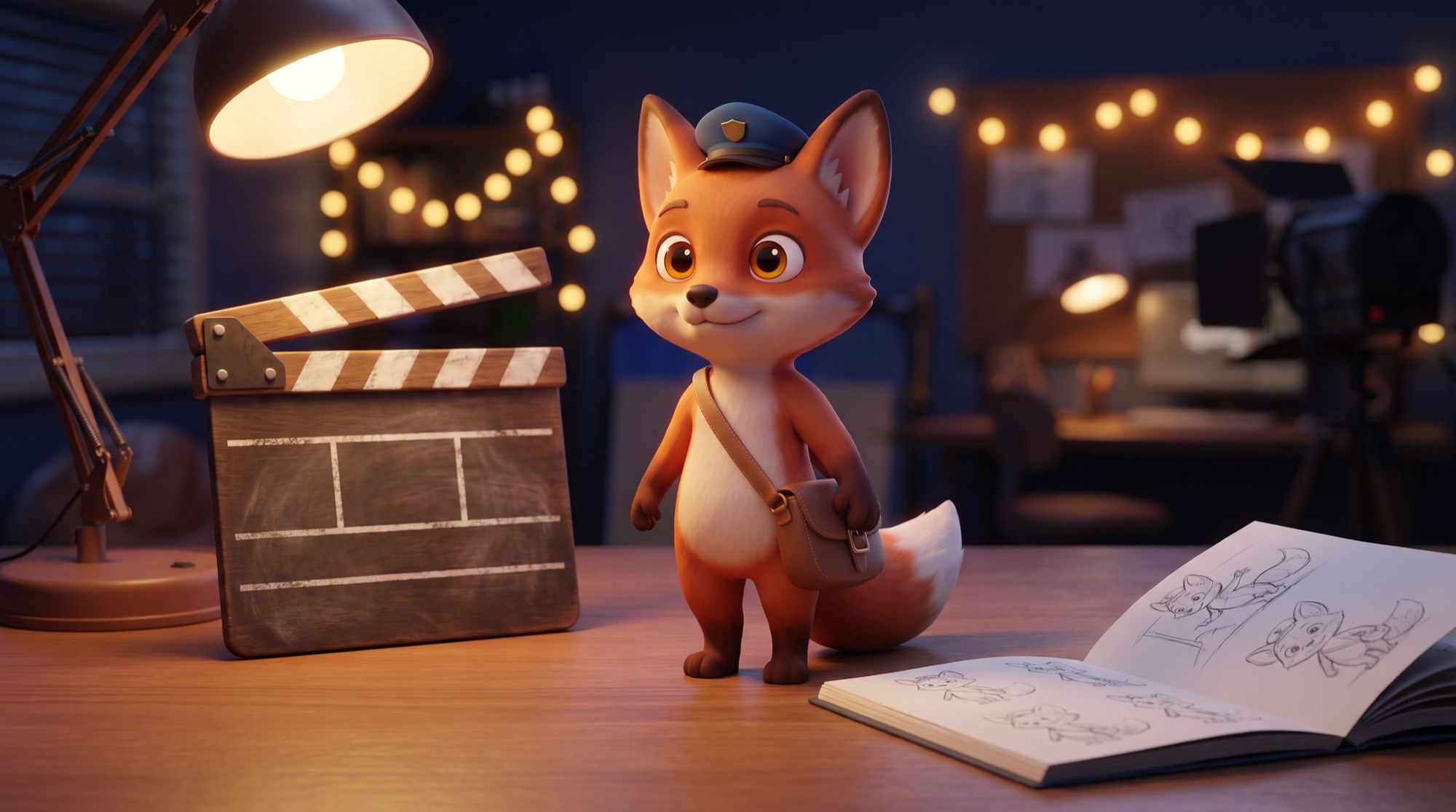
An AI cartoon generator runs as a pipeline: character → scenes → animation → sound → cut. Each step takes minutes, and the real work stays with you — invent the story and keep the character from drifting between scenes. We walked the whole path on a short about a fox mail carrier. Every image and video was made in the AI2Face generator, and all seven generations worked on the first try.
Which models an AI cartoon generator needs
Images and video come from different models.
| Step | Model | Why |
|---|---|---|
| Character sheet, scene frames | Nano Banana Pro or GPT Image 2.5 | they keep one character from a reference and draw in any style |
| Animating a scene with sound | Veo 3.1 | up to 8 seconds, 1080p, lines, sound effects and music together with the video |
| Long shots, edits to a finished video | Gemini Omni | extending a scene and editing the video with text |
A roundup of the other video models is in our AI video generator guide.
Step 1. Script: scenes of 8 seconds
Veo 3.1 generates a clip of 4, 6 or 8 seconds. Cut the story into 8-second scenes from the start: one scene is one action, and no more than one line.
Our script, “The Fox Mail Carrier”, three scenes:
- Morning in a snowy forest village. The fox cub pulls a letter out of the mailbox and cheers: «Ура, письмо!»
- The fox cub runs with the letter across a rope bridge over a frozen stream.
- Evening, a hollow in an old oak. The fox cub hands the letter to an owl, and the owl thanks him: «Спасибо, малыш! Заходи на чай».
In our test the lines are in Russian; in the prompt you can set a line in any language.
A one-minute cartoon is 8–10 scenes like these. You can ask a text model for the script, but check that a scene doesn’t pack three actions at once: the video model will squash them or carry out only one.
Step 2. Character sheet
A character sheet is one frame that shows the character from several sides and with different expressions — a turnaround sheet. It becomes the reference for every scene.
Character turnaround sheet for an original animated short film: a small red fox
cub mail carrier with big amber eyes, a fluffy white-tipped tail, wearing a tiny
blue postman cap and a brown leather satchel across the body. Stylized 3D animated
feature film look, soft subsurface fur shading. Show the same character in four
views in a row: front, three-quarter, side profile and back, plus three small head
close-ups with happy, surprised and sad expressions. Plain light grey background,
even studio lighting, consistent proportions in every view. No text, no labels.
Keep 3–4 memorable details in the description (here: a blue cap, a brown satchel, a white tail tip). They show whether it’s the same character, and the model keeps them more easily. How to invent and describe a character is in the AI character generator guide.
Step 3. Scene frames with one character
For each scene, generate a starting frame with the character sheet attached. The prompt opens with the same sentence about the character, then comes the scene.
Use the fox cub character from the reference sheet exactly: same face, fur colors,
blue postman cap and brown satchel, same stylized 3D animated feature film look.
Scene: early winter morning in a tiny snowy forest village of round wooden houses
with smoking chimneys, the fox cub stands at a wooden mailbox and happily pulls out
a single envelope sealed with red wax, soft pink sunrise light, gentle falling snow.
Wide cinematic shot, the character in the left third. No text.
Style and light are set here, not in the video: the video model continues the frame you give it. If a scene misses, regenerate only that one — leave the others alone.
Step 4. Animation: how to write the prompt
Send the scene frame to the video model in image-to-video mode. In the prompt, describe only the motion: what the character does, how the camera moves, what happens in the background. The look is already in the frame.
Animated feature film style: the fox cub pulls the envelope out of the mailbox,
looks at it with delight, hugs it to its chest and happily says in Russian in a
child's voice: Ура, письмо! Then it hides the letter in the satchel and hops off
to the right. Gentle snowfall, smoke from chimneys. Sound: crunchy snow under paws,
soft cheerful orchestral music, the fox's line. Keep the character design exactly
as in the image. No text, no subtitles.
For the bridge scene, motion and sound are enough, with no line:
Animated feature film style: the fox cub runs across the swaying rope bridge from
left to right holding its cap against the wind, a plank creaks and bounces, snow
falls from the ropes, the camera tracks sideways following the fox, at the end the
fox jumps onto the snowy bank and keeps running. Sound: wind whistle, creaking wood,
fast playful pizzicato music. No dialogue, no subtitles.
Rules that worked:
- One action per scene, and its order in the words “then” and “at the end”.
- Camera movement in its own phrase: “the camera tracks sideways”, “slowly pushes in”.
- “Keep the character design exactly as in the image” — a safeguard against the model redrawing the character.
- “No subtitles” — otherwise the model may add subtitles of the line.
Step 5. Voice and sound
Veo 3.1 generates the sound together with the video: speech, effects and music. For a character to speak, write in the prompt who is speaking, in what voice, in what language, and the exact line.
Animated feature film style: the old owl takes the envelope from the fox cub,
adjusts its round glasses, smiles warmly and says in Russian in an old kind voice:
Спасибо, малыш! Заходи на чай. The fox cub's ears perk up and it nods happily.
Sound: the owl's line, a crackling fireplace inside, soft warm music.
- One or two short lines per scene. A long monologue won’t fit in 8 seconds.
- Describe the voice in words: “a child’s”, “old and kind”, “raspy”.
- For long dialogue, record the voices yourself and lay them in during the edit, and ask the video for “no dialogue”.
Step 6. The edit and the finished cartoon
Cut the scenes together in a video editor, in script order. We joined the three clips with hard cuts — 24 seconds.
What to add in the edit:
- One music bed over the scenes — each scene has its own, and it breaks off at the cut. Lower the scene audio and lay one track over the whole cartoon, keeping the lines.
- Transitions — a short fade between scenes smooths a change of location.
- Titles — make the title card and “the end” in the editor, not in the generation.
- Check the cuts — if the character stands on the right at the end of a scene and on the left at the start of the next, insert a wide shot or regenerate the frame.
A cartoon from a photo or a child’s drawing
- From a photo. Upload a photo of a child or a pet and ask for a redraw in a 3D cartoon style — that becomes the character sheet, then continue as in steps 3–6. How to move a photo into other styles is in AI photo style transfer.
- From a child’s drawing. Photograph the drawing and animate it straight to video — the character keeps the child’s style. Examples are in animate a photo.
- For kids. Short scenes, bright colors, clear emotions and one idea per scene work better than a complicated plot.
Limitations
- 8 seconds per scene. Anything longer is built in the edit, or by extending the scene.
- The character can drift. In our test the character sheet held the character in every scene, but in a long series check each scene with the sheet in front of you.
- Supporting characters without a sheet change. We described the owl in words only — a second meeting with her needs her own sheet.
- Sound doesn’t match at the cuts. Each scene has its own music — lay a shared track in the edit.
- Misses are inevitable. Allow for 1–2 regenerations of a scene, especially with several characters.
Where to use an AI cartoon generator
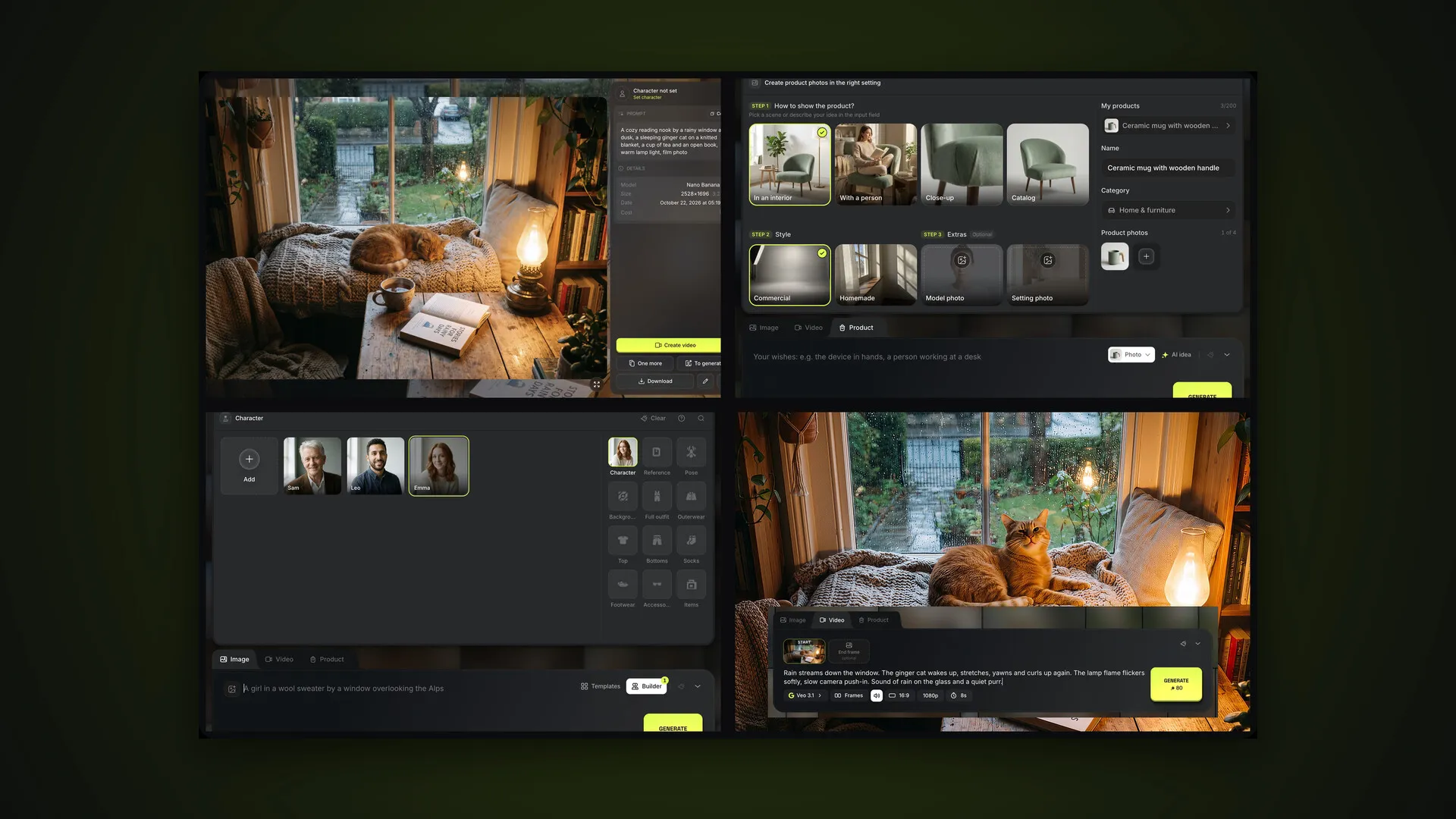
Nano Banana Pro, GPT Image 2.5, Veo 3.1 and Gemini Omni are in one AI2Face generator: the character sheet, the scene frames and the videos sit in one feed, and you can send any frame into the next generation in one click. The cost of each generation is shown before you start, you can pay by card or crypto, and credits from packs don’t expire. How video generation works in the service is in the AI2Face video generator guide.
Bottom line
An AI cartoon generator builds a cartoon from the same steps a studio uses, only each step takes minutes: our 24 seconds are one character sheet, three frames and three videos, and all seven generations worked on the first try. The key to a cartoon that holds together is a character sheet attached to every scene, and 8-second scenes with one action. Draw the characters and the scenes in Nano Banana Pro, animate them with voices in Veo 3.1, and add the shared music and the titles in the edit. Three or four scenes are enough for a first cartoon — start there before you write a series.
FAQ
How do I create a cartoon with AI?
Split the story into 8-second scenes, make a character sheet, draw a starting frame for each scene from it and animate the frames with a video model that includes sound. Cut the finished scenes together in any video editor.
How do I keep one character in every scene?
Attach the character sheet as a reference on every frame and write “use the character from the sheet exactly”. In our test the fox cub kept the coloring, the cap and the satchel in all three scenes and in all three videos.
Can I make a cartoon with AI for free?
A short one, yes. AI2Face gives you welcome credits after you sign up: enough for the character sheet and the scene frames, and test the video on one scene first. The price of each generation is shown before you start.
Can AI voice the characters?
Yes. Veo 3.1 generates the lines, the sound effects and the music together with the video — write in the prompt who says what. In our test the lines were in Russian. Long dialogue is better recorded in your own voice and laid in at the cut.
How long is a cartoon made with AI?
As long as the scenes you cut together. Veo 3.1 makes a scene of up to 8 seconds, and our three-scene cartoon runs 24 seconds. A one-minute film is 8–10 scenes.
Sources
4
- https://ai.google.dev/gemini-api/docs/veo
- https://developers.googleblog.com/introducing-veo-3-1-and-new-creative-capabilities-in-the-gemini-api/
- https://blog.google/innovation-and-ai/products/nano-banana-pro/
- https://blog.google/innovation-and-ai/technology/developers-tools/build-with-gemini-omni-1-1-flash/