







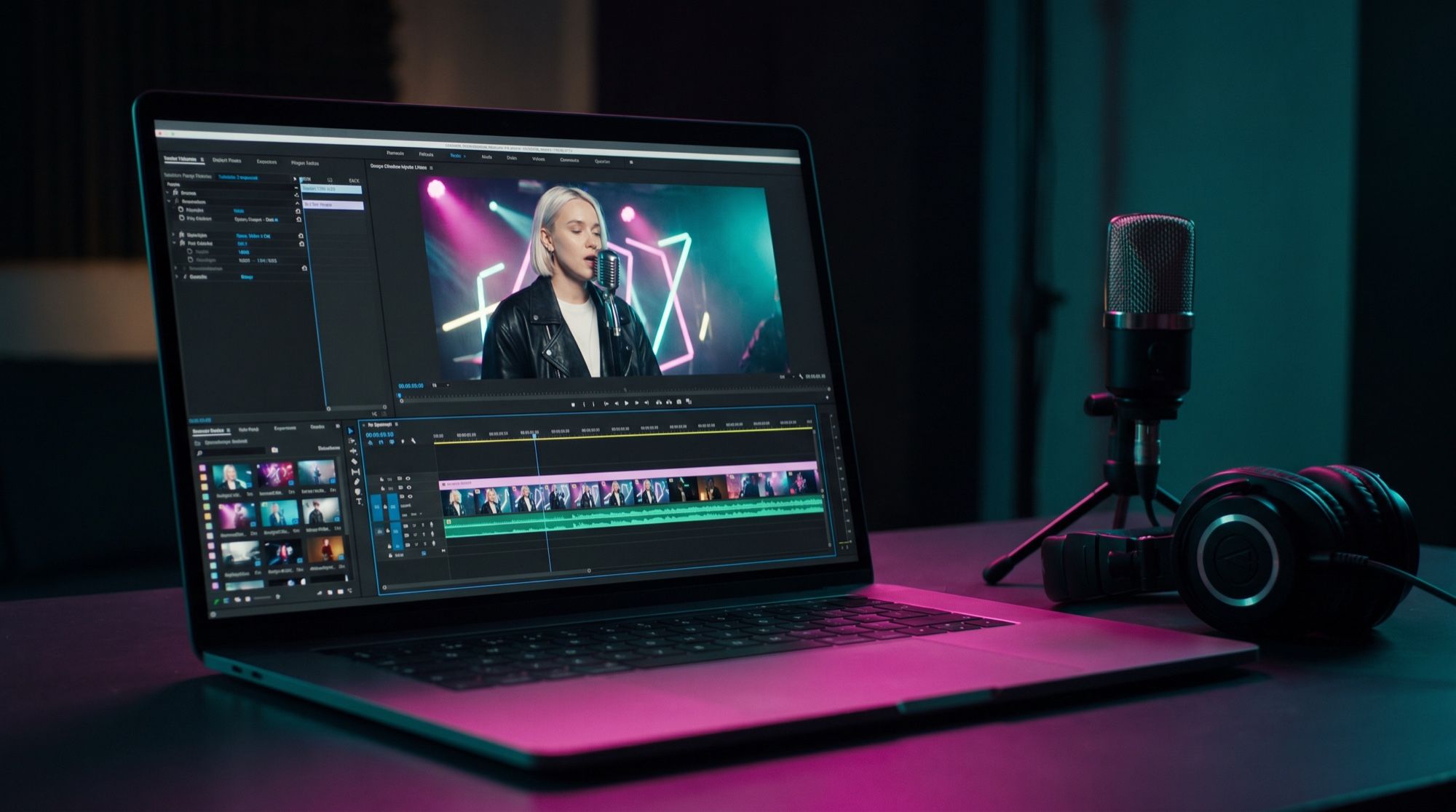
An AI music video generator doesn’t turn a song into a clip with one click. It works the way a director does, from short shots. Video models make scenes of up to 8 seconds, so a clip is built like a real one: a storyboard, a performer, the shots, and editing to the track. We walked through this on a clip for a fictional singer. Every frame and video was made in the AI2Face generator.
How an AI music video generator builds a clip
| Step | What you do | With what |
|---|---|---|
| 1. Storyboard | split the track into shots by verse and chorus | by hand, or with a text model |
| 2. Performer | an anchor frame of the singer | Nano Banana Pro |
| 3. Scenes | a start frame for each shot, with the same singer | Nano Banana Pro + the anchor frame as a reference |
| 4. Video | animate the frames, 8 seconds each | Veo 3.1, Gemini Omni |
| 5. Edit | cut the shots to the song and lay in the track | any video editor |
None of these models listens to your song: Veo 3.1 takes text and images, not an audio file. You set the rhythm and the mood yourself — in the storyboard and in the edit.
Step 1. A storyboard for the track
Mark the song by timecode: intro, verse, chorus, bridge. Give each verse its own location, and give the chorus the brightest shots, the ones you’ll repeat later.
How many shots you need. One 8-second shot gives you 2–4 seconds in the edit: music videos cut often, and the start and end of a clip usually get trimmed. Plan on one generation for every 6–8 seconds of the song:
| Track length | Video generations | With spare for rejects |
|---|---|---|
| 30 seconds (teaser, Reels) | 4–5 | 6 |
| 1 minute | 8–10 | 12 |
| 3 minutes | 23–25 | 30 |
Start with a 30-second teaser. It shows whether the singer stays consistent and whether the style works, before you spend credits on the full clip.
Step 2. The singer: an anchor frame
The anchor frame is the first portrait of the singer that actually works. Every other scene is generated from it. Pick 3–4 traits you can see from any angle: here, a platinum bob, silver hoop earrings, an oversized leather jacket over a white T-shirt.
Full-frame cinematic medium shot from a music video, the image fills the whole
16:9 frame edge to edge with no black bars: an original fictional young female
singer in her twenties with a short bleached platinum bob haircut, small silver
hoop earrings, oversized black leather jacket over a plain white t-shirt, singing
with eyes half closed into a vintage silver microphone on a small club stage.
Magenta and teal stage lights and abstract neon light tubes without any letters
behind her, light haze, shallow depth of field, 35mm film grain. No text, no logos.
The first version came back with black bars on the sides and a scrap of a neon sign with letters. That’s where two lines in the prompt come from: “fills the whole 16:9 frame, no black bars” and “neon tubes without any letters.” The video model continues this exact frame, so it’s better to fix the flaws in the still.
If the performer is you, upload your own photos instead of an anchor frame. AI2Face has AI2Face characters for that, and you can attach them to any generation.
Step 3. Scenes with the same singer
Generate each scene with the anchor frame attached as a reference. Start the prompt with the same line about the singer, then the location and the action.
Use the same singer from the reference image exactly: same face, short platinum
bob, silver hoop earrings, oversized black leather jacket over a white t-shirt.
Scene from the same music video: she stands on the edge of a flat rooftop at dawn
above a sleeping city of apartment blocks, wind blowing her hair and jacket, soft
pink and orange sunrise, she sings with eyes closed and one hand on her chest.
Full-frame cinematic medium wide shot, 35mm film grain. No text, no logos.
The same “film grain” and the phrase “from the same music video” in every prompt keep the clip looking like one piece.
Step 4. Video: animate the shots
Send the scene frame to a video model in image-to-video mode and describe how the singer and the camera move. Veo 3.1 makes clips of 4, 6 or 8 seconds; for a music video take 8 — you get more material to cut.
Music video shot at dawn: the singer stands on the rooftop edge singing with eyes
closed and one hand on her chest, strong wind blows her platinum hair and the
leather jacket, the sun rises behind the apartment blocks and the light turns from
pink to golden. The camera slowly orbits around her from the side to the front at
medium distance. Keep her face, hair and clothes exactly as in the image.
Camera movement is what makes a music video: “slowly pushes in,” “orbits around her,” “dollies backward at her walking pace.” A static shot looks like a photograph.
Not every scene gets through. The clip from the street frame was blocked by the model provider’s safety filter, with no reason given. AI2Face refunds the credits for a clip like that automatically. Rewording the prompt, or using a neighboring frame, gets you past it.
Sound: let the model sing, or use your track
Veo 3.1 generates sound with the video, including singing. We asked the singer to sing a line in Russian. In our test the sung line is in Russian; in the prompt you can set the line in any language.
The singer slowly leans into the vintage microphone and sings a soft melodic line
in Russian: Город не спит, и я не сплю. Her eyes stay half closed, the stage
lights pulse to the beat, the camera slowly pushes in from a medium shot to a
close-up. Sound: her solo female vocal over a moody synth-pop beat with deep bass.
For a clip to your own song, this doesn’t replace the track: the model sings its own melody, not yours. What to do:
- Generate shots without sound and lay the track in at the edit — that’s how the rooftop shot was made.
- Avoid a tight singing close-up over someone else’s audio: an open mouth won’t match the words. Wide shots, walk-in shots, close-ups with the mouth closed, and hands on an instrument all work.
- Shots where the model sings are fine for a teaser, an intro, or a clip to a generated song.
Step 5. Editing to the track
- Put the track on the timeline first and mark the downbeats and the changes between sections of the song.
- Cut on the beat: a cut that lands on the beat looks intentional. Hold shots longer in the verse (3–4 seconds) and shorter in the chorus (1–2 seconds).
- Repeat the best shots in the choruses — ordinary music videos do the same.
- Mute generated shots if they contain music or singing, or that audio will clash with the track.
- Grade the whole clip as one — one grade evens out the light of different scenes.
Limitations
- 8 seconds per generation. A clip only comes together in the edit; longer shots can use scene extension.
- No sync to your audio. The models don’t take an audio file, so the lips won’t match your vocal.
- Safety filters. The model provider can block a scene without explaining why. The credits come back, but you’ll have to rewrite the shot.
- The performer can drift. Across three scenes the singer stayed recognizable, but on 30 shots check every frame against the anchor.
- Real artists. You can’t make a clip with a famous musician’s face without their consent. Use a fictional character, or yourself.
Where to use an AI music video generator
In AI2Face, Nano Banana Pro, Veo 3.1 and Gemini Omni sit in one generator: the anchor frame, the scenes and the video live in one feed, and any frame goes to video in one click. The cost of each generation is shown before you start, you can pay by card or crypto, and credits from packs don’t expire. A cover for the single can be made in the same place — see the guide to an AI cover generator — and for video models, see the guide to an AI video generator.
Bottom line
An AI music video generator lets you skip the crew, not the directing: you decide which shots you need and how they fit the song. The foundation is one anchor frame of the singer, attached to every scene. In our test the singer stayed recognizable on the stage, in the street and on the rooftop. Generate the frames in Nano Banana Pro, animate them in Veo 3.1 with camera movement, lay your track in at the edit, and avoid a tight singing close-up. Start with a 30-second teaser — 5–6 generations will show whether the full clip is worth making.
FAQ
How do I make a music video with AI?
Break the track into shots, make an anchor frame of the singer, paint a start frame for each scene from it, and animate those frames for 8 seconds each. Lay the song over the cut shots in a video editor.
Can AI lip-sync to my song?
Veo 3.1 and Gemini Omni don't take an audio file, so they won't lip-sync to your track. Shoot without a tight singing close-up — wide shots, walk-in shots, close-ups with the mouth closed — or use shots where the model sings on its own.
How do I keep one singer in every shot?
Make one strong anchor frame and attach it as a reference to every next scene, with the line “the same singer: face, hair, clothes.” In our test the singer stayed recognizable on stage, in the street and on the rooftop.
Can I make a music video with AI for free?
Partly. AI2Face gives you welcome credits after you sign up: enough for the singer, a storyboard and a test shot. A full three-minute clip is 20–30 video generations, and the cost is shown before you start.
How many shots does a music video need?
About one 8-second shot for every 6–8 seconds of the song. A three-minute track is 23–30 generations: the edit keeps 2–4 seconds of each shot, and some shots are unusable.
Sources
4
- https://ai.google.dev/gemini-api/docs/veo
- https://developers.googleblog.com/introducing-veo-3-1-and-new-creative-capabilities-in-the-gemini-api/
- https://blog.google/innovation-and-ai/products/nano-banana-pro/
- https://blog.google/innovation-and-ai/technology/developers-tools/build-with-gemini-omni-1-1-flash/