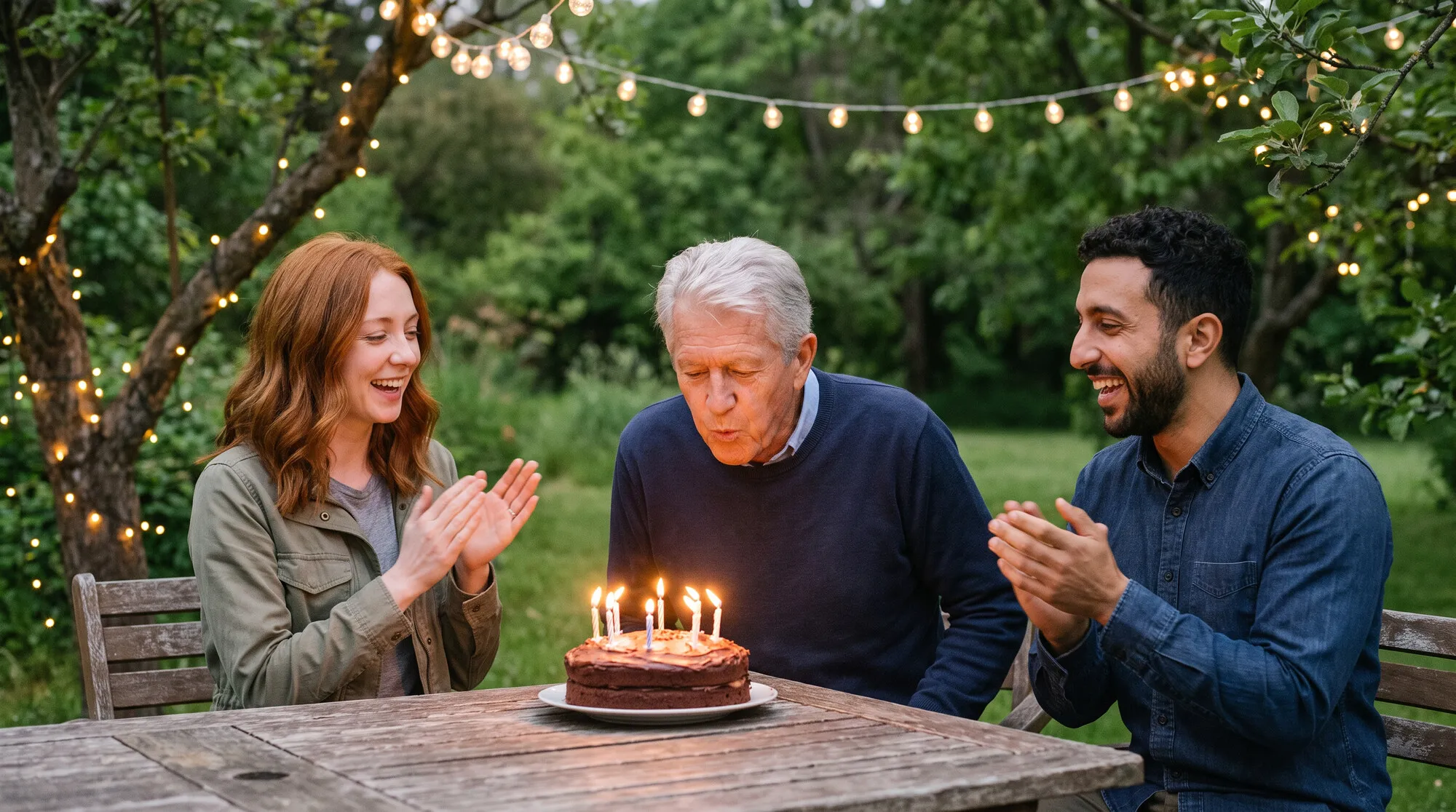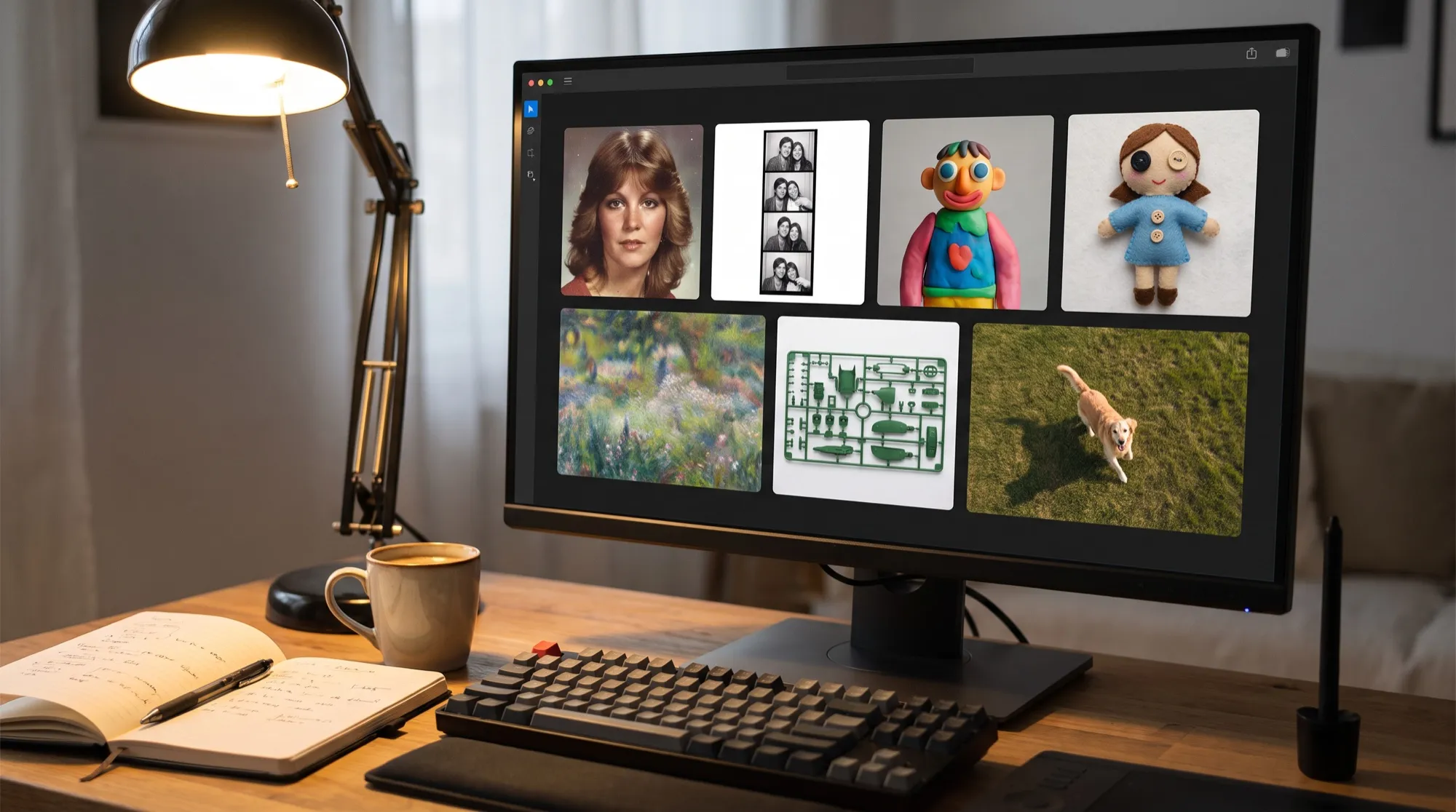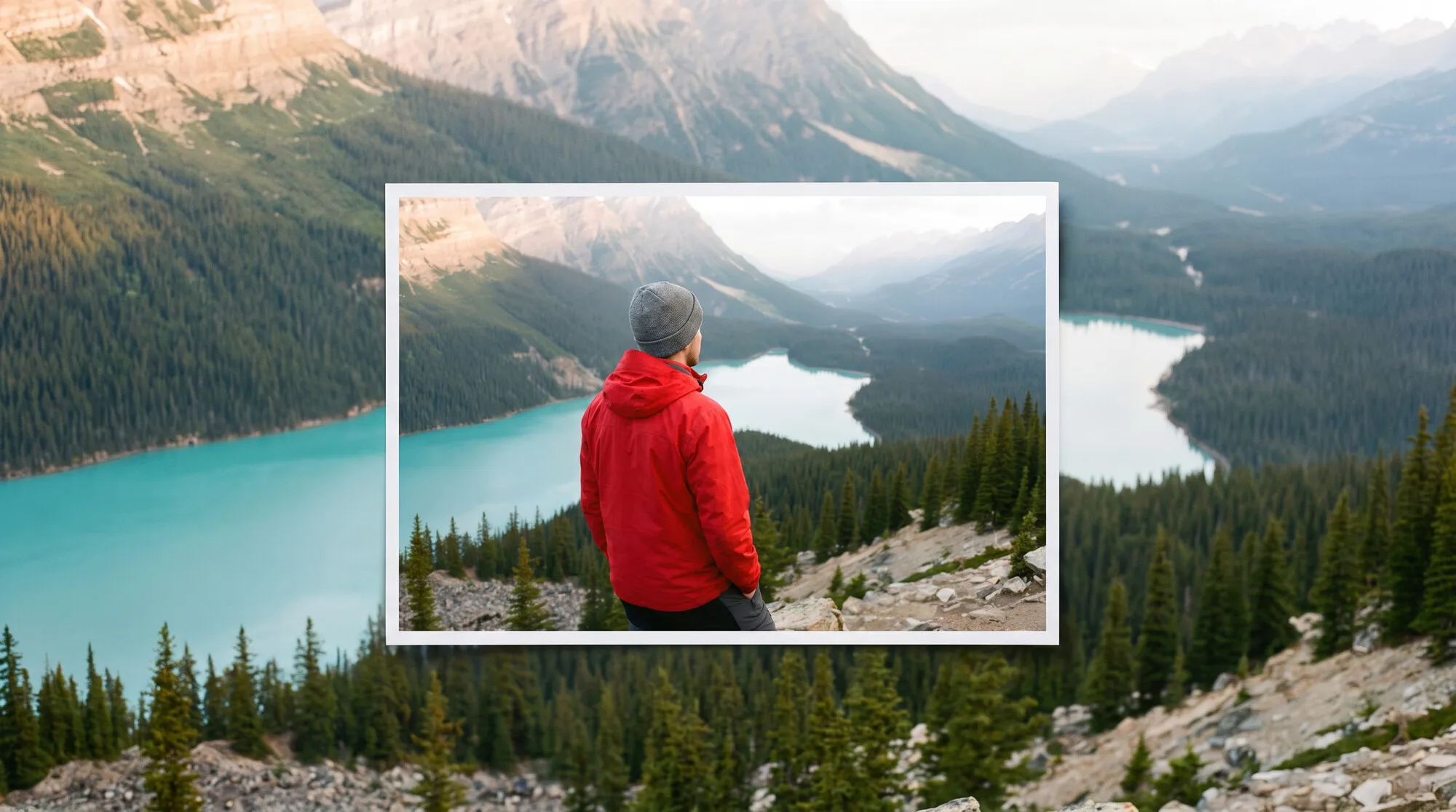



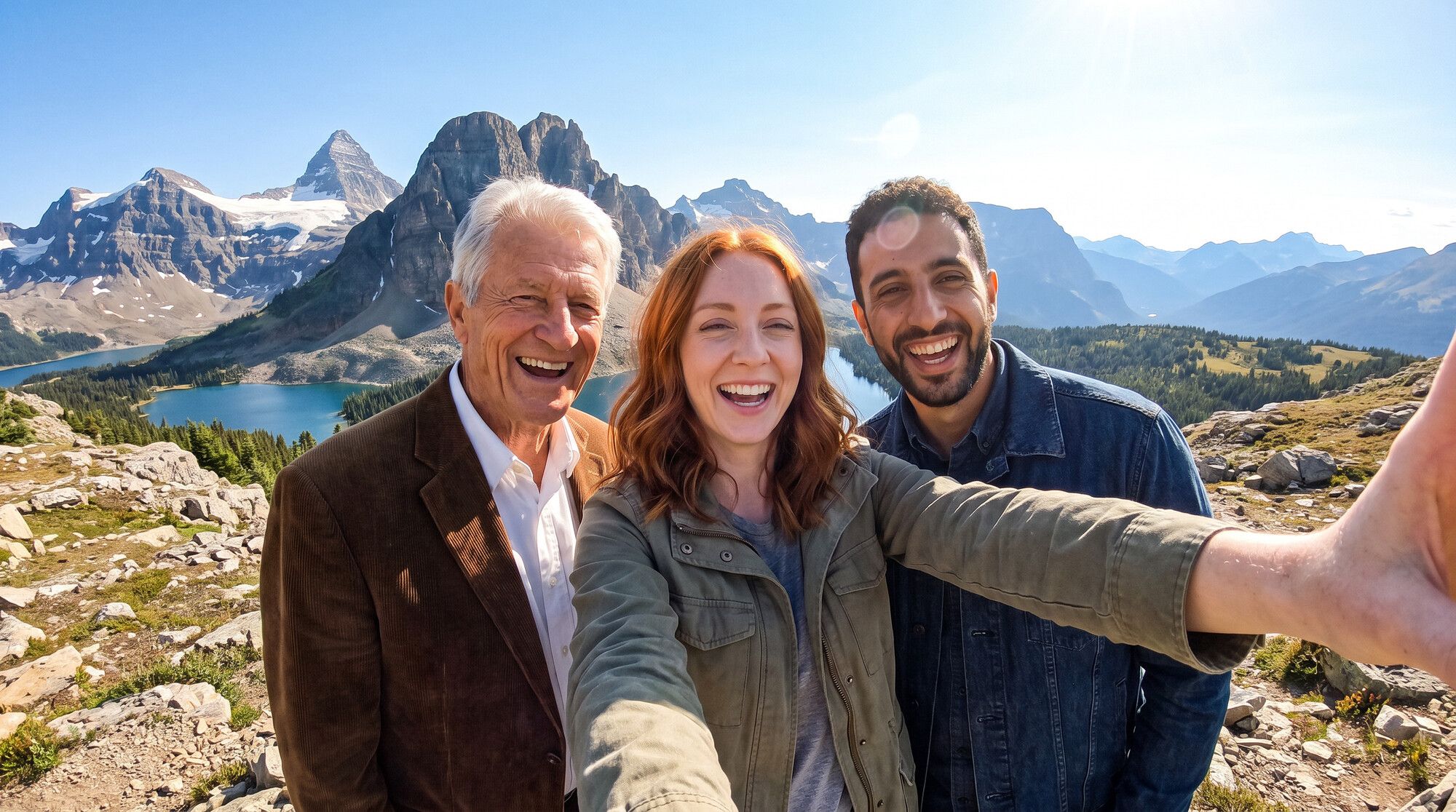
Not long ago, putting two people from different shots side by side meant a photo editor, masks and an hour of matching the light. Generative models do it in one go: you attach photos of the people, describe the scene, and the model draws a new image. Below: how it works, a step-by-step guide for AI2Face, ready-made prompts and a comparison of four models on the same faces.
How AI combines photos
AI doesn’t stitch photos together like a collage. It uses them as references — samples of what people look like — and draws the scene from scratch. That’s why everyone in the result shares the same light, shadows fall in one direction, and scale and perspective match. There’s no seam that gives away a manual edit.
That’s also the main risk: the model can “improvise” a face. The more photos of one person you provide, and the more precisely you say who is in which shot, the closer the result stays to the original. Google calls this the key strength of Nano Banana Pro: up to 14 references and recognizable likeness for up to five people in one image.
How to combine two photos into one with AI: step by step
In AI2Face, the easiest way to bring people together is through characters. A character is 1–4 photos of one person saved under their name. The full guide with interface screenshots is in “Multiple Characters in One Image”. In short:
- Create a character for each person. Go to Characters → Create a character, enter a name and add 2–4 photos from different angles. With two or more photos, AI2Face merges them into a single character profile, so the model sees the person from several sides.
- Attach the characters to your prompt. In the generator, click “+” and open the Characters tab. Select the ones you need: each appears as a thumbnail above the prompt and takes one slot in the model’s photo limit.
- Name people in the prompt with @. Type “@” to open a list: characters by name (@Emma), other photos by number (@1, @2).
- Pick a model and quality. For people, use Nano Banana Pro or GPT Image 2.5 at 2K. The cost is shown on the button before you run it.
- Generate 2–4 variants and pick the one where the faces are closest to the originals.
If the people aren’t saved as characters, regular photos work too: attach them with “+” and refer to them by number, “@1” and “@2”.
How to combine people from different photos: characters and @ tags
The most common mistake is describing people in words: “a girl in a beige sweater and a man in a denim shirt.” The model decides on its own which face goes where, and with three people it mixes them up noticeably more often. Tags solve this: you write “@Sam teaches @Emma and @Leo,” and AI2Face’s proprietary server-side algorithm turns it into a master prompt for the model — binding each name to its photo and specifying what to preserve in each face.
This is AI2Face technology, and it works the same way with Nano Banana, GPT Image and every other model in the generator. Tags aren’t case-sensitive, and if a name has two words, AI2Face replaces the space with “_”: @Anna_Maria.
How to add a person or a pet to a photo
To add a person to an existing photo — your interior, a landscape, a vacation shot — attach that photo with “+” next to the character and refer to it by number: “on the terrace from @1,” “with the dog from @1.” The number is the photo’s position among your attachments and is shown on its thumbnail.
@Leo walks the dog from @1 on a leash along an autumn park alley, the dog looks up at him,
golden leaves, soft afternoon light, candid photo
The same trick puts people into your own background: “@Emma and @Leo have breakfast on the terrace from @1, keep the cabin, the table and the mountain view.” If you only need to change one detail in a finished shot rather than build a scene, that’s a job for AI photo editing. To try an outfit on a person, see the guide to clothes on a model.
Which AI combines photos best: a comparison on the same faces
We took three fictional people — Emma, Leo and Sam, two photos each — and ran identical prompts in four models: Nano Banana 2.1, Nano Banana Pro, GPT Image 2.5 Flare and Sunburst. Aspect ratio 3:2, 2K quality, one image per model, no cherry-picking.
Two people at a café. All four models kept the faces. Nano Banana 2.1 went for a wide shot, so the faces are small. Nano Banana Pro added a newspaper with unreadable text to the table. GPT Image 2.5 Flare and Sunburst chose a medium shot with large faces, and Flare even wrote a legible “Café Croissants Pâtisseries” on the chalkboard behind them.
Three people in a kitchen. This one is harder: three faces and an action. Only Nano Banana Pro kept Sam’s corduroy jacket from his source portrait. Nano Banana 2.1 changed him into a blue shirt with a dark apron, and both GPT Image models put aprons on everyone. Sunburst placed Sam in the middle even though the prompt has him “teaching” the others — models don’t have to follow the order of people in the prompt unless you state it explicitly.
| Model | Face likeness (2 and 3 people) | Clothing from photos | Framing | When to use |
|---|---|---|---|---|
| Nano Banana Pro | high | most accurate | medium and wide shots | family and couple photos where likeness and clothing matter |
| Nano Banana 2.1 | high | adapts to the scene | wide shot, smaller faces | quick variants, large scenes, up to 4 people |
| GPT Image 2.5 Flare | high | re-dresses for the scene | medium shot, large faces | portrait framing, text in the background |
| GPT Image 2.5 Sunburst | high | re-dresses for the scene | tight framing | large faces when the order of people doesn’t matter |
Our pick for people is Nano Banana Pro: more often than the others, it preserves the whole person, not just the face. Use GPT Image 2.5 when you need tight portrait framing or text in the scene. We covered the differences between Nano Banana 2 and Pro in a separate comparison.
Ready-made prompts for combining photos
The prompts below use characters named Emma, Leo and Sam — swap the tags for your own. Start with the action — who does what with whom — then the place, light and genre.
A couple at a café:
@Emma and @Leo sit at a small table of a street café in the morning and laugh,
two cups of coffee and croissants, candid lifestyle photo, 35mm, natural light
A family scene for three:
@Sam teaches @Emma and @Leo to make fresh pasta in a rustic home kitchen, flour on the wooden table,
everyone is smiling, warm evening light, candid family photo
A wedding shot:
Wedding photo of @Emma and @Leo on a cliff above the sea at sunset: she wears a simple white silk dress,
he wears a light grey suit, they hold hands and look at each other, wind in her hair,
golden hour, editorial wedding photography
People in your own background:
@Sam, @Emma and @Leo have breakfast on the terrace from @1: keep the cabin, the table and the mountain view,
morning sunlight, candid travel photo
These are the exact prompts we ran. For more techniques, see our guide to Nano Banana prompts.
Why faces don’t look alike — and what to do
Out of ten Nano Banana Pro images with characters in our test, two lost the faces. Both were wide-angle selfies where the prompt also changed the clothing. The model drew believable but different people.
What helps:
- 2–4 photos per character from different angles, with at least one front-facing. From a single shot, the model has a harder time understanding the shape of a face.
- Similar lighting in the source photos. Window-lit portraits and an evening shot under a lamp are harder for the model to reconcile into one person.
- Don’t change everything at once. A fisheye angle, new clothes and a new hairstyle in one prompt are the surest recipe for strangers’ faces. Change one thing at a time.
- Name people with tags, not descriptions: “@Emma,” not “the red-haired girl.”
- Generate 2–4 variants at once. Misses happen on individual images, not the whole batch: a neighboring variant of the same prompt is usually fine.
- Build complex scenes in two steps. First put the people together in a simple scene, then attach the best image with “+” and change the background or poses.
Limitations
- Up to five recognizable people in one image with Nano Banana Pro and up to four with Nano Banana 2.1, according to Google. Beyond that, the model doesn’t promise likeness.
- Photo limit per request: in AI2Face, up to 14 for Nano Banana models and up to 16 for GPT Image 2.5. A character takes one slot even if it has four photos.
- Small background text — signs, newspapers — is sometimes unreadable in Nano Banana Pro. If the text matters, put it in the prompt in quotes.
- Not for documents. A generated image isn’t a photograph: it won’t work for a passport, visa or ID badge.
- Get people’s consent. Only combine photos of people who are fine with it. Don’t publish generated images of other people without their consent.
Bottom line
Combining photos with AI is now easier than in a photo editor: two or three minutes to set up characters and one generation per scene. For people, use Nano Banana Pro — it holds both faces and clothing from the source photos better than the rest. Choose GPT Image 2.5 for tight portrait framing. The key is to name people with @Name tags and generate 2–4 variants: a miss happens on a single image, not the whole batch.
Start with the guide “Multiple Characters in One Image”: it has screenshots of every step and a video example with the same people in Gemini Omni. If you need to swap one face for another rather than bring people together, see how to swap a face in a photo. All models in this article are available in the AI2Face generator, and after generation AI2Face strips AI metadata from the file — social networks won’t see an AI label in it.
FAQ
Can I combine photos with AI for free?
Partly. AI2Face gives you starter credits when you sign up — enough for a few images with characters in Nano Banana Pro or Nano Banana 2.1. You see the cost of each generation before you run it.
How many people can I combine in one photo?
Up to five. That's how many people Google says Nano Banana Pro keeps recognizable; Nano Banana 2.1 handles up to four. In total, AI2Face sends up to 14 photos per request to Nano Banana models and up to 16 to GPT Image 2.5.
Which AI combines photos of people best?
In our test, all four models kept the faces of all three people. Nano Banana Pro preserved clothing from the source photos most accurately, while GPT Image 2.5 Flare and Sunburst produced the largest, sharpest faces.
Is it a collage or a new photo?
A new photo. The AI doesn't cut people out — it redraws the whole scene with shared light, shadows and perspective. That's why there's no visible seam, but it's worth checking small details of appearance after generation.
Can I turn a combined photo into a video?
Yes. In AI2Face video models that accept reference images, you attach the same characters to the video prompt, and @Name tags work the same way. In Gemini Omni a clip runs 4–8 seconds with sound.
Sources
6
- https://blog.google/innovation-and-ai/products/nano-banana-pro/
- https://deepmind.google/models/gemini-image/pro/
- https://ai.google.dev/gemini-api/docs/image-generation
- https://deepmind.google/models/model-cards/nano-banana-2-1/
- https://openai.com/index/introducing-chatgpt-images-2-5/
- https://developers.openai.com/api/docs/guides/image-generation