





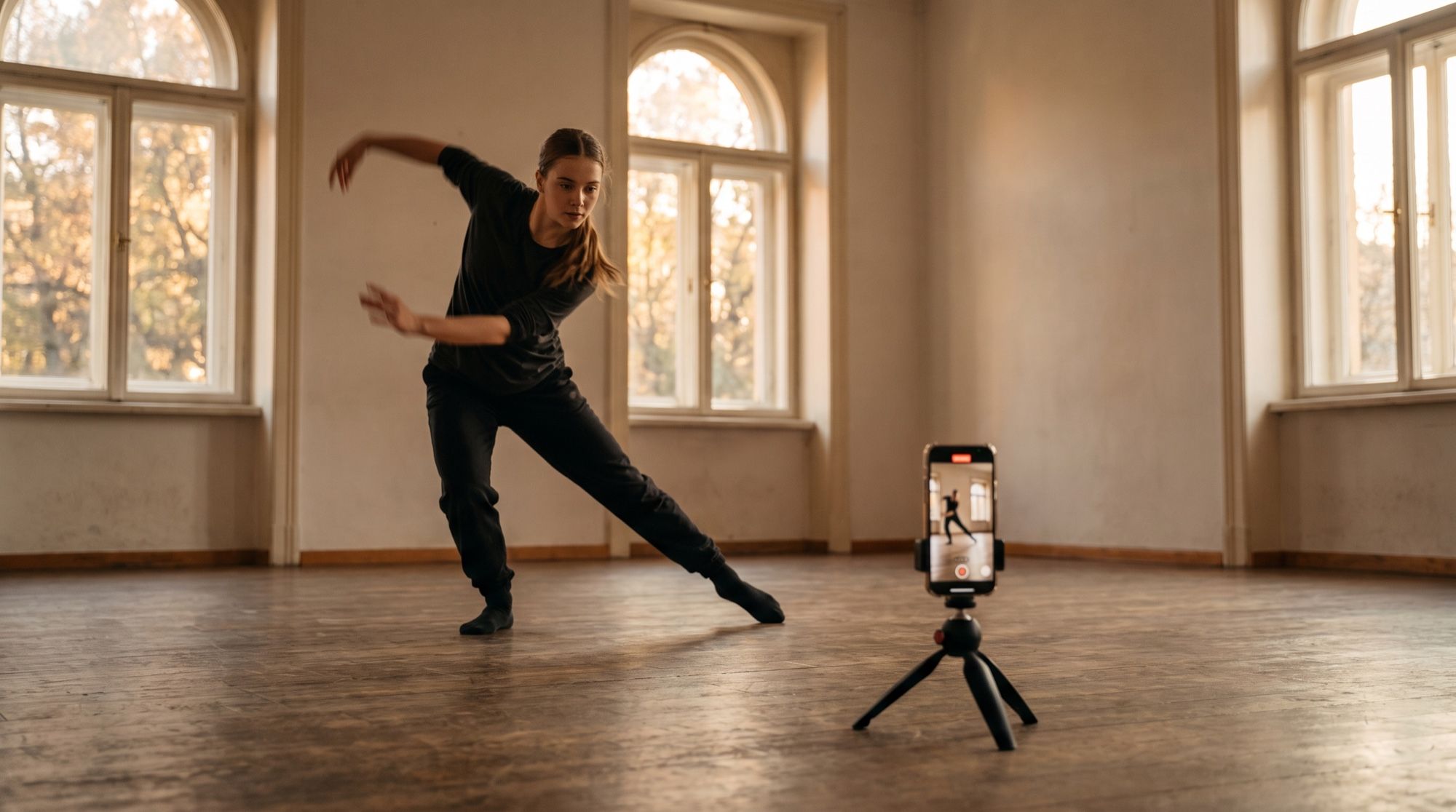
Motion Control is the mode many people open Kling for: it lets any character “dance” for you. You film or pick a video with the motion, upload an image of your character — and get a clip where a cartoon fox, your mascot or an avatar repeats every step. Based on Kling’s guide, we break down how it works, which files are suitable and where credits are most often wasted.
What is Kling Motion Control
Kling Motion Control transfers motion from a video to a character from an image. The inputs have separate roles:
- the video sets the action: the motion skeleton, timing and physics;
- the image sets the appearance: who’s moving, what they’re wearing, what the background is.
Instead of your own video, you can pick a motion from the built-in library. A text prompt is optional, but you can use it to refine the background, style and camera work.
| Motion Control 2.6 | Motion Control 3.0 | |
|---|---|---|
| Released | before version 3.0 | March 5, 2026 |
| What’s new | basic motion transfer | more stable on complex, long movements from different angles; holds the face better |
| Face binding | no | yes — “Bind Facial Element” |
| Kling credits per second | 5 standard / 8 pro | 9 standard / 12 pro |
Don’t confuse Motion Control with camera control: sites with similar names sometimes use the term for camera fly-throughs and push-ins. In Kling, Motion Control specifically means transferring a person’s motion.
What Motion Control is good for
- Dance trends — a character or brand mascot repeats a popular dance.
- Ad variations — one motion, different characters, outfits and styles for different audiences.
- AI influencers and avatars — natural gestures and expressions instead of static animation.
- Tutorial videos — a trainer records an exercise, and an illustrated character repeats it in the clip.
- Animating illustrations — 3D characters and drawings move like real people.
How to prepare the image and video
Most failed clips come from unsuitable source files. Here are the requirements from Kling’s guide and a pair that meets them.
The character image:
- the whole body and head are fully visible, nothing is covered;
- a neutral pose with the arms slightly away from the body works best — it’s easier for the model to “fit” the motion onto it;
- JPG and PNG up to 10 MB, aspect ratio from 1:2.5 to 2.5:1;
- the head angle and facial expression should be close to those in the video: a big difference makes the result worse.
The motion video:
- 3 to 30 seconds, one continuous shot — no cuts or angle changes;
- one person in the shot, visible the whole time;
- a static camera: the model may read camera movement as the end of the clip;
- calm or medium-paced motion — very fast stunts lead to artifacts;
- MP4 and MOV up to 100 MB, sides from 340 to 3850 pixels.
It’s convenient to generate the character in advance — for example, in Nano Banana Pro with a prompt like “full-length, neutral pose, solid background.” How to animate regular photos without a reference video is covered in our guide to animating a photo.
Two modes: orientation matches the video or the image
Motion Control lets you choose what the character’s orientation follows.
| Mode | What happens | Clip length | When to choose |
|---|---|---|---|
| Matches video (default) | the character turns and moves like the person in the video | up to 30 s | dances, sports, where motion accuracy matters |
| Matches image | the character keeps the angle from the image; you can set the camera with a prompt | up to 10 s | ad shots where composition matters |
How to make a clip: step by step
- Choose Motion Control 3.0 — it’s more reliable than 2.6 for faces and long movements.
- Upload a motion video or pick a motion from the library.
- Upload the character image and turn on face binding if likeness matters.
- Choose the orientation mode.
- Add a prompt if needed: background, lighting, style, camera movement in the “matches image” mode.
- Check the cost and run the generation. The clip length will match the reference video.
Limitations and common mistakes
- The clip is shorter than the video. If the motion is complex or fast, Kling keeps only continuous “usable” segments — as long as they add up to at least 3 seconds. Credits for the trimmed part aren’t refunded.
- The wrong person. In a video with several people, the model picks whoever is larger in the shot.
- Cut short by the camera. Cuts, shot changes and camera movement can end the clip early.
- Someone else’s face. If the face in the image is small or its angle differs a lot from the video, the likeness is lost.
- One character. Motion transfer works for one character at a time.
Test your idea on a short 5–6 second video and run the long clip once you’re sure about the source files: failures cost several times less that way.
Kling Motion Control in AI2Face
In AI2Face, Kling is available in the generator without a separate Kling account. The cost of each generation is shown before you run it, you can pay by card or crypto, and credits from packs don’t expire. The same generator has Seedance, Veo 3.1 and Gemini Omni for regular text-to-video and image-to-video generation. How to try Kling for free from the developer itself is covered in our guide Kling for free.
Bottom line
Kling Motion Control is the easiest way to make any character repeat a real movement: the video provides the action, the image provides the appearance. The result depends almost entirely on the source files: a full-length character and a video with one person, one shot and a static camera. Use version 3.0 with face binding, test on 5 seconds, and only then run a 30-second clip. In AI2Face, you can do it in the same generator as other top video models, paying by card or crypto.
FAQ
What is Kling Motion Control?
Kling's motion transfer mode: you upload a video with the motion and an image of a character, and the model makes a clip where the character repeats the movements, gestures and facial expressions from the video.
How long can the video for Motion Control be?
From 3 to 30 seconds. The output clip has the same length. In the “orientation matches image” mode, the maximum is 10 seconds.
Can I use a video with several people?
Better not. Motion Control transfers the motion of one character; if there are several people in the shot, the model picks whoever takes up the most space.
How much does Kling Motion Control cost?
Kling prices it in credits per second: Motion Control 3.0 costs 9 credits in standard mode and 12 in professional, 2.6 costs 5 and 8. In AI2Face, the cost is shown before generation.
How do I keep the character's face?
Use an image with a large, clearly visible face and turn on face binding in version 3.0. The face in the image shouldn't differ much in angle and expression from the one in the video.
Sources
3
- https://kling.ai/quickstart/motion-control-user-guide
- https://kling.ai/document-api/api/video/motion-control/legacy
- https://kling.ai/feature/ai-motion-control