







“AI video editor” now means two different things. The first is a familiar timeline editor where AI trims pauses, adds subtitles and translates speech. The second is a video model that redraws the footage itself on command: “make it winter”, “change the coat to red”, “draw it as anime”. We tested the second kind on one source clip and four edits. Every clip was made in the AI2Face generator with Gemini Omni 1.2 Flash, and the woman in the frame is fictional.
AI video editor: two kinds
| Timeline editor with AI | Video model with editing | |
|---|---|---|
| What it does | cuts, joins, adds subtitles, music, translation | redraws frames: weather, background, clothes, style, objects |
| How you control it | timeline, buttons, sometimes chat | a text command applied to a finished clip |
| Source length | minutes to hours | seconds: up to 15 s with Gemini Omni 1.2 Flash |
| What stays from the original | everything you don’t cut | the motion, the camera and whatever you ask to keep |
| When to use it | editing a vlog, interview or podcast | changing what’s in the shot without reshooting |
A timeline editor can’t turn autumn into winter, and a video model won’t cut an hour-long interview. For social clips people often use both: the model edits short shots, the editor assembles them into a story.
The source clip
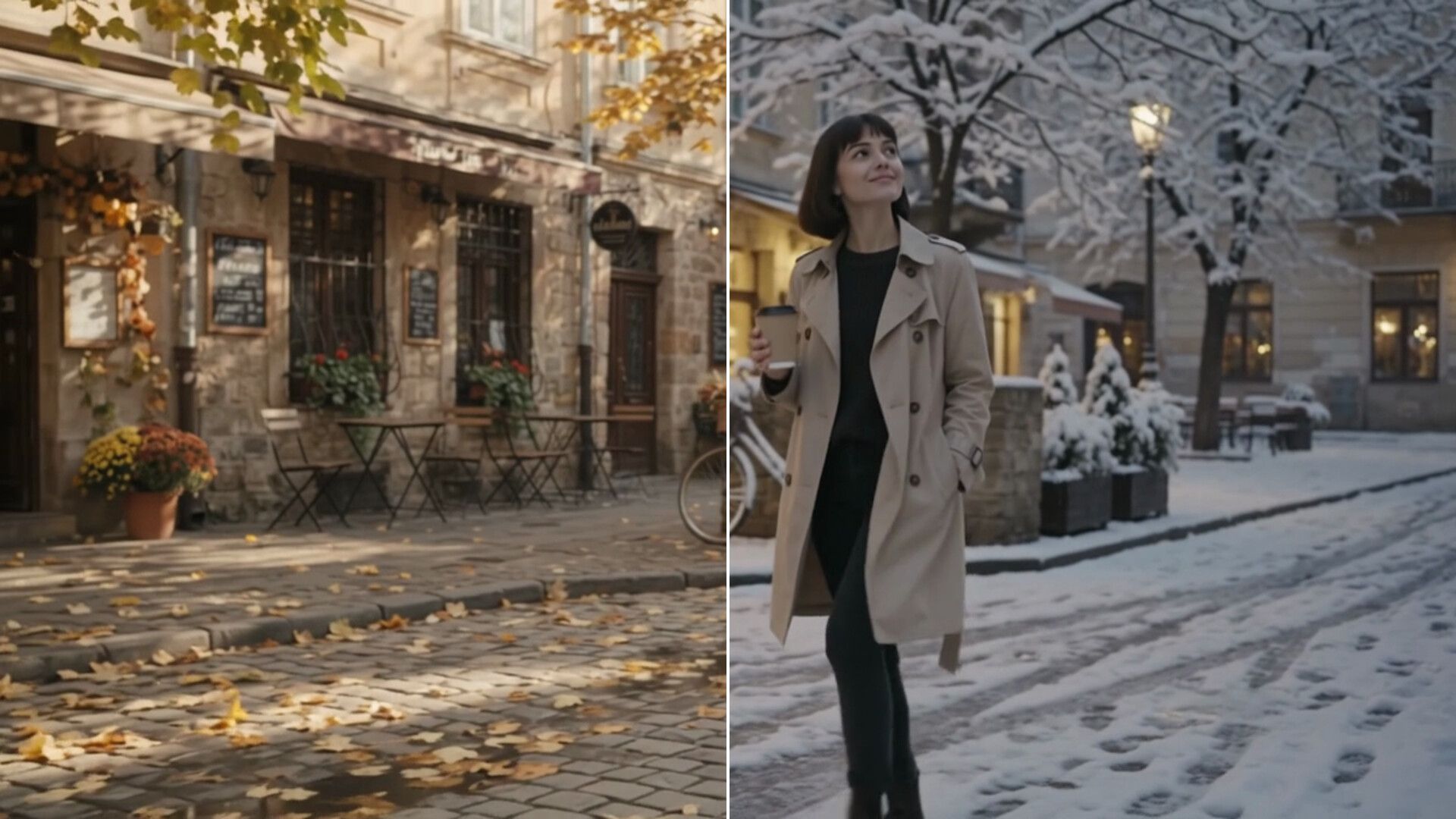
For a clean test we first made a source clip — 6 seconds, 16:9: a woman in a beige trench coat walks down an autumn street with coffee while the camera tracks alongside.
Your own footage works the same way: the edit doesn’t care whether it was shot on a phone or generated.
Changing the season and weather
The first edit is the most visible one: autumn turns into a snowy evening. The prompt lists what to change and, separately, what to keep.
Change the season to a snowy winter evening: snow is falling, the
cobblestones and window ledges are covered with fresh snow, the café windows
glow warm yellow, the sky is dark blue. Keep the woman, her clothes, her
walk, the coffee cup and the camera movement exactly the same. Keep
everything else the same. Sound: footsteps crunching on snow, quiet street
ambience.
Snow covers the cobblestones, ledges and trees, the café windows light up, and footprints appear in the snow. The woman, the coat, the cup, her stride and the camera move are the same as in the source. The model redid the sound too: the footsteps now crunch on snow.
Swapping one detail: clothes, an object, a color
For a targeted edit, keep the prompt short. Google’s Omni documentation says it plainly: overly detailed edit instructions cause unintended changes.
Change her beige trench coat to a bright red wool coat. Keep everything else
the same.
The coat is red in every frame, and the folds move with her stride. The street, the leaves, the bicycles and her face didn’t change. The same approach changes a car’s color, a sign, an object in someone’s hand, or removes something: “Remove the bicycle on the left. Keep everything else the same”.
Changing the style: from live action to anime
A restyle redraws the whole clip in a different technique while keeping the motion.
Restyle the whole video as hand-drawn 2D anime animation with clean line art
and soft watercolor backgrounds. Keep the same woman, the same street, the
same motion and camera movement. Keep everything else the same.
The woman, the street and her walk carry over, but everything is now line art over watercolor backgrounds. The model simplified small background details — normal for a drawn style. Instead of anime, try claymation, a comic book, 1970s film or a 3D cartoon.
Extending a clip
An extension adds footage to the end: you describe what happens next.
She stops in front of a small café with a green door, smiles, opens the door
and walks inside; the camera stays on the street and holds on the closing
door. Single continuous shot. Sound: footsteps, the door bell jingles.
No text, no readable signs.
The seam between the source and the extension is invisible: the camera keeps tracking, the light and the leaves stay the same. The model added a café with a green door on its own, the woman opened it and went in, and the door closed — every step of the prompt was followed. Gemini Omni extends by 3–10 seconds at a time, up to 30 seconds in total; Veo 3.1 can extend clips too, 7 seconds at a time.
How to write prompts for video editing
These rules come from Google’s Gemini Omni documentation and from our test.
- One edit per run. “Make it winter and change the coat” works worse than two edits in a row.
- Add “Keep everything else the same”. Without it the model is more likely to change things you didn’t ask for.
- Keep targeted edits short. A long description of the scene tempts the model to redo it.
- Spell out the sound: “Sound: …”, or “No dialogue” to remove speech.
- Timing in words or timecodes: “After 3 seconds, a dog runs into the frame” or
[0-3s]. - One shot: write “single continuous shot” if you don’t want cuts.
| Task | Prompt |
|---|---|
| Change the background | Replace the background with a beach at sunset. Keep everything else the same. |
| Remove an object | Remove the car on the right. Keep everything else the same. |
| Change the lighting | Make it night with neon street lights. Keep everything else the same. |
| Add an object | Add a small white dog walking next to her. Keep everything else the same. |
| Change the style | Restyle as a claymation stop-motion video. Keep the same motion. |
Which AI models edit video
| Model | Text-based editing | Extension | Source clip |
|---|---|---|---|
| Gemini Omni 1.2 Flash | yes: background, objects, clothes, style, sound | 3–10 s per run, up to 30 s | up to 15 s |
| Kling O1 | yes: character, background, weather, style | next shot | 3–10 s |
| Veo 3.1 | no | 7 s per run | a Veo clip |
Of these three, Gemini Omni and Kling O1 edit finished clips; Veo 3.1 only extends them.
Limitations
- Source length. Gemini Omni 1.2 Flash edits clips up to 15 seconds. Cut longer videos into segments.
- No voice editing. Omni can’t change a voice’s timbre or the words in speech — there are separate models for voiceover; see our guide to the best text-to-speech AI.
- Small text and signs get blurry in edits: the model redraws the whole frame.
- Region. Google doesn’t allow editing uploaded videos for users in the EEA, Switzerland and the UK; editing generated clips is allowed.
- Other people’s faces. Omni doesn’t allow uploading or editing videos of recognizable public figures.
- Watermarking. Gemini Omni clips carry an invisible SynthID watermark.
Bottom line
An AI video editor of the video-model kind changes what’s in the shot — weather, clothes, style, objects — and keeps the motion and camera of the source. In our test Gemini Omni got all four edits right on the first try, as long as we made one edit at a time and ended the prompt with “Keep everything else the same”. For cutting long videos, subtitles and translation you still need a timeline editor; the model is handy for short shots inside it. Editing and extending clips are available in the AI2Face generator, with the cost shown before each run; to make a clip from scratch, see our guide to AI video generators.
FAQ
Which AI can edit a video?
Gemini Omni and Kling O1 edit footage from a text command: you upload a clip, write what to change, and the model returns a new version. Veo 3.1 doesn't edit finished clips, but it can extend them.
Can I edit a video with AI for free?
Yes, for a test. AI2Face gives you welcome credits when you sign up — enough to edit a short clip. The cost is shown before you start, and the service adds no watermark to the result.
Can AI change the background or clothes in a video?
Yes. In our test Gemini Omni turned autumn into a winter evening and a beige coat into a red one, while the walk, the face and the camera move stayed the same. Make one edit at a time and add “Keep everything else the same”.
Can AI extend a video?
Yes. Gemini Omni extends a clip by 3–10 seconds at a time, up to 30 seconds in total. Describe what happens next: in our test the woman reached a café and walked inside.
How long can the video be?
Gemini Omni 1.2 Flash takes source clips of up to 15 seconds. Cut a longer video into segments and edit them one by one.
Sources
4
- https://ai.google.dev/gemini-api/docs/omni
- https://cloud.google.com/blog/products/ai-machine-learning/gemini-omni-1-2-flash-generally-available
- https://docs.cloud.google.com/vertex-ai/generative-ai/docs/video/extend-a-veo-video
- https://kling.ai/quickstart/klingai-video-o1-user-guide