

A picture on a slide only works when it’s about that slide’s point. A stock photo of “people shaking hands” doesn’t help the story, and finding twenty illustrations in one style takes longer than writing the deck. A model draws an image for a specific slide in about half a minute. In the AI2Face generator we made everything a presentation usually needs, and we showed where the models go wrong.
How to prompt AI presentation images
Slide topic + scene + style + where to leave room for text + “no text”.
- Topic and scene: “a slide about remote work: a person with a laptop at a desk at home”.
- Style: “flat vector illustration”, “realistic corporate photo”, “3D icon” — one style for the whole deck.
- Room for text: “the left third of the frame is an empty light wall”. Otherwise the title lands on faces.
- “No text, no logos”: models like to add lettering and logos on laptops.
Lock the style as an ending you paste onto every prompt. For more on how a prompt is built, see the article on AI image prompts.
What format and size a slide needs
| Task | Format | Size on screen |
|---|---|---|
| Slide background, image full screen | 16:9 | 1920 × 1080 and up |
| Older projectors, a 4:3 slide | 4:3 | 1024 × 768 and up |
| An image next to text | 4:5 or 1:1 | half the slide |
| An icon, an inset | 1:1 | from 512 × 512 |
Microsoft’s documentation lists 16:9 as the standard for new PowerPoint presentations: 13.333 × 7.5 inches (33.867 × 19.05 cm). The 4:3 option is 10 × 7.5 inches. Generate in 16:9 at 2K: the frame comes out at about 2750 × 1540 pixels, enough for a projector and a 4K panel in a meeting room. For printed A4 handouts, use 4K.
A background for the title slide
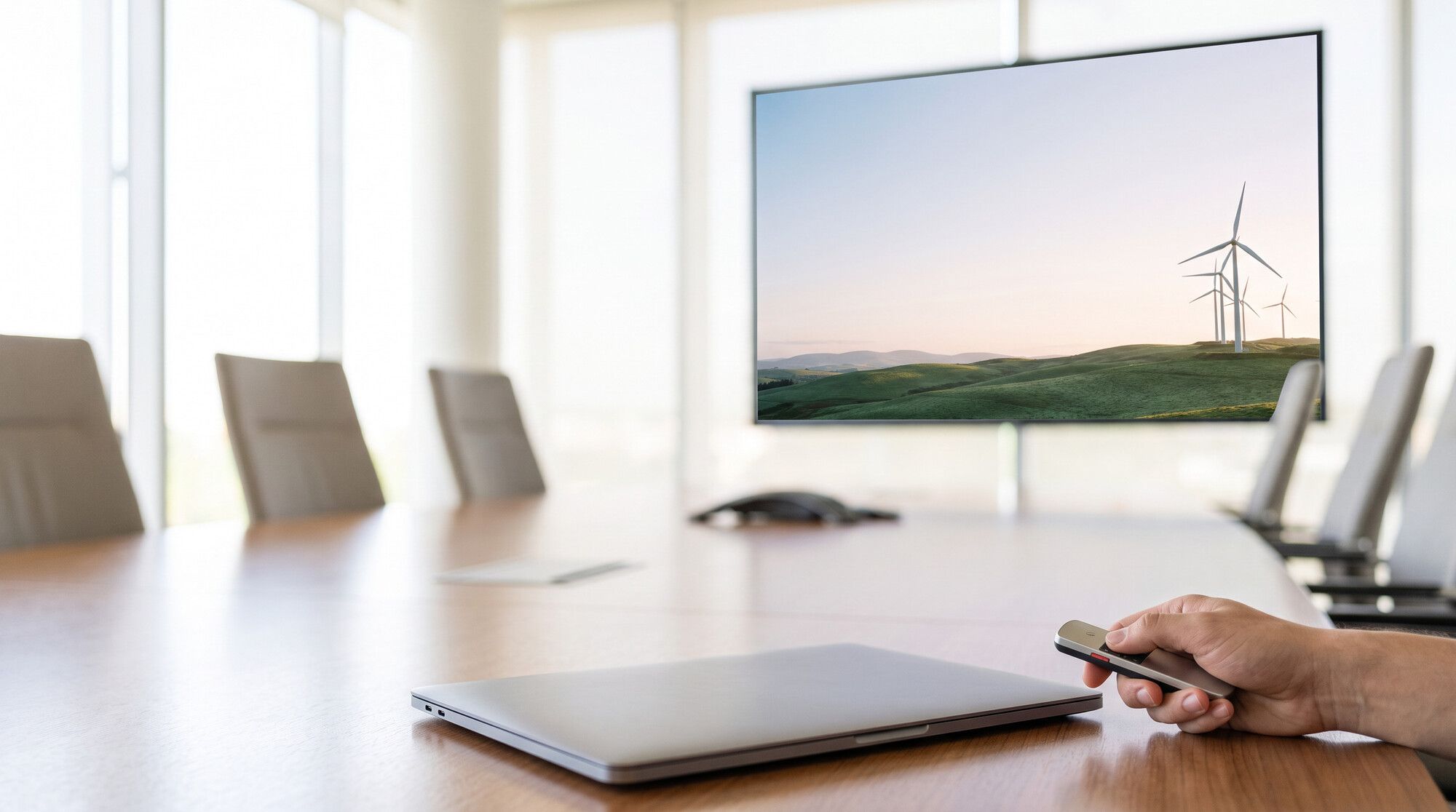
The background has to leave empty space for the title. The first attempt showed a typical mistake: we wrote “the left 45% of the frame is empty sky”, and the model built the frame from two halves with a hard seam down the middle.
One phrase fixed it — “one single continuous photo, no split, no collage”:
One single continuous wide-angle landscape photo, no split, no collage, no
panels: green rolling hills at sunrise with a few wind turbines standing only in
the right third of the frame; the same soft sunrise sky naturally continues
across the whole image, and the left half of the photo is mostly calm open sky,
leaving natural empty space for a title. No text, no logos.
Check the background before you place it. On a small preview, a seam or an extra object is easy to miss.
A series of images in one style
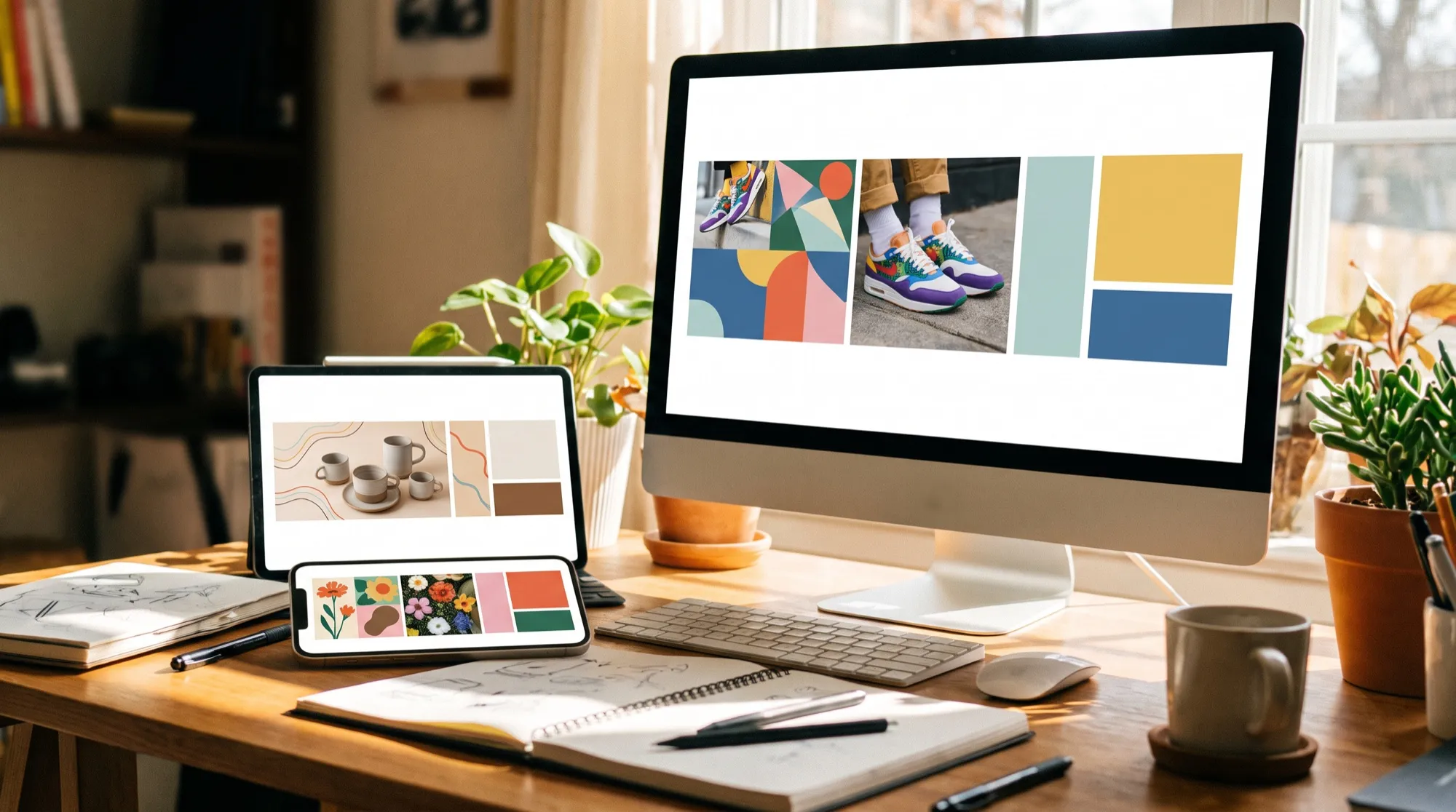
Mismatched styles are the clearest sign of a deck thrown together in a hurry. Keep the same prompt ending and change only the scene:
Flat vector illustration for a presentation slide about [topic]: [scene],
simple geometric shapes, limited palette of deep blue, teal, coral and soft
beige, subtle grain, plenty of white space around, white background. Consistent
clean corporate illustration style. No text, no logos.
The style holds best if you upload the first image that worked as a reference and write “in the same style”. Icons for one set are made the same way.
An icon and an image with no background
For an icon, ask for one object, “isolated on a pure white background, plenty of empty space around”. On a white slide it sits without a frame.
A colored or dark slide needs a transparent PNG. Two ways: remove the background in a separate generation, or request a transparent background in GPT Image 2.5 from the start. Both are covered in the article on how to remove background from an image with AI.
A photo for a business presentation
A realistic team photo replaces the stock shots everyone has already seen. Leave room for text from the start.
Write “fictional colleagues”: a company deck doesn’t need faces that look like real people. If the frame should show actual employees, upload their photos as references — that’s how an AI photoshoot is done.
A whole slide with text
Nano Banana Pro can draw a whole slide: a title, bullets and an illustration. We gave it an image from the series and the slide text.
Design a complete clean presentation slide in 16:9 using this illustration on
the right side. On the left, on a white background, write a large bold dark blue
title exactly: Remote Work in 2026. Below it three short lines with
small teal round bullets, exactly: 62% of teams work hybrid; Meetings got
20% shorter; Burnout is the main challenge. Write all text exactly in English,
without quotation marks, with correct spelling.
The spelling came out correct. The words on this slide are in English. We ran the same request in Russian as well: that spelling was correct too, but the model copied the semicolons from the prompt separators and put them at the end of the bullets. The prompt can ask for any language. The real limit is that you can’t edit this slide: a wrong digit means generating it again. For a working presentation, generate the image and type the text in PowerPoint or Google Slides. A finished slide that’s only an image works well for a cover, a social post, and an infographic. The guide is an AI infographic generator.
Which model to pick for presentation images
| Task | Model | Why |
|---|---|---|
| Photos, backgrounds, illustration series | Nano Banana Pro | realistic, and it holds a style from a reference |
| Text on the image, diagrams | Nano Banana Pro, GPT Image 2.5 | correct spelling, including Russian in our test |
| A transparent background | GPT Image 2.5 | a transparent PNG in one step |
| Quick drafts | Nano Banana 2 | cheaper and faster |
For other models, see the guide to an AI image generator.
Limits
- Seams and joins. Ask for “an empty half of the frame” and the model may answer with a collage. Write “one continuous photo”.
- Stray text. Screens, signs and book covers get filled with lettering and “Lorem ipsum”. Write “no text” and check the small details.
- The style drifts. Without a shared prompt ending or a reference, each image comes out in its own manner.
- Numbers and charts. A chart from a model is an illustration, not data: the bars don’t match the numbers. Build the chart in the editor.
- Rights. Don’t ask for someone else’s logos, characters or recognizable people — that’s a risk in a company deck.
Where to make AI presentation images
In AI2Face, Nano Banana Pro, Nano Banana 2 and GPT Image 2.5 sit in one generator: the background, the series, the icons and the photos for a whole deck are made in one window, and you can upload a successful image as the reference for the next one right away. The cost of each generation is shown before you start, you can pay by card or crypto, and credits from packs don’t expire.
Bottom line
AI presentation images are faster and more precise than stock when the prompt names the slide’s point, one shared style and room for text. Use Nano Banana Pro for backgrounds, photos and illustration series, GPT Image 2.5 for transparent icons, and Nano Banana 2 for drafts. Generate in 16:9 and 2K, check backgrounds for seams and stray text, and save text slides for the cover: working copy is safer typed in the editor.
FAQ
Where do I get images for a presentation?
Draw them with AI for that specific slide. Unlike stock, the image is about your point, in the format you need, and in the same style as the rest of the deck.
What image size does a slide need?
16:9 is the PowerPoint default: a slide of 13.333 × 7.5 inches (33.867 × 19.05 cm), 1920 × 1080 pixels on screen. Generate in 16:9 and 2K — that's enough for a projector and a large screen.
How do I make a presentation image with no background?
Ask for the object on a pure white background — on a white slide it sits without a frame. A colored slide needs a transparent PNG: remove the background in a separate generation, or request a transparent background in GPT Image 2.5 from the start.
Can a model draw a whole slide with text?
Yes. Nano Banana Pro draws a slide with a title and bullets and gets the spelling right. In our test that included Russian, and the prompt can ask for any language. You can't edit that text afterward — for a working deck, generate the image and type the text in the editor.
Can I make presentation images for free?
Yes, a few of them. AI2Face gives you welcome credits after you sign up, and the cost of each generation is shown before you start.
Sources
4
- https://support.microsoft.com/en-us/office/change-the-size-of-your-slides-040a811c-be43-40b9-8d04-0de5ed79987e
- https://blog.google/innovation-and-ai/products/nano-banana-pro/
- https://ai.google.dev/gemini-api/docs/image-generation
- https://developers.openai.com/api/docs/models/gpt-image-2.5-sunburst