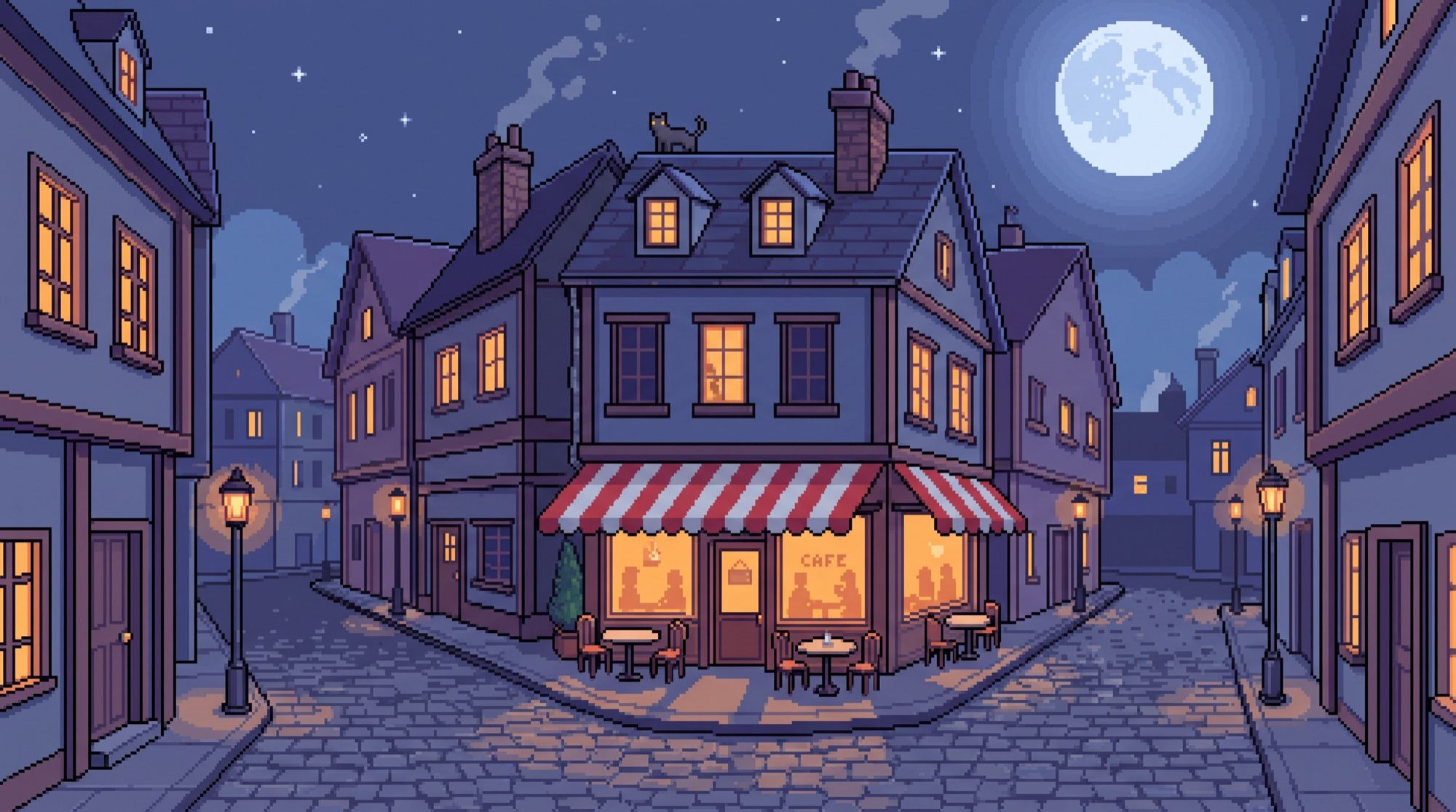
Pixel art is an image where every square sits in its place and the palette is small. An AI pixel art generator produces that style in about a minute, from a photo or from a description, but it imitates the look rather than following the rules: uneven pixels, soft edges, thousands of shades. In the AI2Face generator we made a portrait in three eras, a sprite sheet, item icons and an isometric scene, compared two models and showed how to turn the result into true pixel art for a game, Minecraft or cross-stitch.
AI pixel art generator vs pixelator: what’s the difference
| AI generator | Pixelator (filter) | |
|---|---|---|
| What it does | redraws the photo from scratch as pixel art | shrinks the photo and blows it up as squares |
| Outlines and shading | drawn like an artist would: outlines, highlights | none, just averaged colors |
| Likeness | simplifies features on purpose, keeps key traits | exact, but the face turns into a mosaic |
| Grid and palette | approximate | exact and set by you |
| Use it for | avatars, sprites, icons, scenes | cross-stitch charts, hiding a face or a license plate |
The best result comes from both steps in a row: the AI draws, the filter snaps it to a grid. Here’s how.
How to turn a photo into pixel art with AI: 3 steps
- Upload a photo as a reference: face close up, even light, a simple background.
- Name the era and the grid: “16-bit pixel art, about 64×64 pixels, limited palette of 20 colors.” The era sets the style; the pixel count sets the level of detail.
- Ban blur: “no anti-aliasing, no gradients, no blur, flat solid background.” Without these words the model smooths the edges and the image looks like a downscaled photo.
A handy prompt formula: era + grid size + number of colors + the person’s key traits + background + “no anti-aliasing.” The traits are the same as in any portrait: glasses, beard, hairstyle, clothing color.
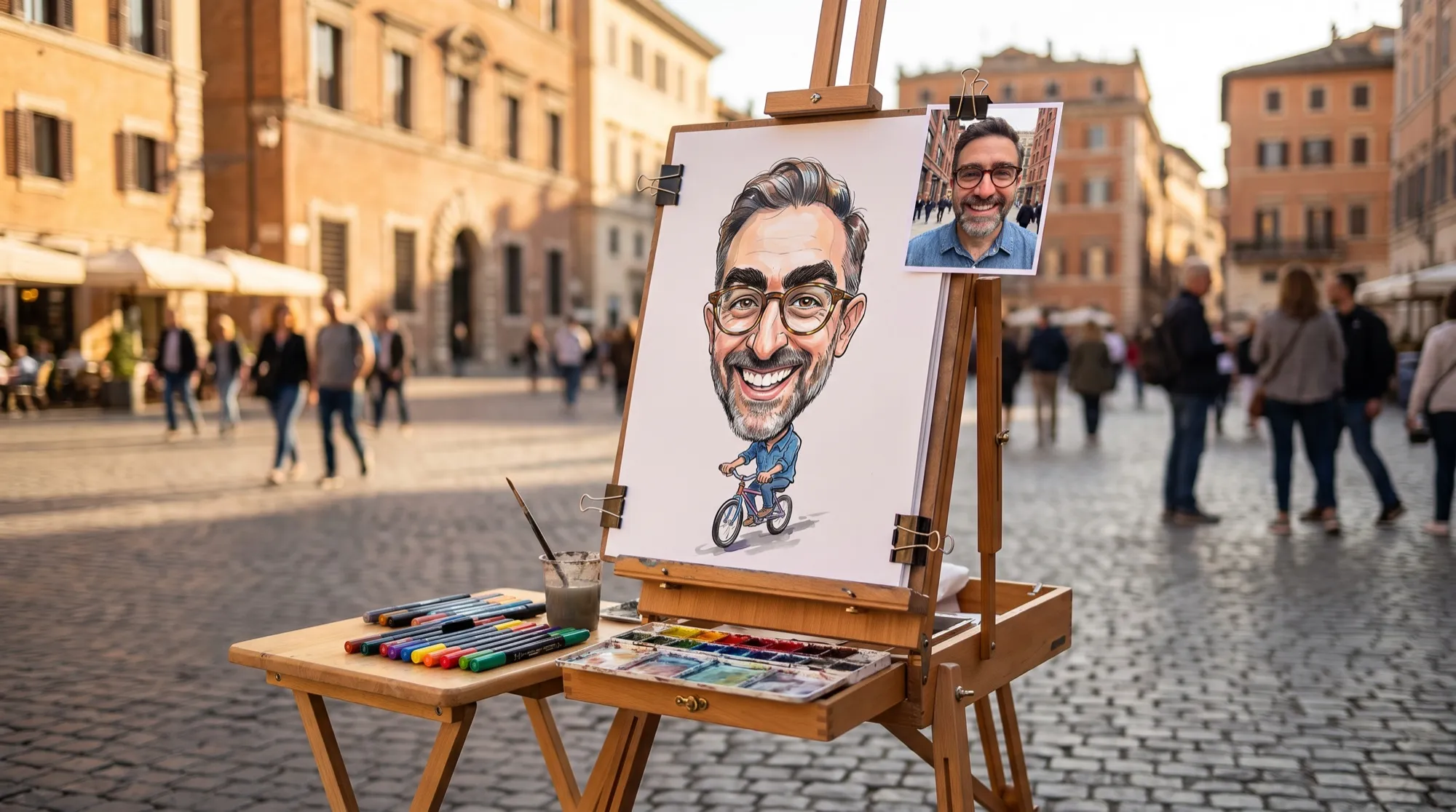
The source is the fictional man from our guide to AI caricatures:
8-bit, 16-bit or HD: which pixel art style to choose
We sent one photo with three prompts that differ in era, grid size and number of colors.
| Style | What to write | What you get | Use it for |
|---|---|---|---|
| 8-bit | 8-bit, about 32×32 pixels, 4–6 colors | chunky blocks, the face is a set of key traits | icons, messenger avatars, Minecraft |
| 16-bit | 16-bit RPG, about 64×64 pixels, 16–24 colors, crisp outlines | a crisp outlined portrait | avatars, sprites, stickers |
| HD (32-bit) | modern indie pixel art, about 128×128, dithering | almost an illustration made of pixels | covers, posters, thumbnails |
At 8-bit the glasses became two bars and the eyes turned into dots: with a grid of about 32 pixels, the face gets fewer than 15 cells across. If people need to recognize the person, go with 16-bit or larger.
Keywords for other styles
| Style | Prompt keywords |
|---|---|
| Game Boy | 4 shades of green, monochrome handheld palette |
| Synthwave | neon pink and cyan, sunset grid, 16-bit |
| Cyberpunk | neon city at night, rain, pixel art, limited palette |
| Kawaii | cute chibi, pastel palette, big eyes, pixel art |
| Isometric | isometric pixel art, 2:1 pixel lines, diorama |
Pixel art from text: a character sprite sheet
Without a photo, the model works as a text-to-pixel-art generator. For a game, the most common need is a sprite sheet — several frames of one character in a row.
Pixel art sprite sheet for a 2D platformer game: an original small fox knight
character with a blue cloak, a tiny round shield and a short sword. One row of
4 frames of a walk cycle in side view, plus one idle frame facing the viewer on
the left, all frames the same size and evenly spaced, identical character
design in every frame, 32x32 pixel style, crisp black outlines, limited palette
of 16 colors, no anti-aliasing. Plain flat light grey background.
The model kept the character design consistent: the cloak, shield and sword match. But the fourth frame faces the other way, so the sheet won’t work as a walk cycle without a fix. Check every frame, then regenerate the sheet or flip that frame in an editor. If you want the character to move in a video rather than a game, see our guide to animating a photo.
Item icons for a game
Inventory icons are the most forgiving format: small, high-contrast, thick outlines. Ask for a grid of slots and the icons come out the same size.
Pixel art RPG inventory icon set: 9 items arranged in a neat 3 by 3 grid of
equal square slots on a dark slate background — red health potion, blue mana
potion, iron sword, wooden shield, leather coin pouch, golden key, rolled
scroll, green apple, purple magic gem. Each icon in 32x32 pixel style, crisp
black outlines, limited palette, clean readable silhouettes. No text, no labels.
“No text, no labels, no numbers” is a must: otherwise the model labels the items or adds counters in the slot corners.
Which AI makes better pixel art: Nano Banana Pro or GPT Image 2.5
We sent an isometric scene — a floating island with a cottage, a vegetable garden, a windmill and a pond — to Nano Banana Pro and GPT Image 2.5 with the same prompt:
| Nano Banana Pro | GPT Image 2.5 | |
|---|---|---|
| Detail | simple: cottage, garden beds, a small windmill | high: fence, barrels, bridge, water lilies |
| Prompt adherence | everything’s there, but with two waterfalls | everything’s there, one waterfall |
| Background | dithering bands instead of a flat color | flat, as requested |
| Isometric angle | off in places | consistent |
| Use it for | photo portraits, simple sprites | scenes, locations, isometric art |
For scenes and isometric art, we’d go with GPT Image 2.5: it followed the prompt more closely and drew more detail. For a portrait from a photo, Nano Banana Pro works well: the face stayed recognizable in all three eras. For other art styles on one scene, see our AI art generator guide.
Why AI pixel art isn’t real pixel art, and how to get a true grid
We asked for a 16-bit portrait “about 64×64 pixels.” A check showed the model drew a 100×100 grid: that’s the only size at which the image rebuilds almost without error. The 2048×2048 file had 55,381 colors even though we asked for about 20: the model leaves in-between shades at the edge of every “pixel.”
How to turn the output into true pixel art:
- Find the real grid. Measure the width of one “pixel” in the zoomed-in image and divide the image width by it. In our case 2048 / 20.5 ≈ 100.
- Downscale with nearest neighbor to that grid. Regular downscaling with smoothing blends neighboring cells.
- Reduce the palette to the number of colors you need, without dithering.
- Upscale back with the same method by a whole number: ×4, ×8, ×10.
In free ImageMagick, that’s two commands:
magick portrait.png -sample 100x100 +dither -colors 24 sprite-100.png
magick sprite-100.png -sample 1000% sprite-x10.png
If you get the grid wrong, you’ll see it right away: we first downscaled to 64×64 and the glasses disappeared. Make the sprite background transparent before cleanup — see our guide to removing backgrounds with AI.
Pixel art from a photo for Minecraft, beads and cross-stitch
Here the count of cells and colors matters more than looks: each pixel is one block, bead or stitch.
| Task | Grid | Colors | Keep in mind |
|---|---|---|---|
| Minecraft block art | 32×32–64×64 | 10–16 | 64×64 is 4,096 blocks; match the palette to block colors |
| Perler beads, fuse beads | 29×29–58×58 | 8–12 | one color = one bag of beads; fewer colors is cheaper |
| Cross-stitch | 50×50–100×100 | 10–20 | a bigger grid takes longer to stitch |
| Avatar, sticker | 64×64–128×128 | 16–32 | stays crisp even at small sizes |
The workflow: the AI draws the portrait in 8- or 16-bit with the number of colors you need, you clean it up to the grid using the steps above, and you print the chart with grid lines. For Minecraft pixel art from a photo, 8-bit works best: big shapes read well from a distance. If you need an avatar rather than a chart, see our AI avatar guide.
Limitations
- The grid and palette are approximate. You only get an exact 16×16 or 32×32 after cleanup.
- Animation frames drift. In a sprite sheet the character may turn around or change proportions. Check every frame.
- Small grids lose likeness. At 8-bit the face boils down to glasses, beard and hair color.
- Text. Models misspell lettering in pixel art; add it in an editor.
- Other people’s characters. A pixel copy of a famous game hero is still someone else’s character: for your own game, design your own.
Where to make pixel art from a photo
In AI2Face, Nano Banana Pro and GPT Image 2.5 sit in the same generator, so you can send a portrait to one model and a scene to the other. The cost of every generation is shown before you run it, and credits from packs don’t expire. When you download an image, AI2Face replaces the AI metadata with regular camera data, so social networks don’t label the picture as AI-generated. A pixel portrait makes a great sticker pack — see our guide to AI stickers.
Bottom line
An AI pixel art generator gets you a result in a minute if the prompt includes the era, an approximate grid, the number of colors and a ban on anti-aliasing. For a portrait from a photo, use Nano Banana Pro at 16-bit; for scenes and isometric art, use GPT Image 2.5. For a game, Minecraft or cross-stitch, don’t use the output as is: find the real grid, downscale with nearest neighbor and reduce the palette. It’s two commands and five minutes, and the result becomes real pixel art.
FAQ
How do I turn a photo into pixel art with AI?
Upload the photo as a reference and name the era and the grid: “16-bit pixel art portrait, about 64×64 pixels, 20 colors, no anti-aliasing,” plus the person's key traits. Nano Banana Pro returns the portrait in 20–60 seconds.
Can AI generate exactly 16×16 or 32×32 pixel art?
No, it only approximates the grid. In our test we asked for 64×64 and got 100×100. You get an exact size after generation: downscale the image with nearest neighbor to the real grid and reduce the palette.
Which AI is best for pixel art?
It depends on the job. We made the photo portraits in Nano Banana Pro, and the face stayed recognizable in all three eras. In our test, GPT Image 2.5 drew scenes and isometric art with more detail and closer to the prompt. Both models are in the same AI2Face generator.
Can I use AI pixel art in a game?
Yes, as a base for sprites, icons and backgrounds. Before importing it into an engine, snap it to a true grid, make the background transparent and check that animation frames match.
Can I make pixel art from a photo for free?
Yes, a few images. AI2Face gives you starter credits when you sign up, and the cost of every generation is shown before you run it.
Sources
4
- https://blog.google/innovation-and-ai/products/nano-banana-pro/
- https://ai.google.dev/gemini-api/docs/image-generation
- https://developers.openai.com/api/docs/models/gpt-image-2.5-sunburst
- https://imagemagick.org/script/command-line-options.php