



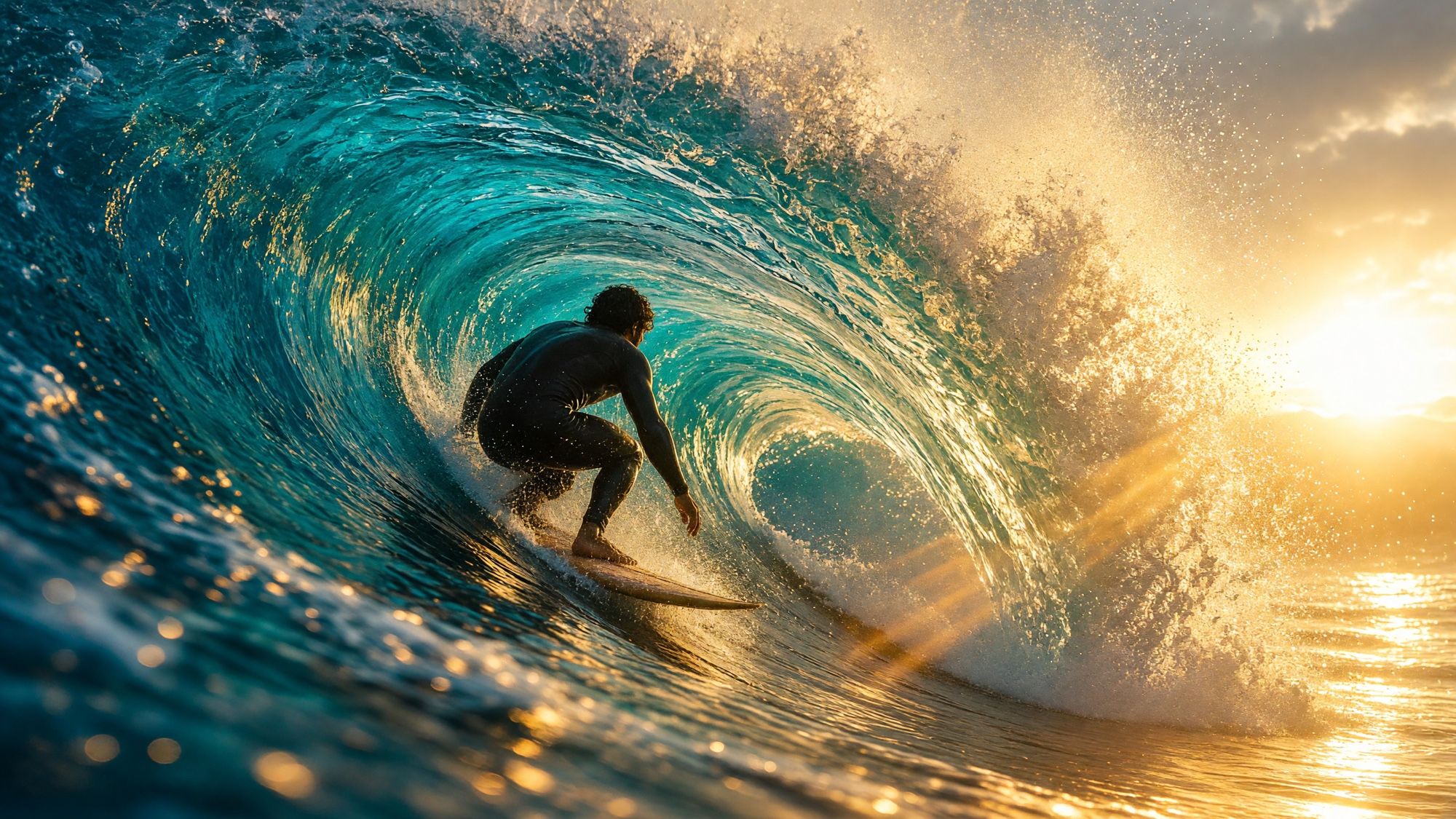
People search for Grok video for two reasons: does Grok make videos at all, and how do you get a decent result. The first answer is yes — in 2026 it’s one of the strongest video models around. We went through the xAI docs, made four clips with Grok Video 1.5 itself and put together which modes exist, how to write prompts, where the limits are and why generation sometimes fails. For an overview of both Grok models, see Grok Imagine.
What is Grok video
Grok video is clip generation in Grok Imagine, the visual side of xAI’s Grok chatbot. Clips come out with sound already in place: effects, ambience and speech. It runs on grok.com/imagine, in the Grok apps for iOS and Android and through the xAI API.
Three models cover the different modes:
| Video 1.5 | Video 1.5 Lite | grok-imagine-video | |
|---|---|---|---|
| Modes | text, photo, references, first and last frame, keyframes | text, photo | text, photo, video editing, extension |
| Resolution | native 1080p, up to 720p with references | 1080p upscaled from 720p | up to 720p |
| Duration | 1–15 s | 1–15 s | 1–15 s, up to 10 s with references |
| Audio | yes, with lip sync | yes, with lip sync | yes |
| xAI API price | $0.08 per second | $0.02 per second at 480p, $0.03 at 720p | $0.05 per second |
xAI released Video 1.5 on June 16, 2026 and calls it its best model for motion and physics: fewer warps, more believable weight and momentum, cleaner speech that matches the lips more closely. The apps run the faster Video 1.5 Fast: a 6-second 720p clip in about 25 seconds, versus over 40 for the previous model. On July 31, 2026 xAI added references, character voices, text-to-video and native 1080p.
Video 1.5 Lite has the lowest price per second. xAI recommends it for simple videos.
How to make a video in Grok, step by step
- Pick a mode. Text — when you don’t have a frame yet. Photo — when a specific look, product or composition matters. References — for a series of clips with the same character.
- Set the aspect ratio. Options are 1:1, 16:9, 9:16, 4:3, 3:4, 3:2, 2:3, 21:9 and 5:2. For image-to-video the ratio comes from the photo and your choice is ignored.
- Choose the duration. From 1 to 15 seconds, 8 by default. For a first try, 6–8 seconds is enough: it fits one action, and a failed generation costs less.
- Choose the resolution. 480p for drafts, 720p for social media, 1080p for final cuts. The API defaults to 480p.
- Write the prompt using the formula below: scene → action → camera → light → sound.
- Run it and review. If it misses, change one thing at a time: the action, the camera or the sound.
Grok text-to-video
In text-to-video, Video 1.5 works in two steps: it first draws a starting frame from your description, then animates it. It’s still one request, and the model doesn’t return the intermediate image. Hence the main tip: describe the first frame in detail — the place, the light, who stands where. The whole clip depends on that frame.
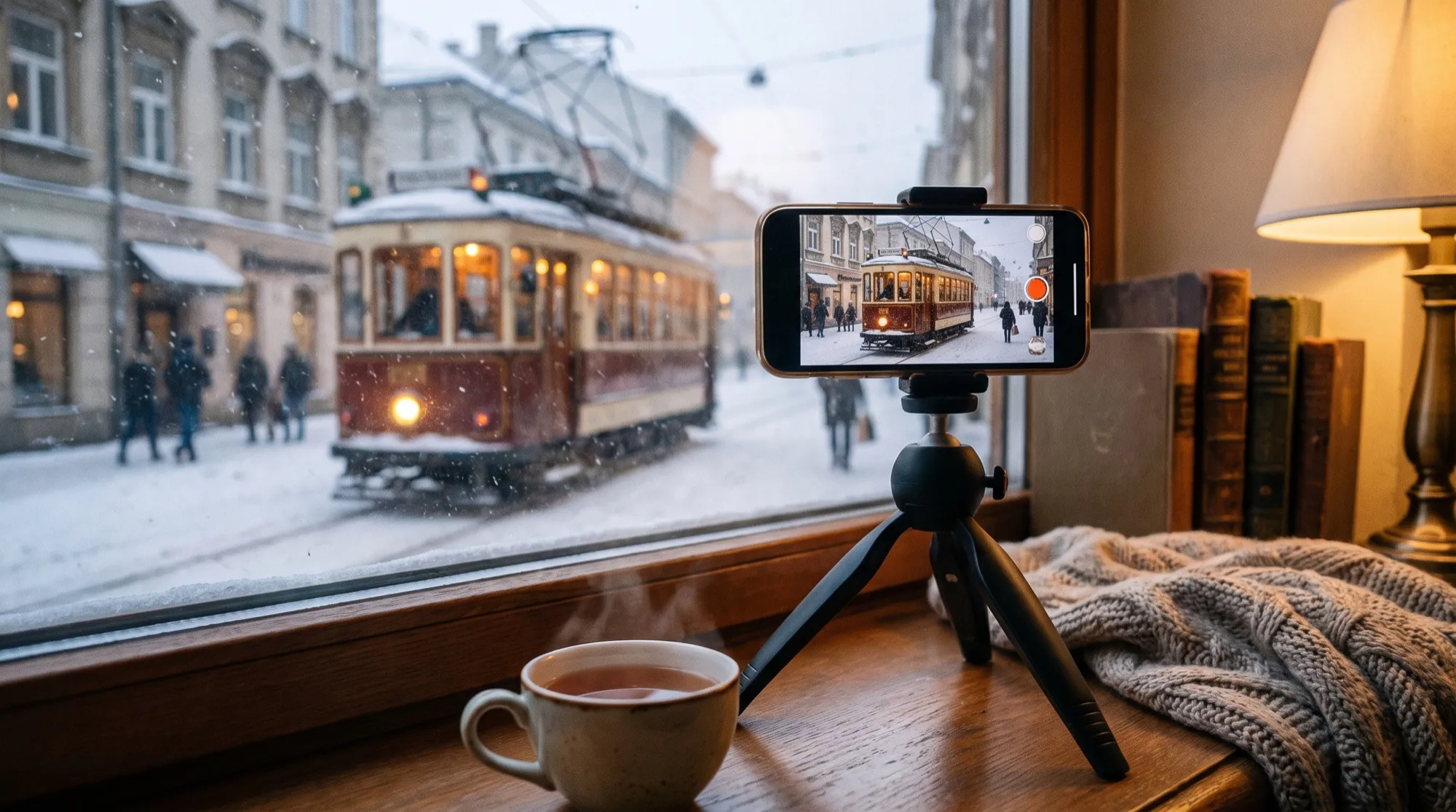
The prompt for this clip:
A vintage red tram rolls slowly through a narrow cobblestone street at night in the rain,
neon shop lights reflecting in the puddles. The camera starts low near the wet stones and
slowly pushes in as a passer-by in a dark coat opens a yellow umbrella and steps aside.
Realistic motion, cinematic lighting.
Sound: steady rain, the tram bell ringing twice, wheels on rails, distant traffic.
No readable text on signs.
Grok image to video
Image-to-video is the most predictable mode. The photo already sets the look, clothing, background and light, so the model only has to add motion. In Video 1.5 the prompt is even optional, but without it the model decides on its own what should move.
How to get a good result:
- Describe only what changes. Don’t retell the photo: write “the fox turns its head, yawns and trots off to the right”, not “a red fox sits in a winter forest”.
- Separate subject motion from camera motion in different sentences.
- Don’t ask the frame for the impossible. If the photo shows someone from the waist up, “walks toward the camera, full body” forces the model to invent the legs.
- You can generate the starting photo. The first frame of our clip was made in Grok Image 2.0 — more in our Grok Image guide.
The same approach works for old photos and portraits — more ideas in our guide on how to animate a photo with AI.
References, keyframes and voice
Video 1.5 does far more than animate a photo, and few competitors offer all of this in one model.
- Image references. Up to 7 at launch on July 31, 2026; the API docs now list up to 14. Each one locks a character, scene, product or location. This mode runs at 720p.
- Voice. Up to 3 speakers can each get a voice from an audio reference, so a character’s face and voice carry across scenes. As of July 2026, voice references in the API were available on request.
- First and last frame. The model interpolates motion between two images.
- Keyframes. Up to 4 images pinned at set moments inside the clip, on a one-third-second grid. That lets you lay out a story with several states.
Speech. Video 1.5 and Lite generate speech with lip sync. Say who’s speaking and put the exact line in quotes, with other sounds on a separate line. A short line over 6–8 seconds sounds more natural than a long monologue.
More on clips with speech — in our talking photo guide.
Grok video prompts
The formula that works: scene → one main action → camera → light and mood → sound. Write in English for complex scenes and camera moves. Put character dialogue in quotes, in whatever language it should be spoken.
Camera — in its own sentence:
| What you want | How to write it |
|---|---|
| Slow move closer | slow push-in |
| Camera follows the subject | the camera follows / tracking shot |
| Circle around an object | slow orbit around |
| Rise above the scene | crane up, rising shot |
| Still frame | static camera, locked-off shot |
| Slow motion at the right moment | slow motion at the peak of the jump |
Six prompts for typical jobs:
Product video for a listing or ad:
A glass perfume bottle on a dark wet stone surface, thin mist drifting around it,
soft highlights moving across the glass. The camera slowly orbits the bottle.
Sound: a deep ambient tone, a single water drop.
Animated portrait:
The man slowly looks up from the book into the camera and gives a slight warm smile.
Static camera, his face and clothes stay unchanged.
Sound: quiet room tone, a page turning.
Action scene:
A mountain biker speeds down a forest trail and jumps over a fallen log. The camera
tracks alongside, slow motion at the peak of the jump, then back to normal speed as he lands.
Sound: tires on gravel, wind, a hard landing.
Atmospheric landscape:
A misty mountain lake at sunrise, clouds slowly rolling over the peaks, a lone canoe
gliding across the still water. Crane up, rising shot.
Sound: birds, gentle water ripples.
Food for social media (9:16):
Vertical close-up: honey slowly pours onto a stack of fluffy pancakes, a blueberry rolls
off the top. Static camera, warm morning light, shallow depth of field.
Sound: a soft drip, quiet kitchen ambience.
A character’s line:
Medium close-up of a young woman in a yellow raincoat at a bus stop in the rain.
She turns to the camera and says: "Looks like summer is over."
Sound: her voice, heavy rain on the roof, a passing car.
More templates for video and images — in our collection of image prompts.
Editing and extending a finished video
In the xAI API, editing and extension run on the base grok-imagine-video model, not on Video 1.5.
- Video editing — you describe the change in text, and the model reworks the clip while keeping the rest of the scene. Length and aspect ratio match the source, length is capped at 8.7 seconds and resolution at 720p: a 1080p clip gets downsized.
- Extension — the model continues the clip from its last frame and joins the original and the continuation into one file. That’s how you build scenes longer than 15 seconds.
Tip: don’t extend more than two or three times in a row. Each step builds on an already generated frame, so small errors pile up. A long video is more reliable when you cut it together from several short clips in an editor.
Why Grok won’t make a video, or makes the wrong one
- You’ve hit the limit. In the app, generation pauses until the weekly pool resets; 720p drops to 480p first.
- Moderation. Prompts or photos that break xAI’s rules get rejected without generating.
- Too many events. Five actions in 8 seconds get squeezed or half of them skipped. One main action per clip.
- Contradictions. “Static camera” and “orbit” in one prompt, or a prompt that fights the photo: daytime in the picture, night in the text.
- Too many moving objects. A crowd where everyone does something is a common source of distortion.
- Long speech. A 15-second monologue lip-syncs worse than a short line.
Grok video for free, and the limits
You can try Grok for free on the web and in the apps. xAI doesn’t publish how many Imagine clips you get without a subscription, and new features — like references and voice in July 2026 — roll out to SuperGrok Heavy and Plus subscribers first.
How the limits work, per xAI’s help pages:
- One weekly pool. Since June 2026, paid plans no longer get separate limits for chat and Imagine, but a single weekly pool for all products. A high-quality video uses it far faster than a chat message.
- 720p → 480p. Once you hit your tier’s 720p cap, videos are automatically generated at 480p.
- 1080p — on the SuperGrok Plus plan.
- Top-ups. Extra Usage Credits are sold only on the web, from $5; they cost more than generations within your plan and expire after a year.
- Watermark. Images and videos from the Grok apps carry a watermark that can’t be turned off.
Grok video vs other AI video models
| Grok Video 1.5 | Gemini Omni | Seedance 2.5 | Kling | |
|---|---|---|---|---|
| Arena rank (Sep 21, 2026) | 4 (agent mode) | 1–2 | 7 | 29 (2.6 Pro) |
| Audio and speech | yes, lip sync | yes | yes | yes |
| Resolution | up to 1080p | up to 4K | not disclosed | 720p, 1080p |
| References | up to 14 images, 3 voices | images and video | up to 50 | up to 7 images |
Grok Video 1.5 sits in the top five, and with references, voice, keyframes and extension it’s one of the most flexible models available. Gemini Omni leads on quality and resolution, while Seedance accepts more references. For an overview of all models, see our article on AI video generators.
Grok video in AI2Face
SuperGrok is a separate subscription with a weekly cap. In AI2Face, Grok Imagine is available right in the generator:
- no SuperGrok subscription — sign in with email or Google;
- pay by card, crypto or another convenient method — the cost of each generation is shown before you run it;
- credits don’t expire — besides a subscription you can buy a credit pack, and the balance carries over to the next month;
- every video model in one subscription — Grok, Veo 3.1, Gemini Omni, Seedance and Kling: better value than separate subscriptions, and easy to compare clips on the same prompt;
- welcome credits after sign-up — enough for your first clips.
Bottom line
Use Grok video when you need a clip with sound and lively physics: sports, animals, action, product shots with an orbiting camera. For a series with one character, Video 1.5 beats most competitors thanks to face and voice references, and the cheap Lite model is enough for drafts and simple scenes. Start with image-to-video — it’s the most predictable mode. One action per 6–8 seconds, camera and sound on separate lines. If top quality and 4K matter more, compare the same prompt in Gemini Omni — in AI2Face you can do that in one window.
FAQ
Can Grok make videos?
Yes. Grok's video generation is called Grok Imagine: it makes clips from 1 to 15 seconds long with sound, from a text description, a photo or references. It runs on grok.com/imagine, in the iOS and Android apps and through the xAI API.
How do I turn a photo into a video in Grok?
Upload the photo as the starting frame and describe the motion, camera and sound. The model takes the aspect ratio from the photo and keeps the composition and the subject's look. In Video 1.5 the text prompt is optional for image-to-video, but results are more predictable with one.
Can I make Grok videos for free?
You can try Grok for free, but xAI doesn't publish how many Imagine videos you get without a subscription. Since June 2026 paid plans share one weekly usage pool across all Grok products. AI2Face gives welcome credits after sign-up.
What is the Grok video limit?
There's no fixed number of clips: video draws on your plan's shared weekly pool, and a high-quality video uses it far faster than chat. Once you hit your tier's 720p cap, Grok automatically falls back to 480p.
How long can Grok videos be?
From 1 to 15 seconds, 8 by default. Reference-to-video on the base model goes up to 10 seconds, and an edited clip keeps the original length, capped at 8.7 seconds. For longer scenes, extend from the last frame.
Do Grok videos have a watermark?
Yes. In the Grok apps, generated images and videos carry a Grok watermark, and there's no setting to turn it off.
Sources
8
- https://docs.x.ai/developers/model-capabilities/video/generation
- https://docs.x.ai/developers/model-capabilities/imagine
- https://docs.x.ai/developers/models
- https://docs.x.ai/developers/models/grok-imagine-video-1.5-lite
- https://x.ai/news/grok-imagine-video-1-5
- https://x.ai/news/grok-imagine-video-1-5-references
- https://docs.x.ai/grok/faq
- https://arena.ai/leaderboard/text-to-video