









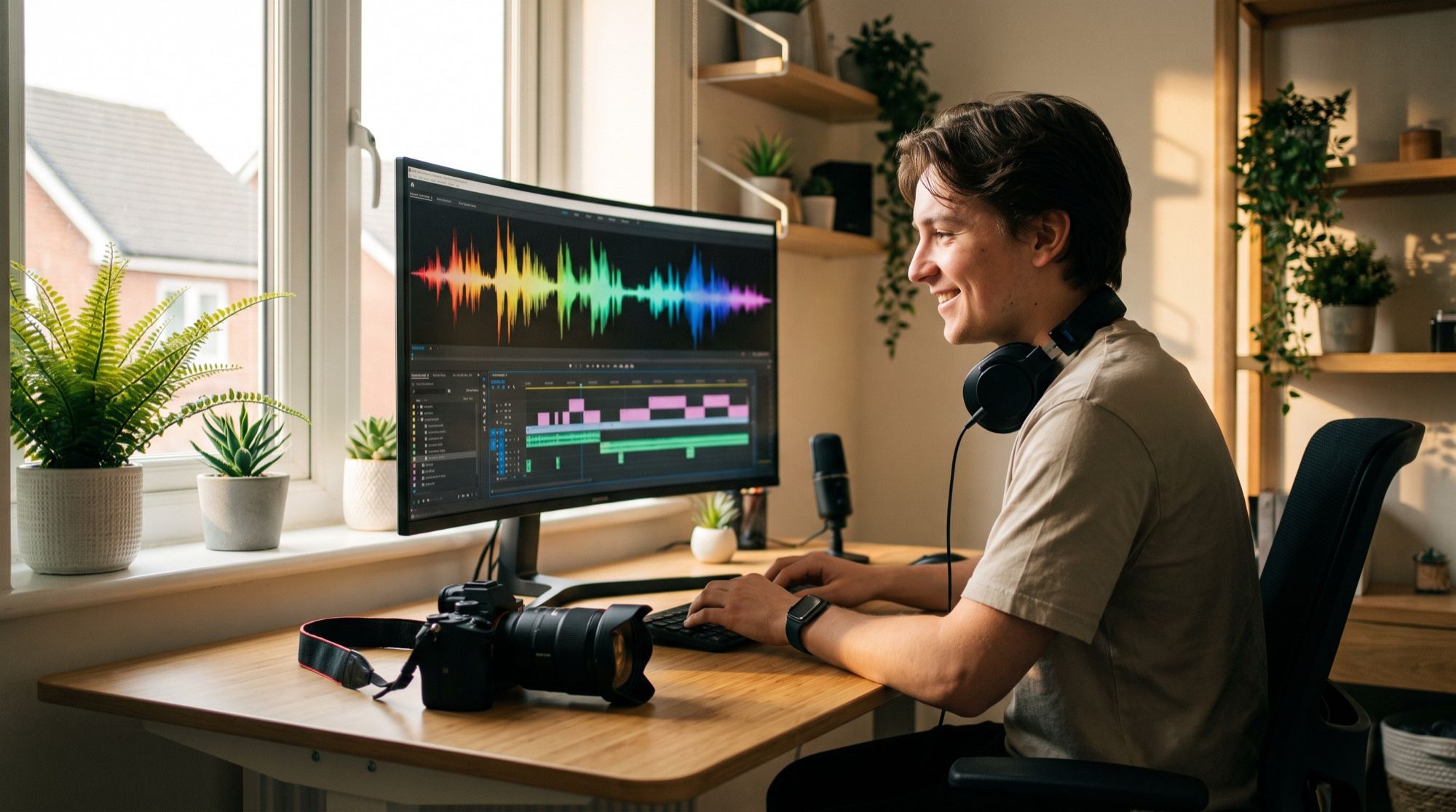
Royalty-free music with AI isn’t a track from a library that thousands of creators share — it’s your own instrumental: it won’t match anyone else’s records in Content ID and won’t earn a strike. We made two background tracks in AI2Face on Google Lyria 3 — for a travel vlog and for a stream — you can play both below, and the article explains what “royalty-free” actually means.
What “royalty-free music” means
“Royalty-free” doesn’t mean “nobody’s.” Every track has an author; the difference is that the license lets you use the music in video, ads and streams without paying a separate fee per play. Three things matter:
- Royalty-free ≠ free. Sometimes the track is paid, but after you buy it no royalties are charged per view.
- Being one of a kind beats the label. A ready-made “no-copyright” tune from a popular pack may be registered in Content ID — and your video gets a claim even though the music is “free.”
- The service decides the rights. For a generator that’s the platform’s terms and your plan.
Your own generated track covers all three: it’s yours and plays nowhere else, the rights are yours (per the service terms), and it isn’t listed in anyone else’s databases.
A library or your own music
| Ready-made library | Your own AI track | |
|---|---|---|
| Repetition | One track across thousands of creators | Yours only, plays nowhere else |
| Content ID risk | Real: someone may have registered it | Minimal |
| Fit to runtime | Trim it in editing | Set length and tempo upfront |
| Spot-on mood | Search a catalog | Describe it in words |
| Speed | Download | Make it in a minute |
A library is handy when you need something fast and don’t mind a generic sound. Generation wins when you need music that doesn’t repeat and sits “under the frame”: your own track won’t clash with the claims system and underlines your channel’s style.
How to make your own track: step by step
- Turn on “Instrumental.” A bed needs sound without words — the request gets “instrumental only, no vocals.”
- Describe the scene, not just the genre. “Calm background for a travel video” is more precise than “calm music”: the model gets the mood.
- Set the tempo in BPM. At 120 BPM, cuts every 2 seconds land on the beat — that helps in editing.
- Pick the length. Lyria 3 Clip makes 30 seconds — easy to loop; Lyria 3 Pro goes up to 3 minutes with timing for the intro and the climax.
- Generate and re-run if you like: each run gives a new melody, so you can pick the best.
- Download the MP3 and drop it into your edit.
In AI2Face this is the “Music” tab in the generator: the “With vocals / Instrumental” switch removes the voice, and genre buttons extend the description. A detailed walkthrough with screenshots is in the guide Music in AI2Face.
Background music for video and YouTube
For a vlog, a review or an ad, describe the tempo and the mood of the scene. We asked for a bright bed for a travel vlog:
Bright indie folk for a travel vlog: acoustic guitar, light percussion,
warm strings, handclaps, 110 BPM, upbeat and summery. Instrumental only,
no vocals.
The track is even in volume — a narrator’s voice sits on top without getting buried. For a clip longer than 30 seconds, use Lyria 3 Pro: you can say which second the drums come in.
Music for streaming
A stream needs a bed that doesn’t distract and loops easily for hours of broadcast. Describe a calm, even sound:
Calm lo-fi chillhop for a stream background: mellow electric piano,
boom-bap beat, deep bass, soft vinyl crackle, 90 BPM, relaxed focus.
Instrumental only, no vocals.
A 30-second track like this is easy to loop in OBS or a player. Make 2–3 versions for different scenes — the intro, gameplay, chatting with the chat — and switch them during the broadcast.
Fit to runtime and editing
The main advantage of generation is music built for a specific clip, not the other way around.
- Short clips and reels — Clip at 30 seconds, easy to loop or trim to the frame.
- A trailer or a long video — Pro: describe the structure, “intro 8 seconds, climax at the 40th.”
- Tempo for cuts — set the BPM and cut on the beat: at 120 BPM, transitions every 2 seconds hit the rhythm.
- A loop for a bed — take an even track with no pronounced ending, so the seam isn’t heard on repeat.
Will the video get blocked: Content ID and SynthID
YouTube checks uploaded audio against the Content ID database — the system rights holders use to find their music in other people’s videos. Your own one-of-a-kind track isn’t in that database, so there shouldn’t be an automatic claim against it. The risk comes with ready-made packs: the same “free” track may have been registered by someone else.
Lyria tracks carry an inaudible SynthID watermark that platforms can use to tell the music was AI-made. It doesn’t affect monetization or Content ID: SynthID marks the origin, not the owner.
Rights and licensing
The service where you made the track and your plan decide the rights. Before publishing in a monetized video or an ad:
- read the service terms — they state who owns the track and whether you can use it commercially;
- check whether a paid plan is needed: many platforms grant commercial rights only on paid plans;
- don’t ask for “in the style of” a specific artist and don’t paste someone else’s melodies — the model rejects such requests.
Common problems and how to fix them
| Problem | Why | What to do |
|---|---|---|
| Vocals leak into the track | “Instrumental” mode is off | Turn on “Instrumental” and drop voice mentions from the description |
| The music overpowers the narrator | The arrangement is too dense | Ask for “a minimal bed, quiet, no sharp peaks” |
| The track doesn’t loop cleanly | A bright ending at the end | Ask for an even sound with no final chord |
| The mood is off | You described a genre, not a scene | Describe the scene: “calm background for a travel video” |
| You need an exact length | Clip is always 30 seconds | For another length, use Lyria 3 Pro and specify the structure |
Takeaways
Royalty-free music with AI solves creators’ main problem — repetition: your own track won’t trigger someone else’s Content ID and will underline your channel’s style. For a reel and a stream bed, Lyria 3 Clip at 30 seconds is enough; for a long clip with timing, Pro goes up to 3 minutes. Describe the scene rather than the genre, set the BPM for your edit — and check the service terms before monetizing. How to build a clip around a finished track is shown in the article AI music video, and the full music walkthrough is in the hub make a song with AI.
FAQ
Where do I get royalty-free music for video?
Two ways: download from a free library (YouTube Audio Library, free stocks) or generate your own track with AI. Your own music is one of a kind and won't trigger someone else's Content ID, so for monetization it's safer than popular packs used by thousands of creators.
Can I use AI music on YouTube?
Yes, if the service's terms grant you the rights to the track. Your own generated instrumental doesn't infringe anyone's copyright. Check the service license: commercial rights can differ between free and paid plans.
Will my video get blocked for AI music?
A one-of-a-kind track you made won't match records in Content ID, so there shouldn't be automatic claims against it. The risk is with ready-made "no-copyright" packs: someone else may have registered them. That's why your own track is safer.
Who owns the rights to AI music?
The service where you made the track and your plan decide that. Many platforms grant commercial rights only on paid plans. Before publishing, read the terms — they state whether you can use the track in a monetized video and in ads.
How do I make background music for a stream?
Turn on "Instrumental," describe the scene and mood — "calm chillhop for a stream background, 90 BPM" — and generate the track. A short track is easy to loop for the whole broadcast. Our stream example is on this page.
Sources
5
- https://blog.google/innovation-and-ai/technology/ai/lyria-3-pro/
- https://aistudio.google.com/docs/music-generation
- https://aistudio.google.com/docs/lyria-prompt-guide
- https://support.google.com/youtube/answer/2797370
- https://deepmind.google/science/synthid/